


Tutorial: MacBook Air 13″ A1466 2013-2017 SSD Replacement
💾 Is your MacBook Air 13″ A1466 running slowly, short of storage or refusing to start up? This step-by-step tutorial shows you how to replace the SSD easily to boost performance or restore your system.
Compatible with A1466 models from 2013, 2014, 2015 and 2017, this illustrated guide lets you fit a new SSD with ease, using the right tools and with no technical know-how required.
🚀 Give your MacBook Air 13″ a new lease of life — gain speed, storage space and reliability, all while avoiding workshop repair fees.
Compatible models:
MacBook Air 13″ A1466 Mid 2013
MacBook Air 13″ A1466 Early 2014
MacBook Air 13″ A1466 Early 2015
MacBook Air 13″ A1466 2017
Step-by-step guide
-
Step 1 of 9 1. Switch off the MacBook
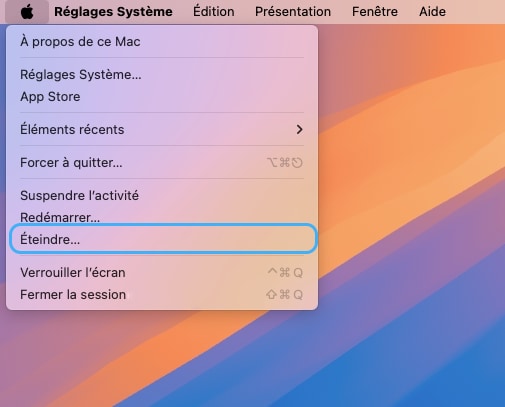
Switch off your MacBook Air and unplug the power supply
🚨 Never carry out any disassembly on a MacBook that is switched on
-
Step 2 of 9 2. Unscrew the bottom case
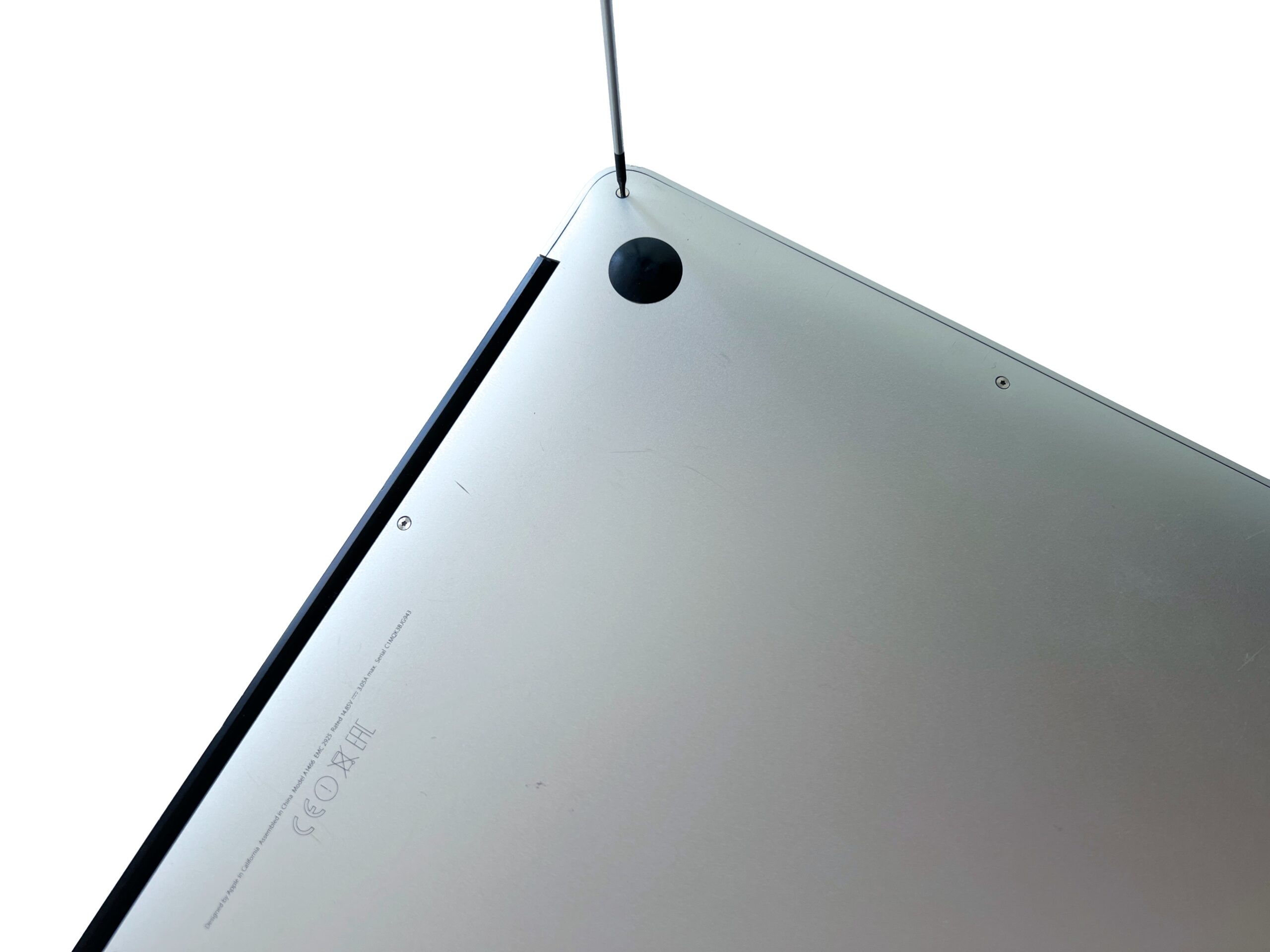
Remove the 10 external MacBook Air screws holding the bottom cover in place using a P5 pentalobe screwdriver
-
Step 3 of 9 3. Remove the bottom case
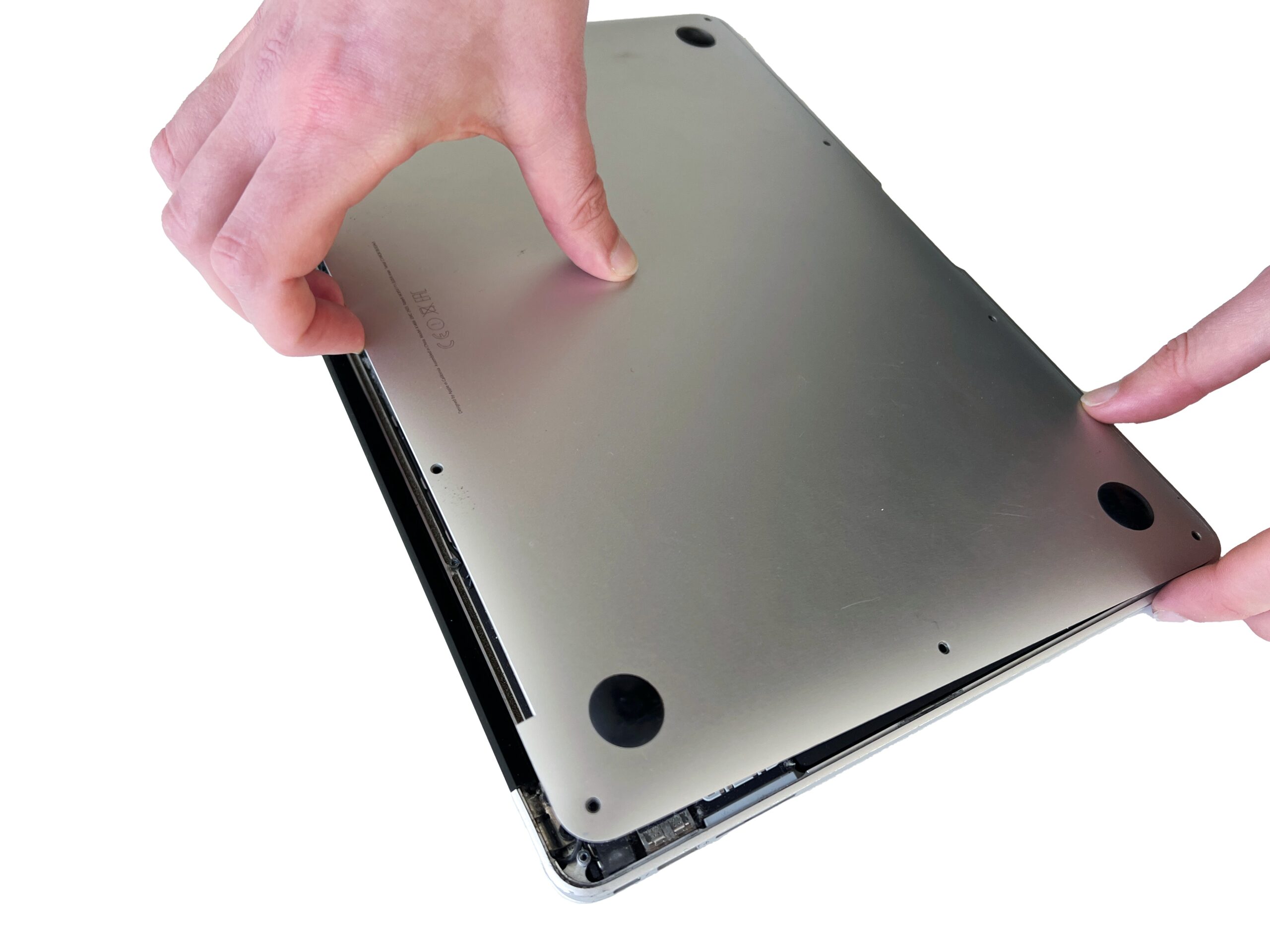
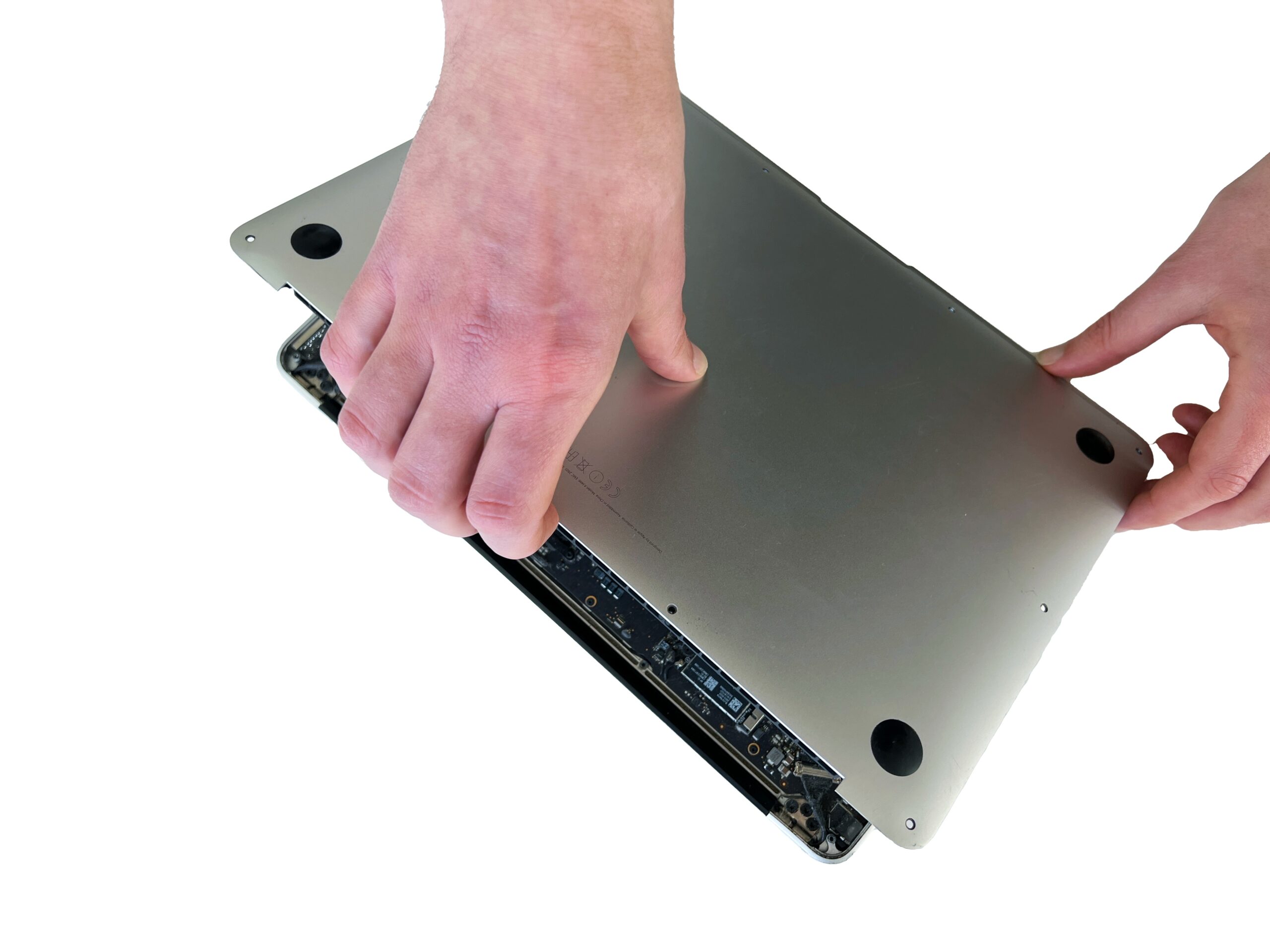
Gently lift the bottom case from the top edge to remove it from the Mac.
💡 If the cover won't lift, you have probably missed a screw!
-
Step 4 of 9 4. Disconnect the battery
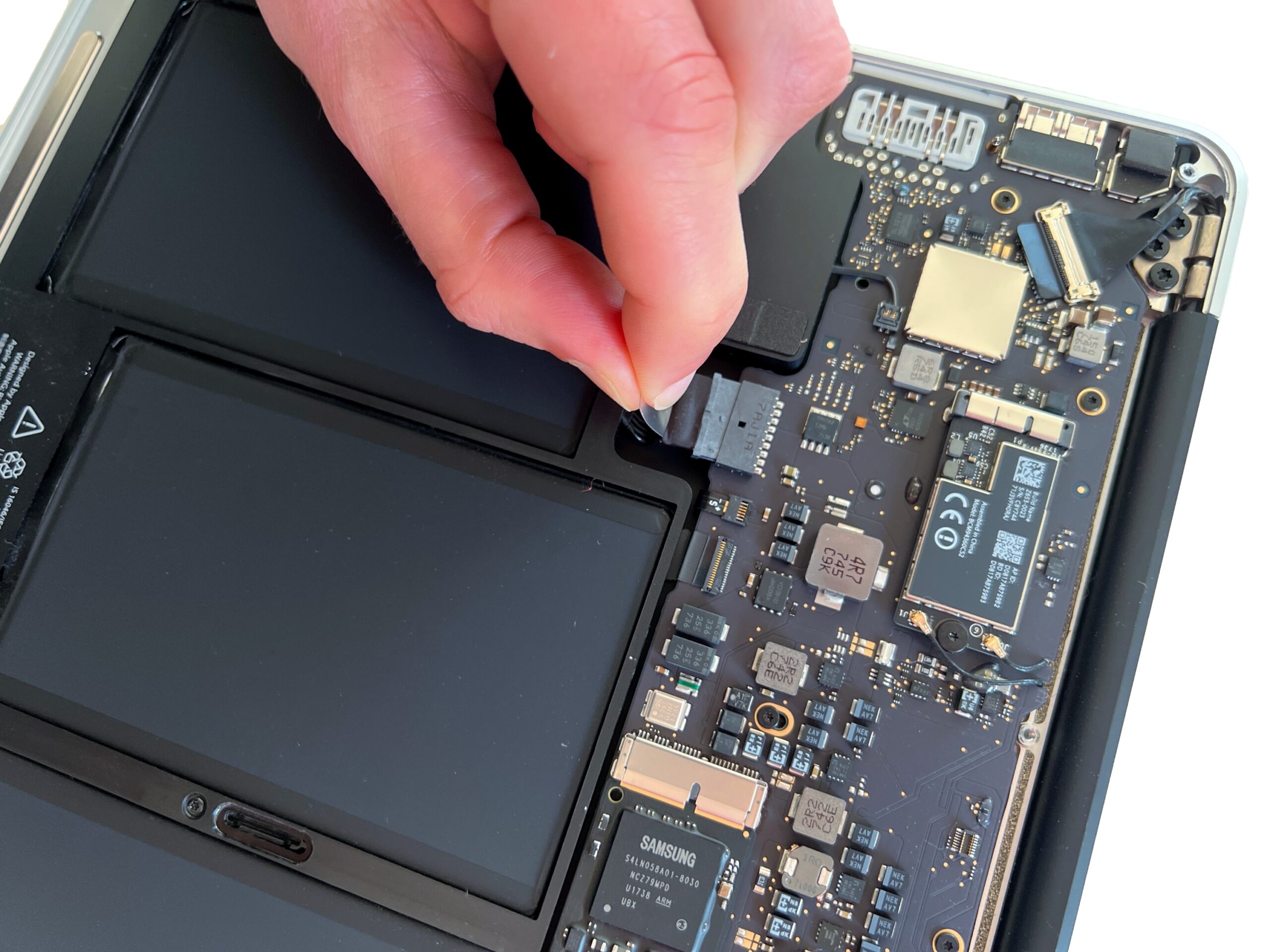
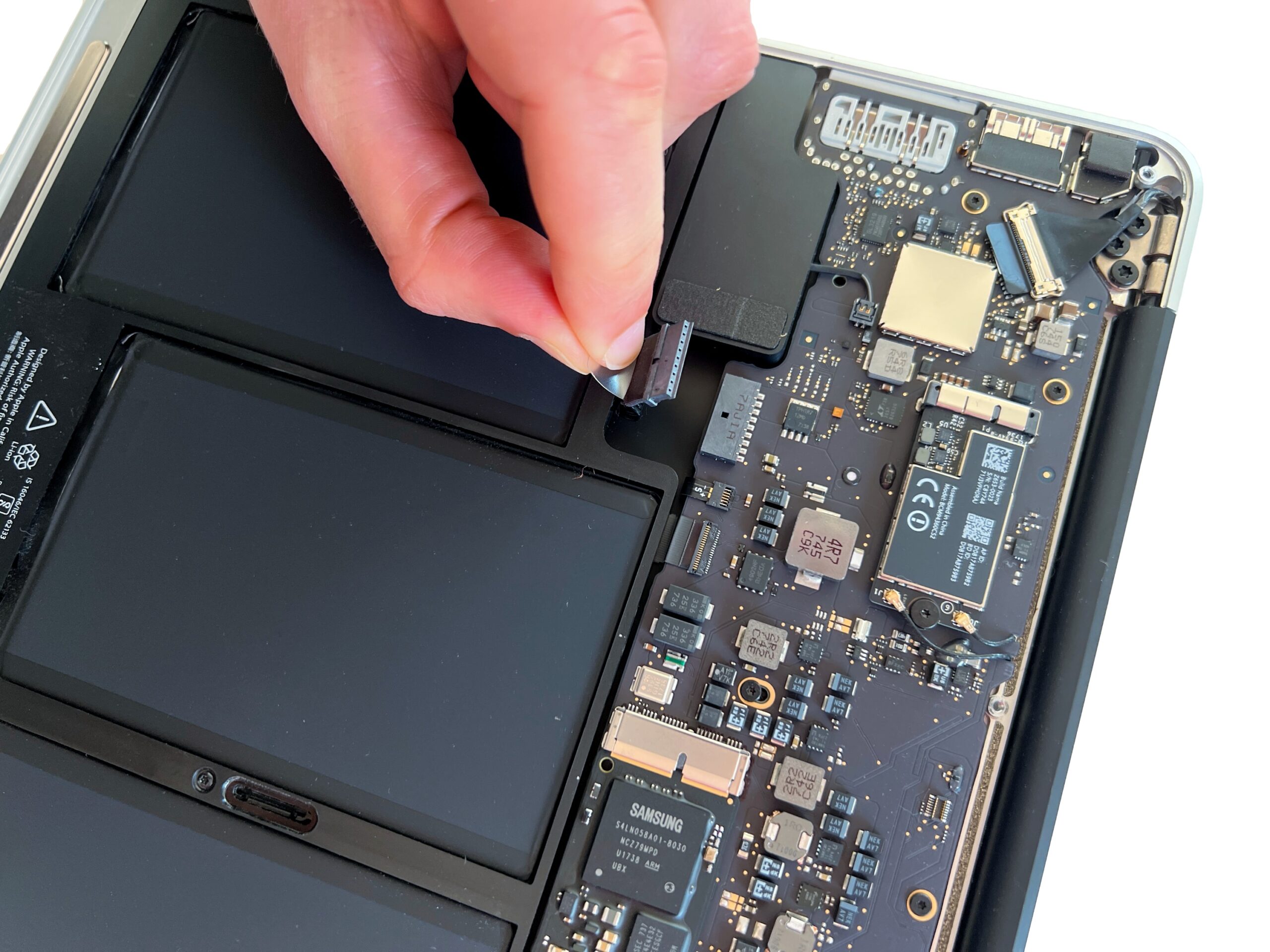
Pull the plastic tab to gently remove the battery connector.
🚨 Always start with this step before touching any other components inside the Mac
-
Step 5 of 9 5. Unscrew the battery
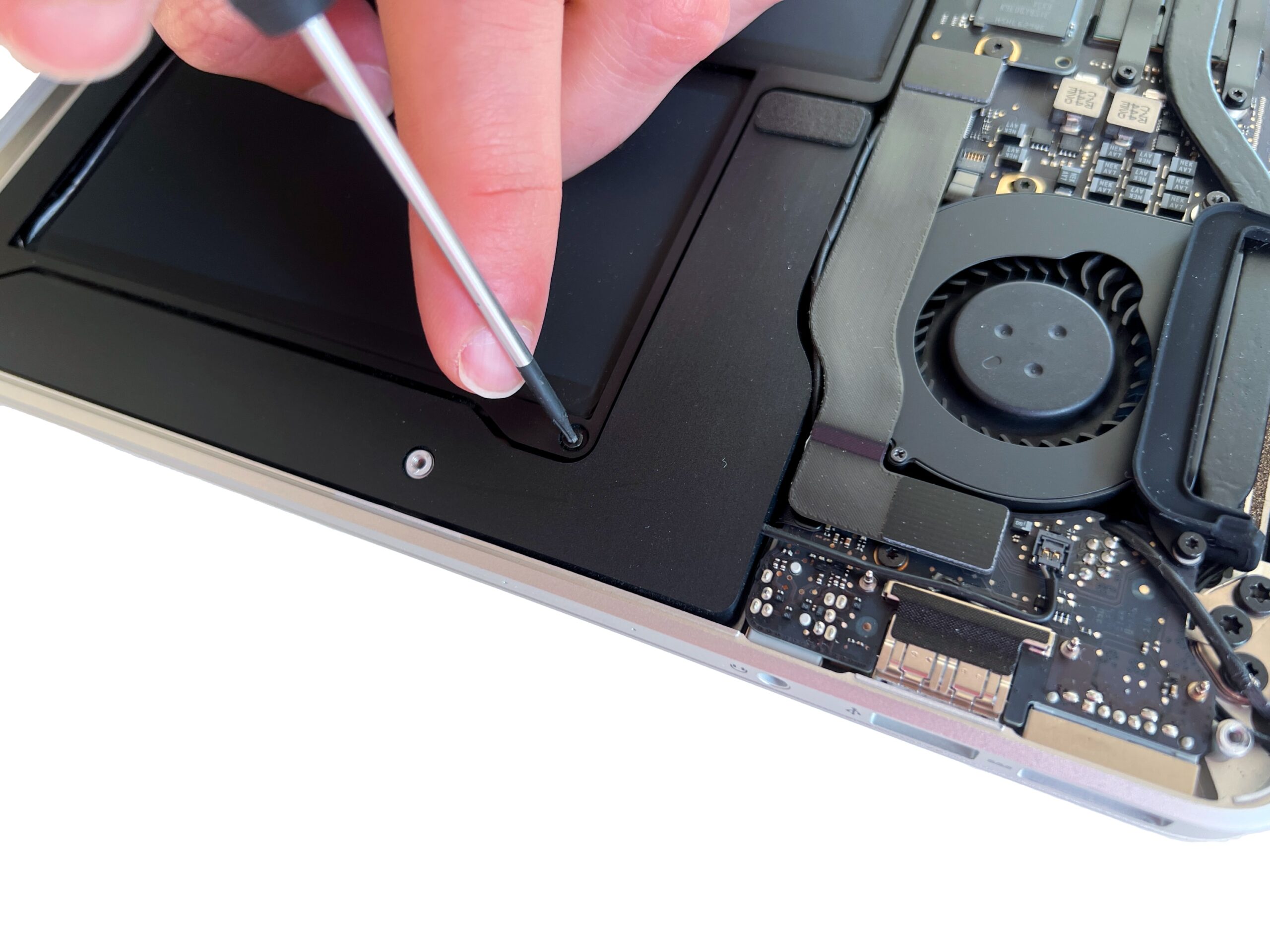
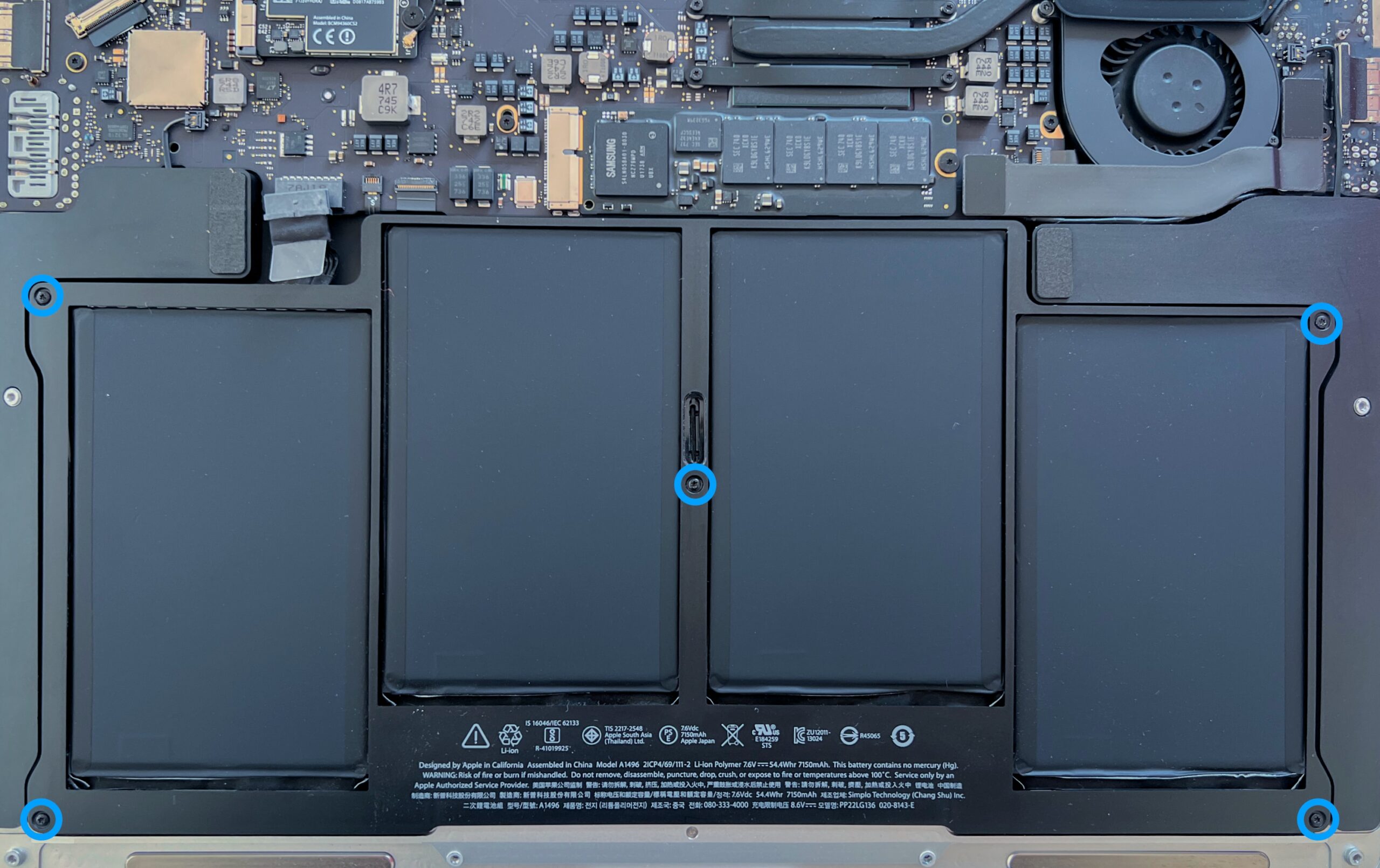
Undo the 5 Torx T5 screws holding the MacBook Air battery in place
If a screw is missing, you can find it in the complete screw kit for this model.
-
Step 6 of 9 6. Remove the battery
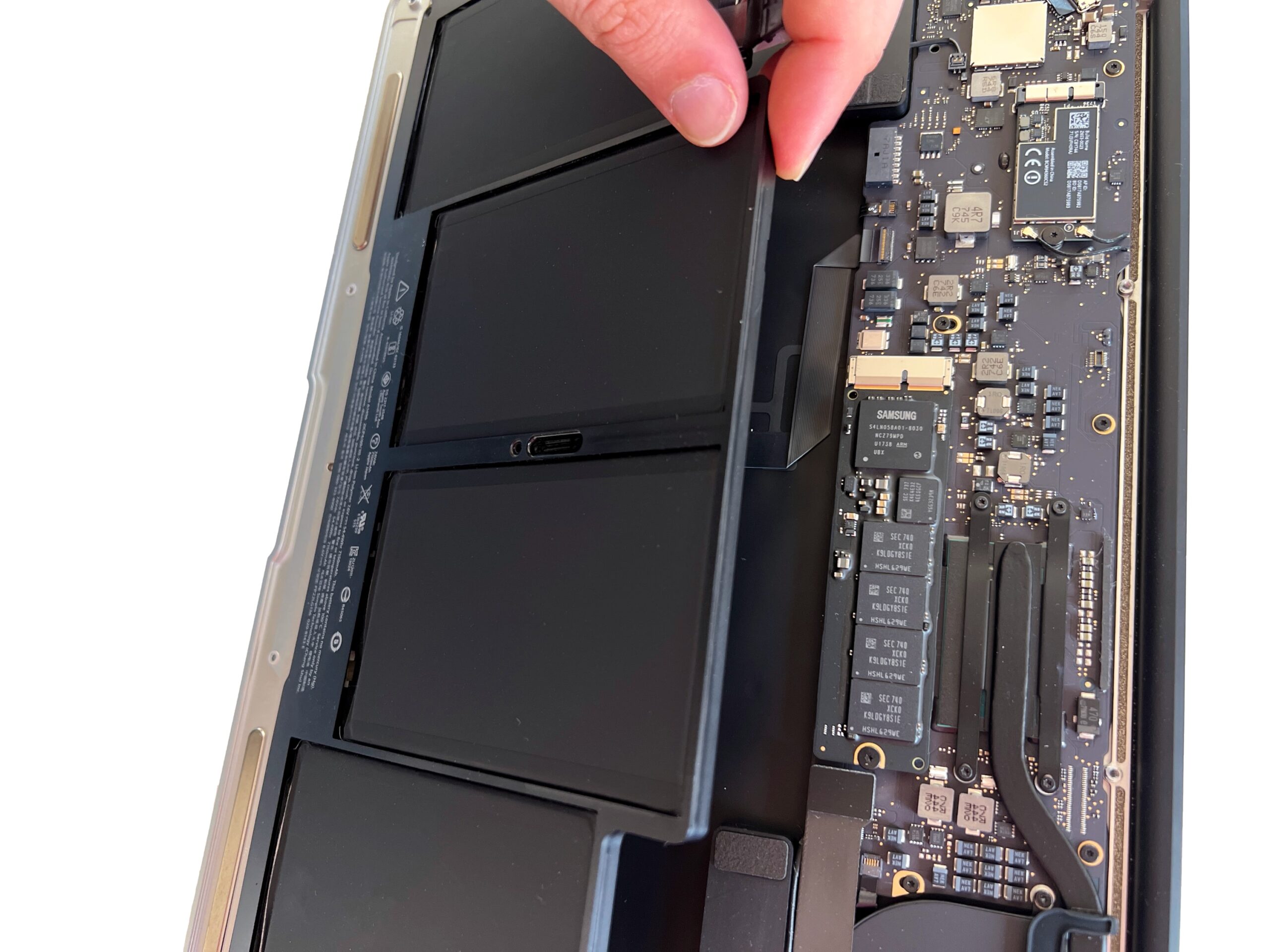
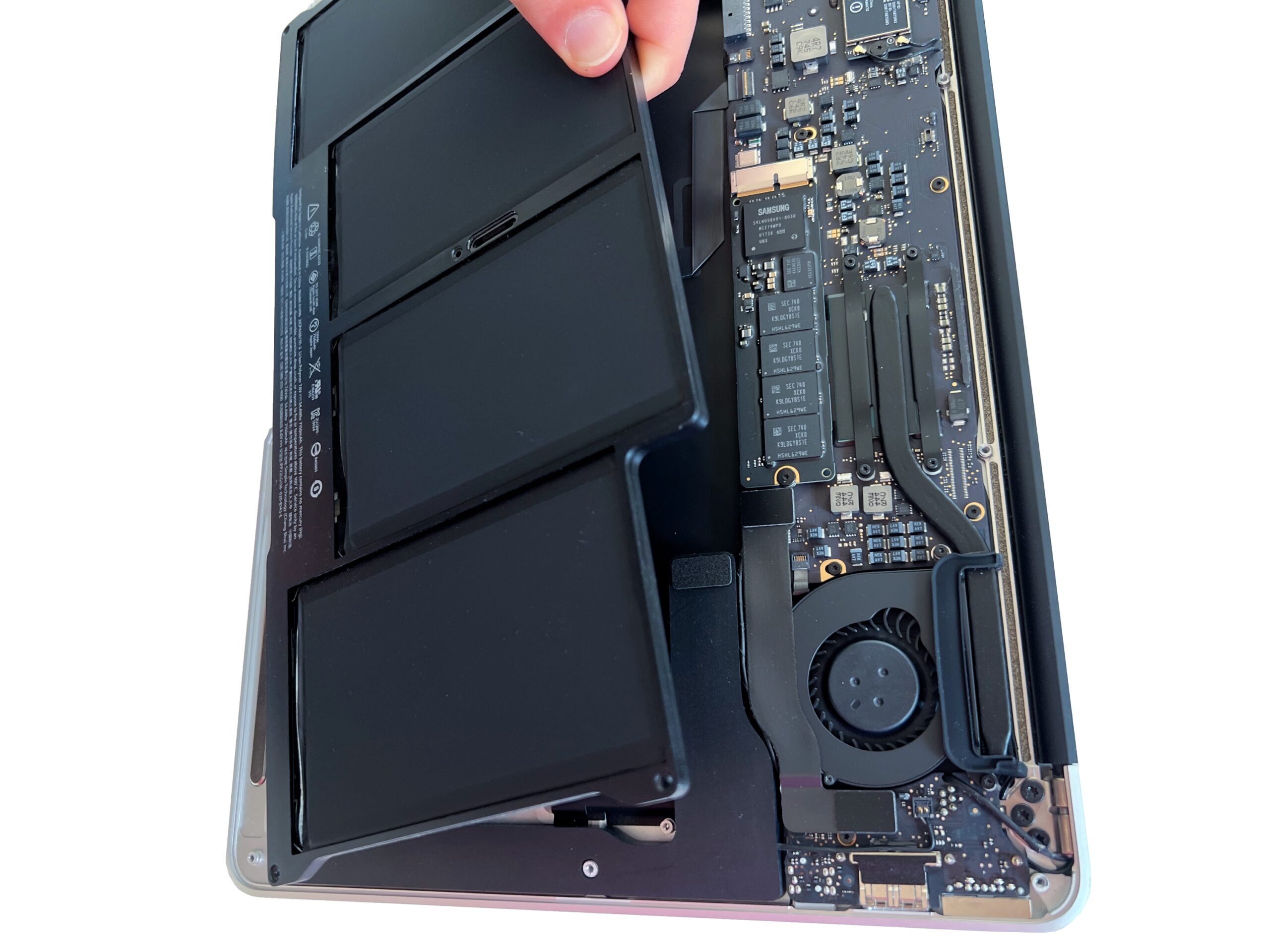
Gently lift the battery to remove it.
The battery should come away easily, without any resistance -
Step 7 of 9 9. Unscrew the SSD
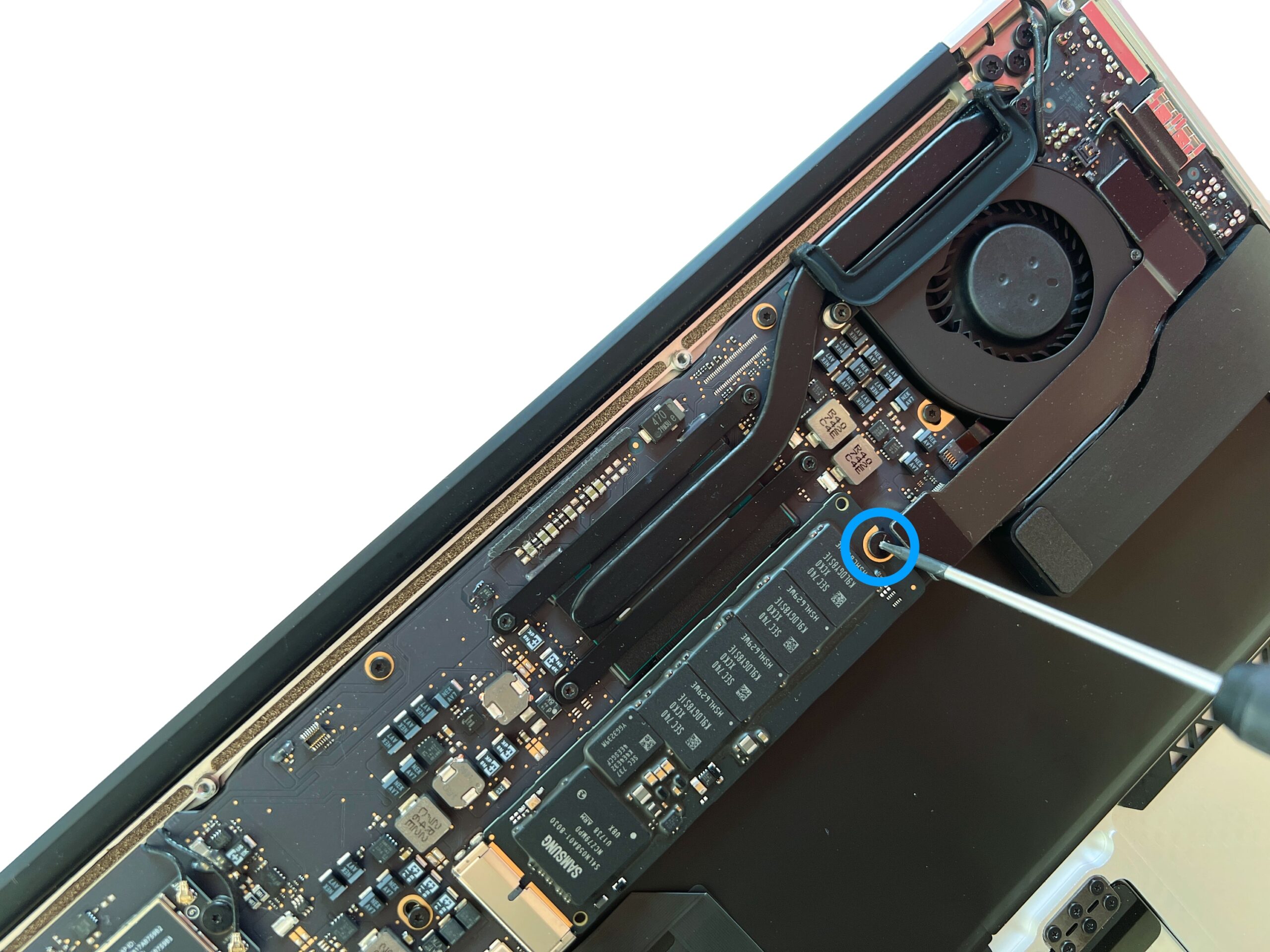
Use a Torx T5 screwdriver to unscrew the SSD.
If you have lost this screw, you can find it in the complete screw kit
-
Step 8 of 9 10. Remove the SSD
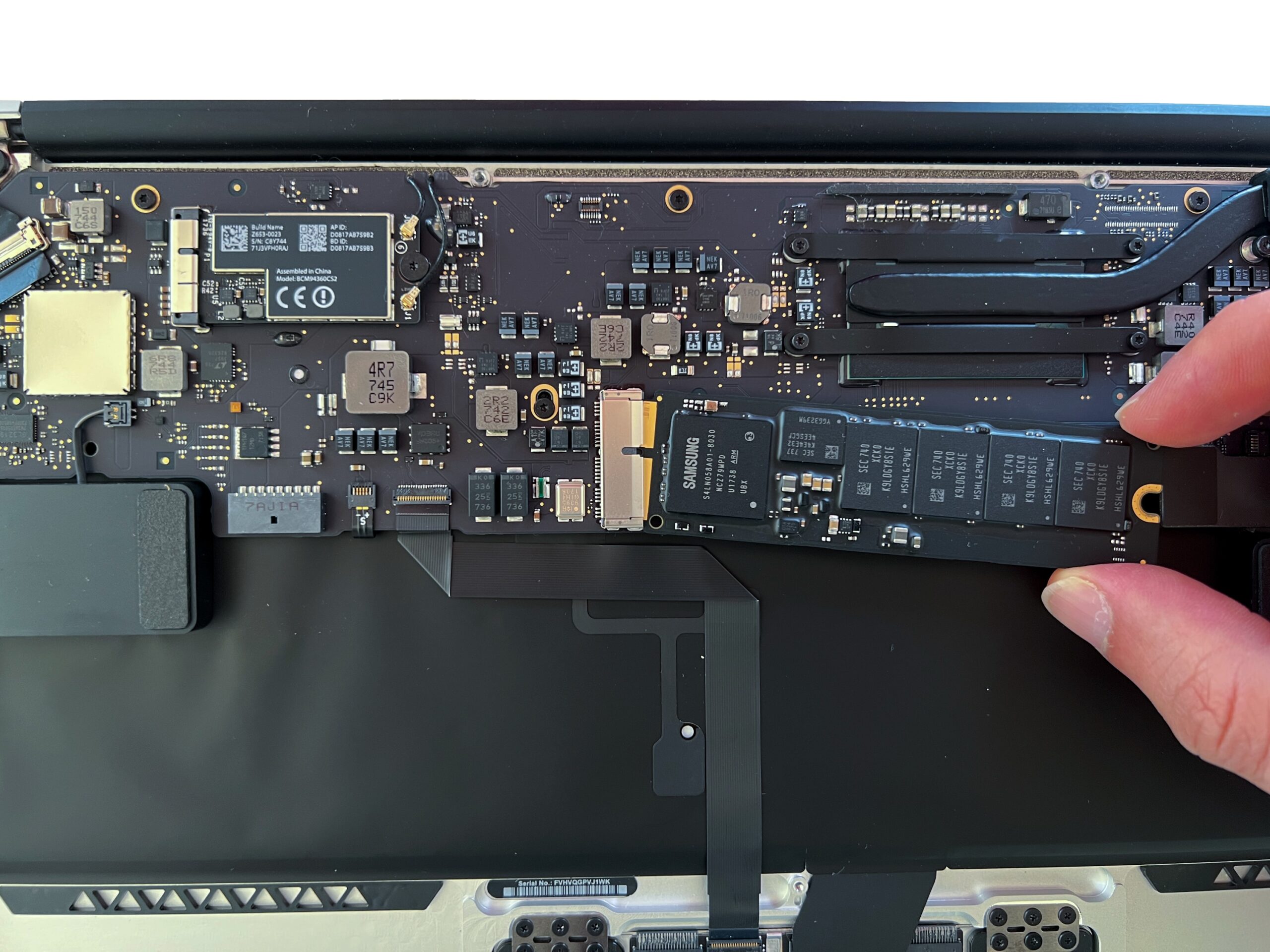
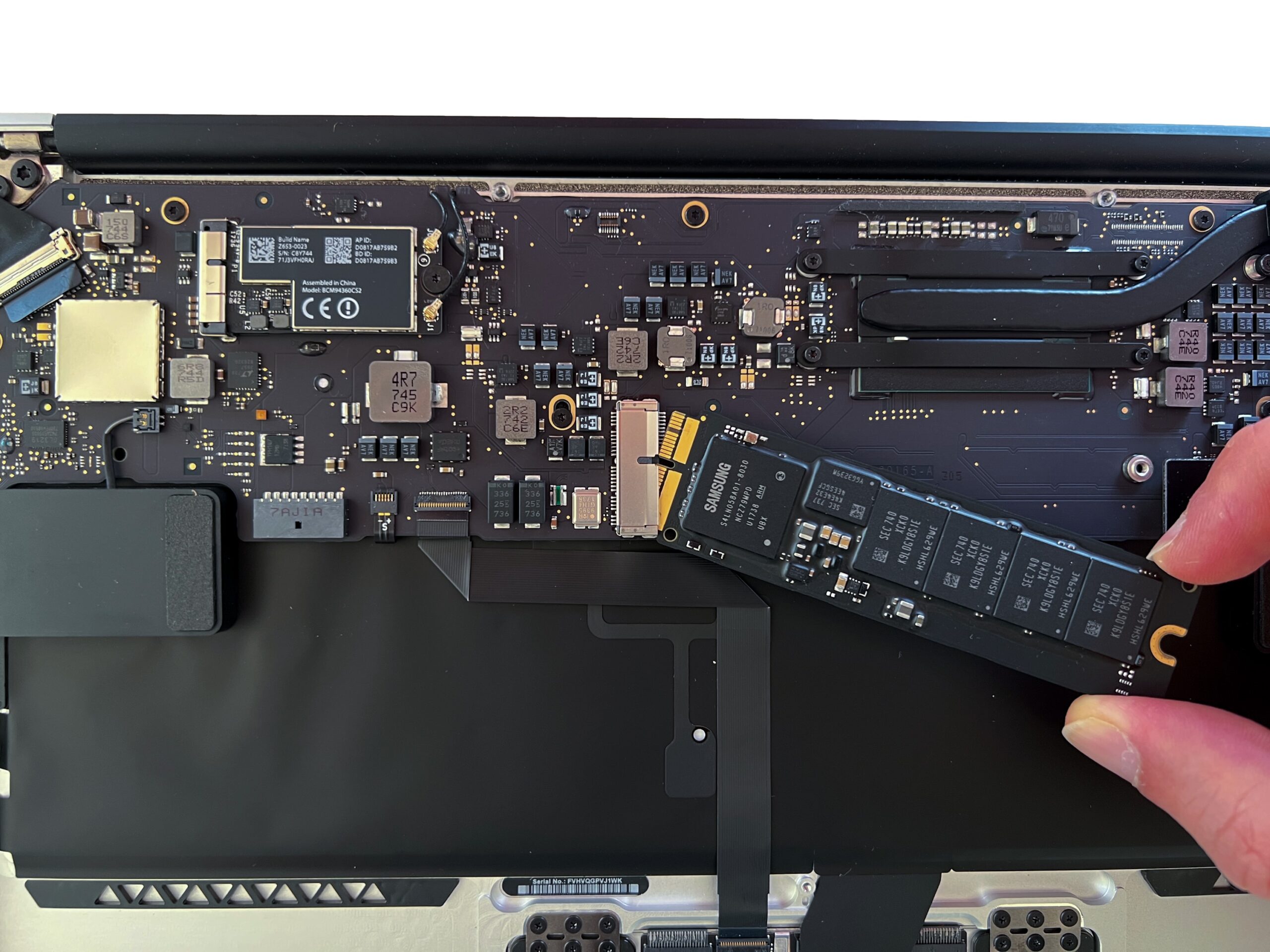
Carefully remove the SSD from its connector. The drive should come out easily, without forcing it
-
Step 9 of 9 11. Installation
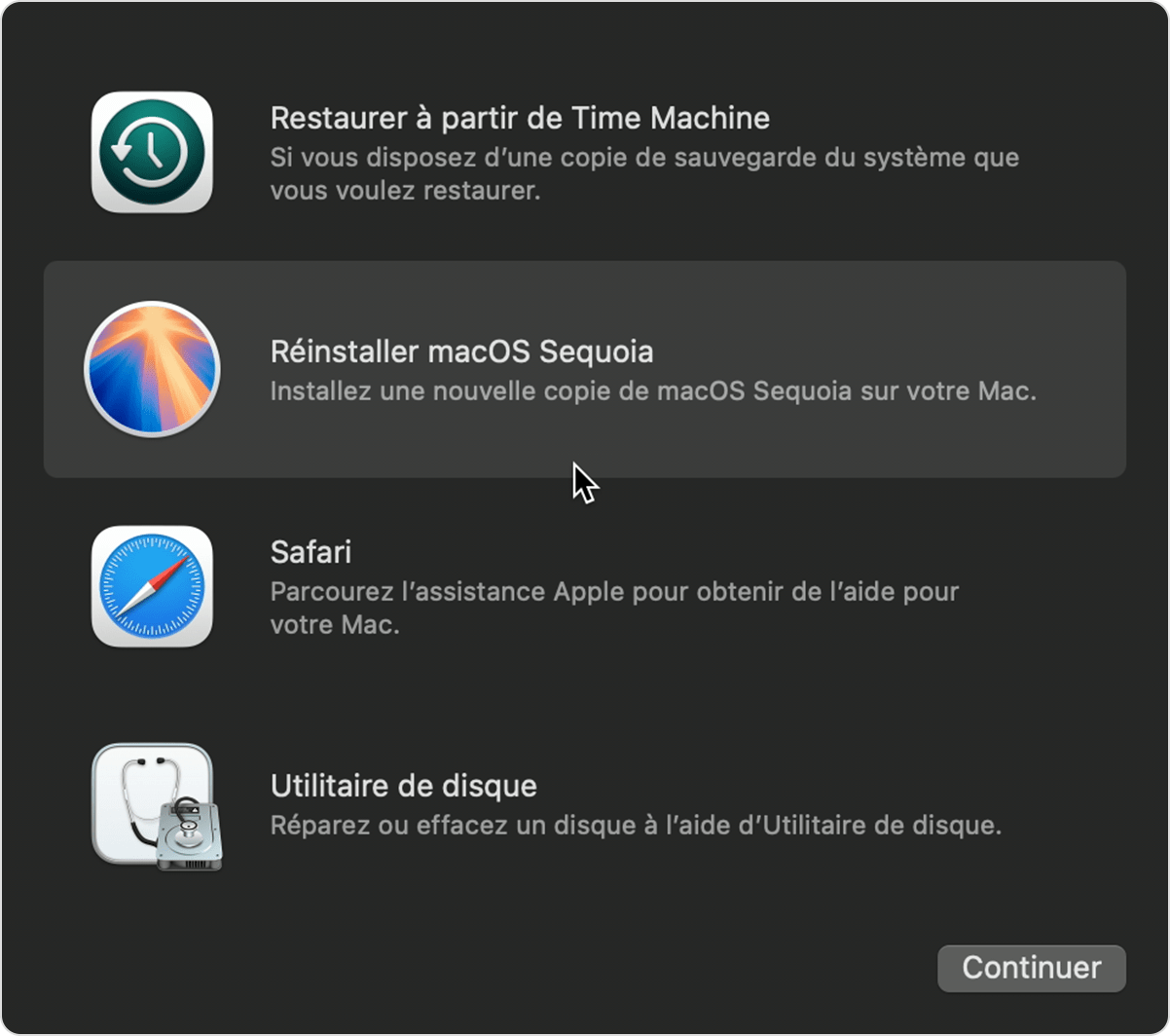
Need help installing a new version of Mac OS X on your new drive?
Nothing could be simpler – head over to our article How to Install macOS on a Hard Drive for an Intel Mac