

Tutorial: MacBook Pro 13″ A1502 2015 Full Teardown
Learn how to fully take apart your MacBook Pro 13″ A1502 (2015) with this detailed step-by-step guide. This tutorial shows you how to access every internal component of your Mac: logic board, SSD, fan, battery, keyboard, trackpad and more. Ideal for a deep clean, diagnosing a fault or replacing a part. A clear, illustrated guide that anyone can follow.
Compatible models:
MacBook Pro 13″ A1502 Early 2015
Step-by-step guide
-
Step 1 of 14 1. Switch off the MacBook
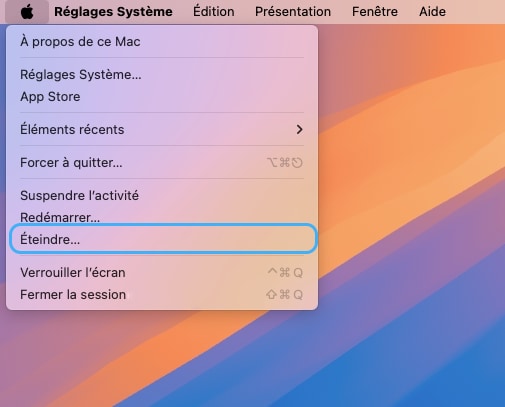
Switch off your MacBook Pro and unplug the power supply
🚨 Never carry out any disassembly on a MacBook that is powered on
-
Step 2 of 14 2. Unscrew the bottom case
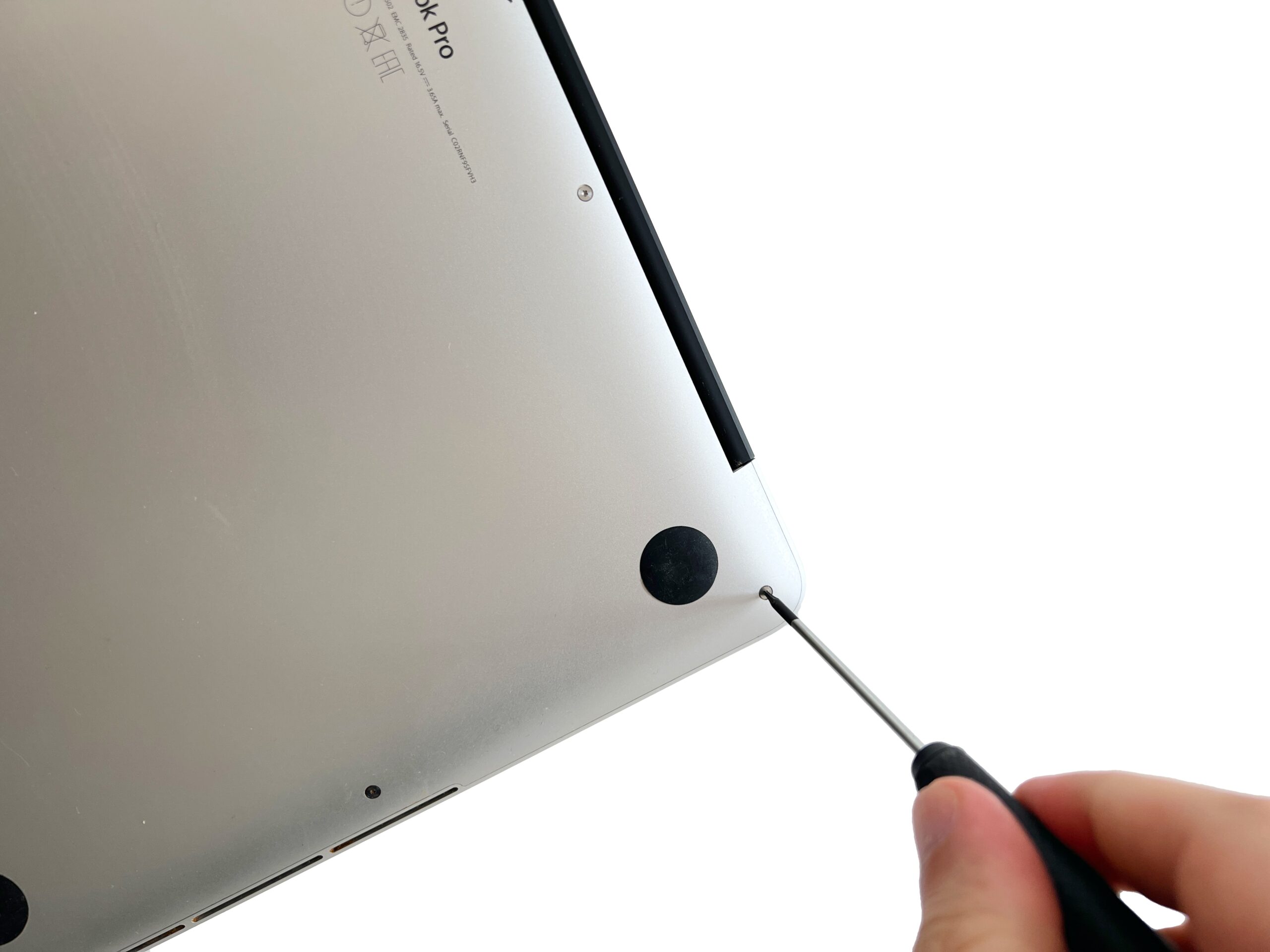
Using a P5 pentalobe screwdriver, remove the 10 external MacBook Pro screws securing the bottom cover
-
Step 3 of 14 3. Remove the bottom case
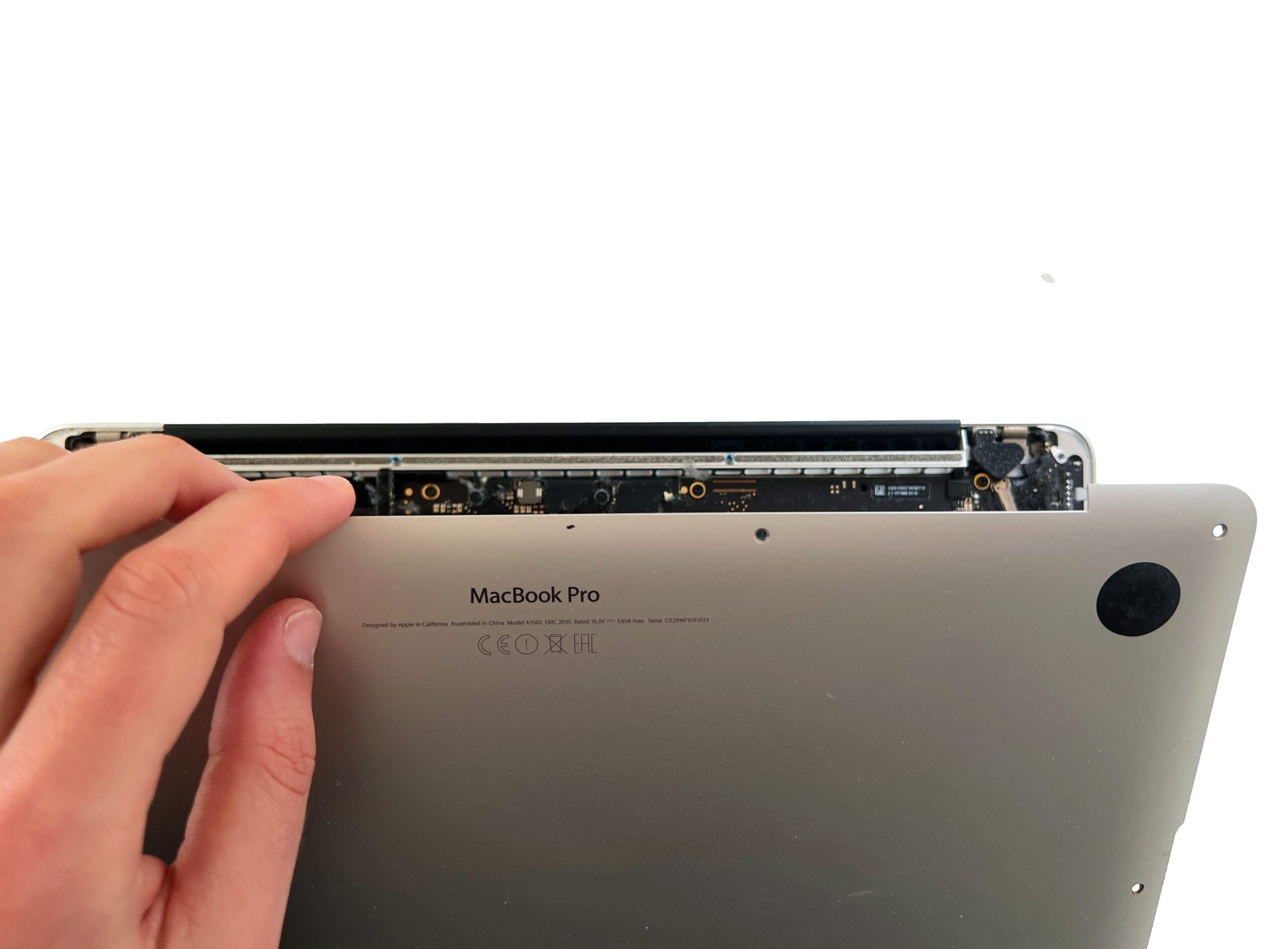
Gently lift the bottom case from the top edge to remove it from the Mac.
💡 If the cover won't lift off, you've probably missed a screw!
-
Step 4 of 14 4. Disconnect the battery
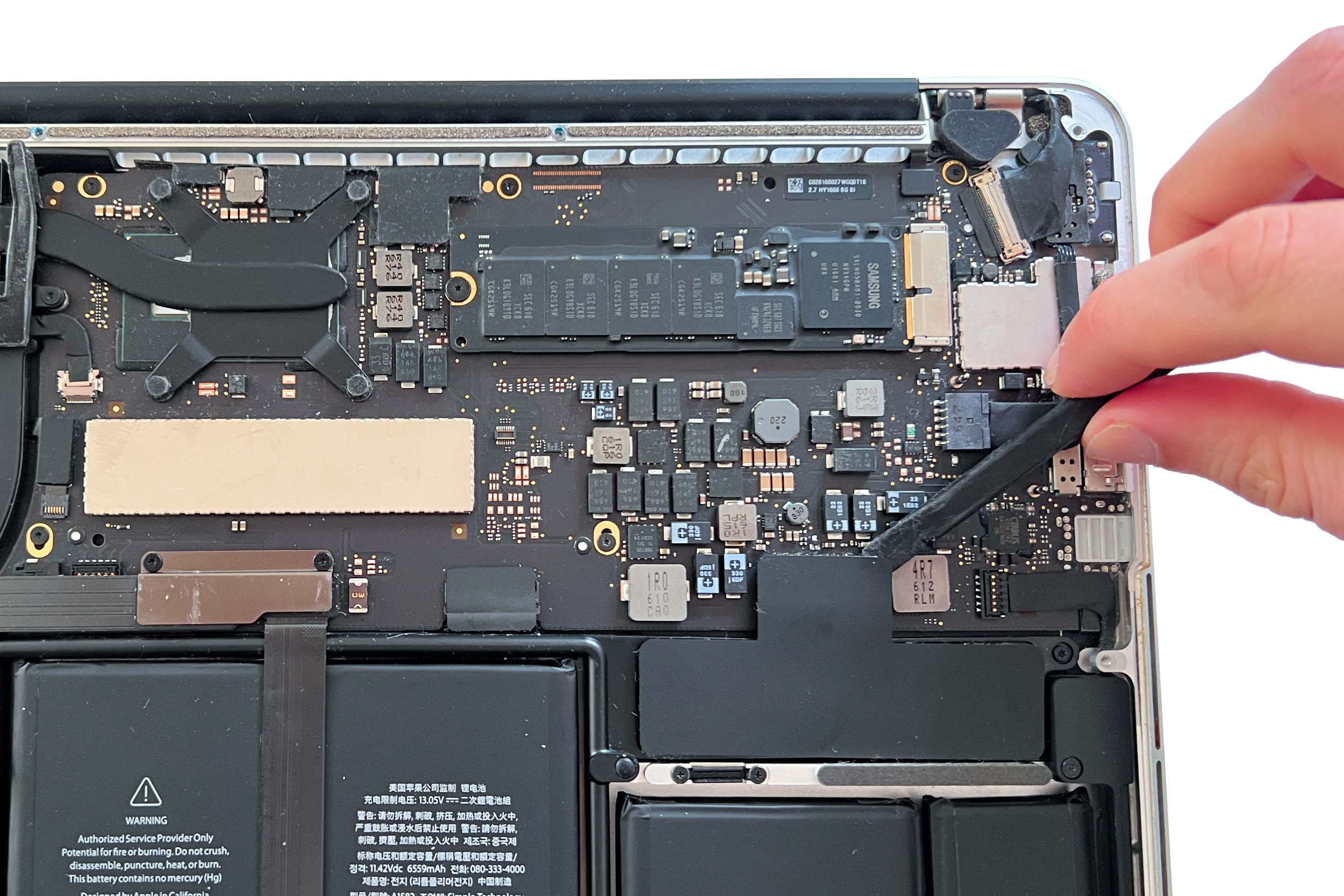
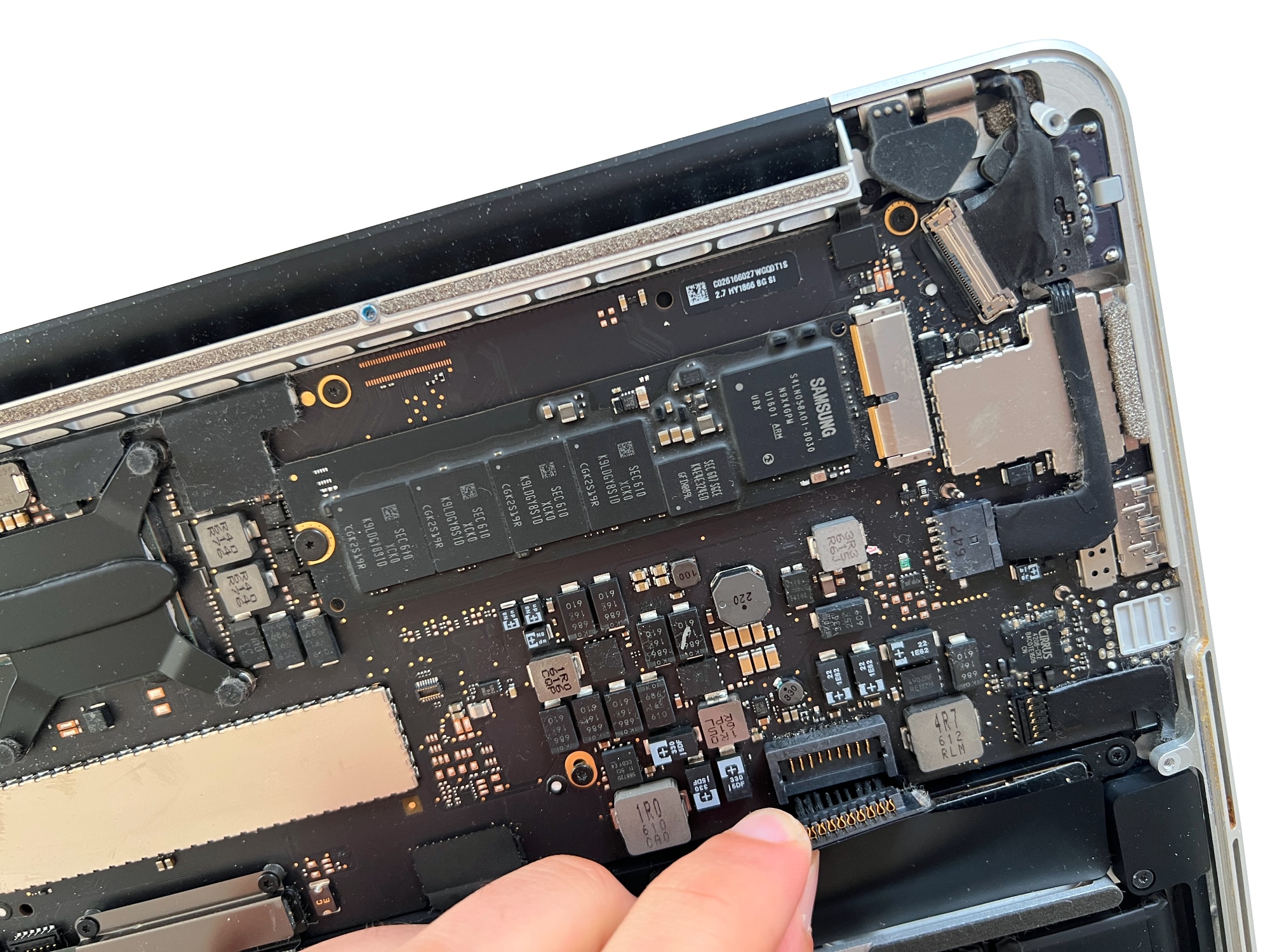
Pull the plastic tab to gently remove the MacBook Pro battery connector
🚨 Always start with this step before touching any other components in the Mac
-
Step 5 of 14 5. Unscrew the SSD
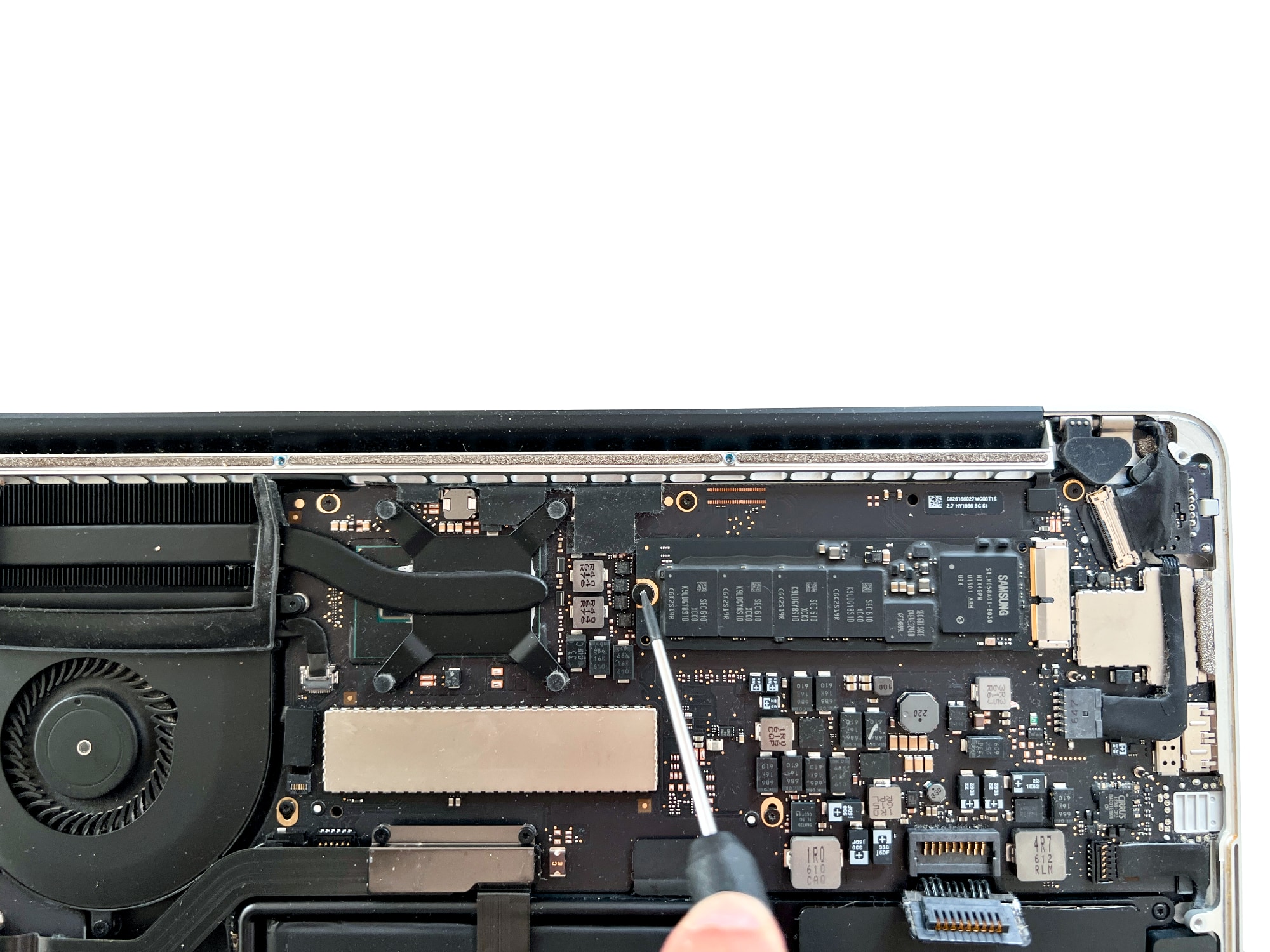
Use a Torx T5 screwdriver to unscrew the SSD.
If you've lost this screw, you'll find it in the complete screw kit
-
Step 6 of 14 6. Remove the SSD
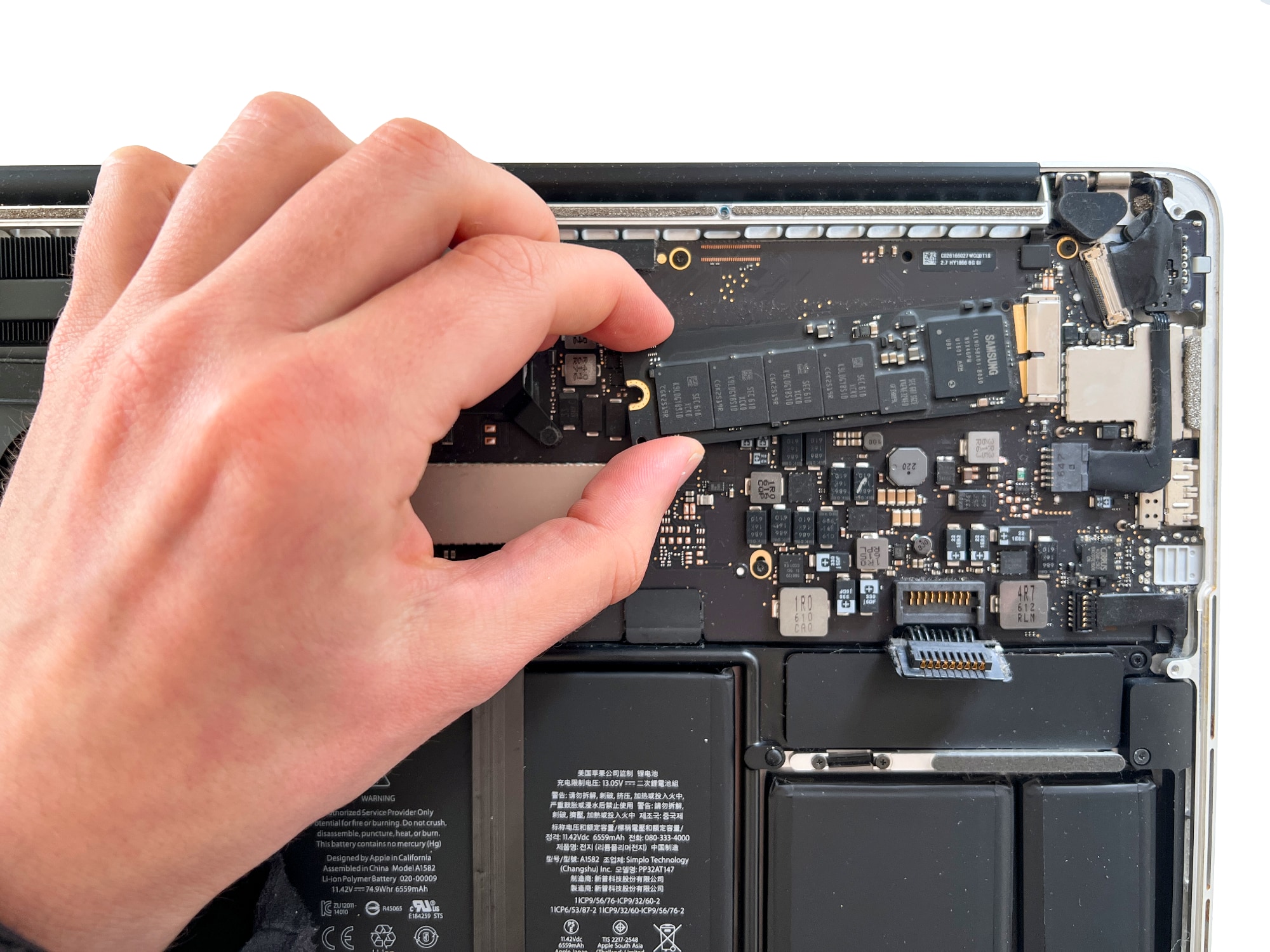
Carefully slide the SSD out of its connector. The drive should come out easily, without forcing it
-
Step 7 of 14 7. Unscrew the I/O board cable brackets
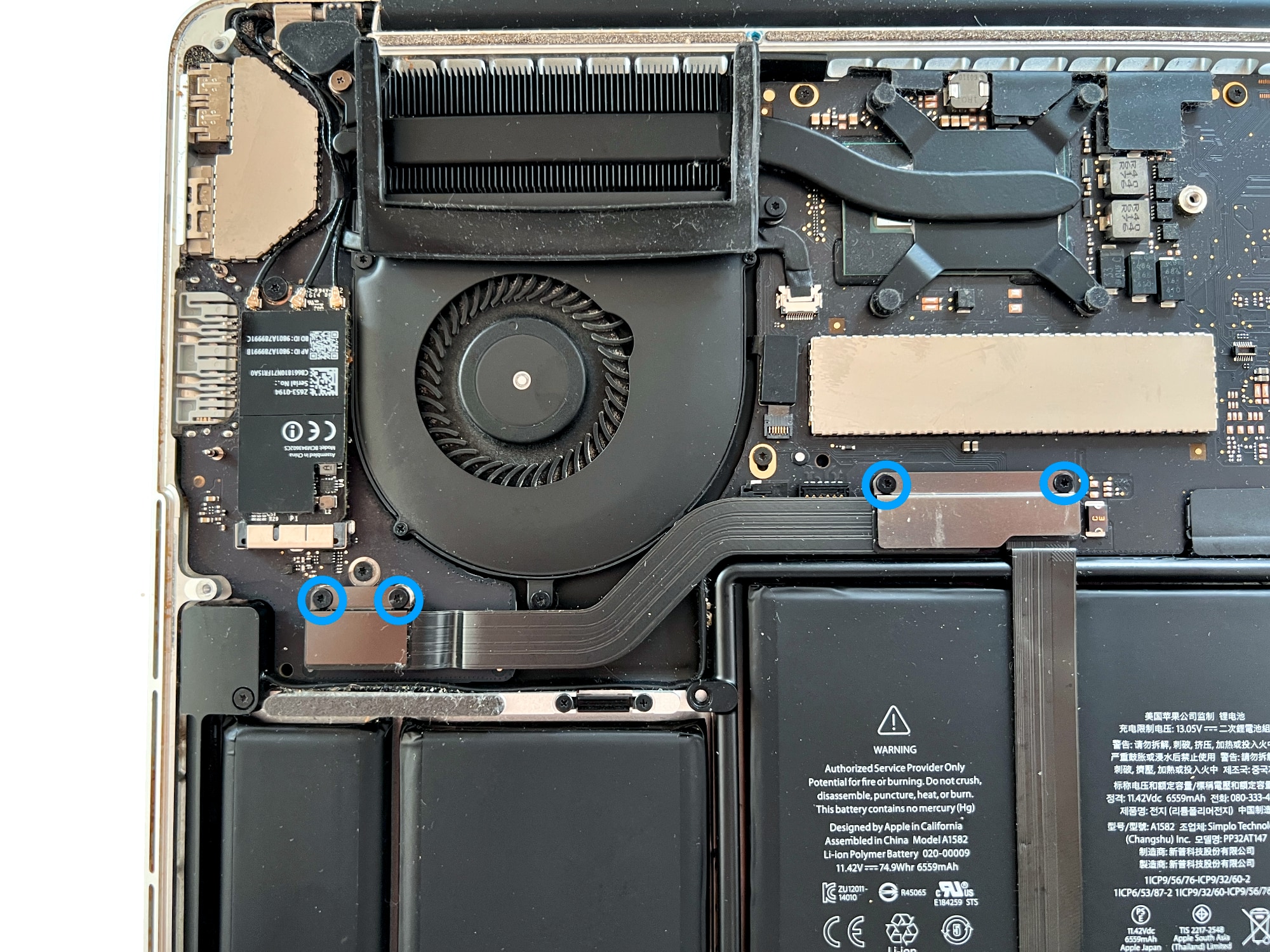
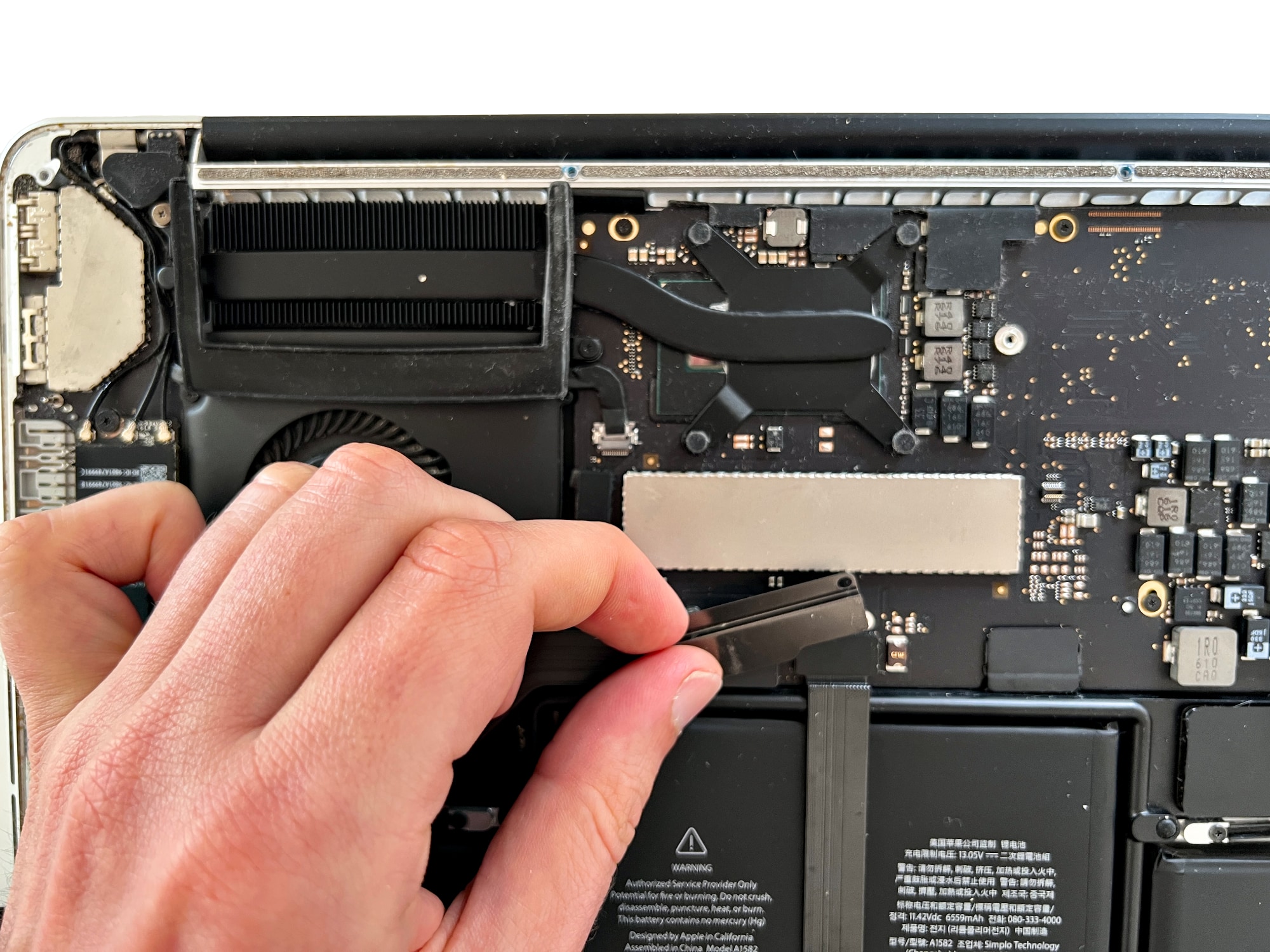
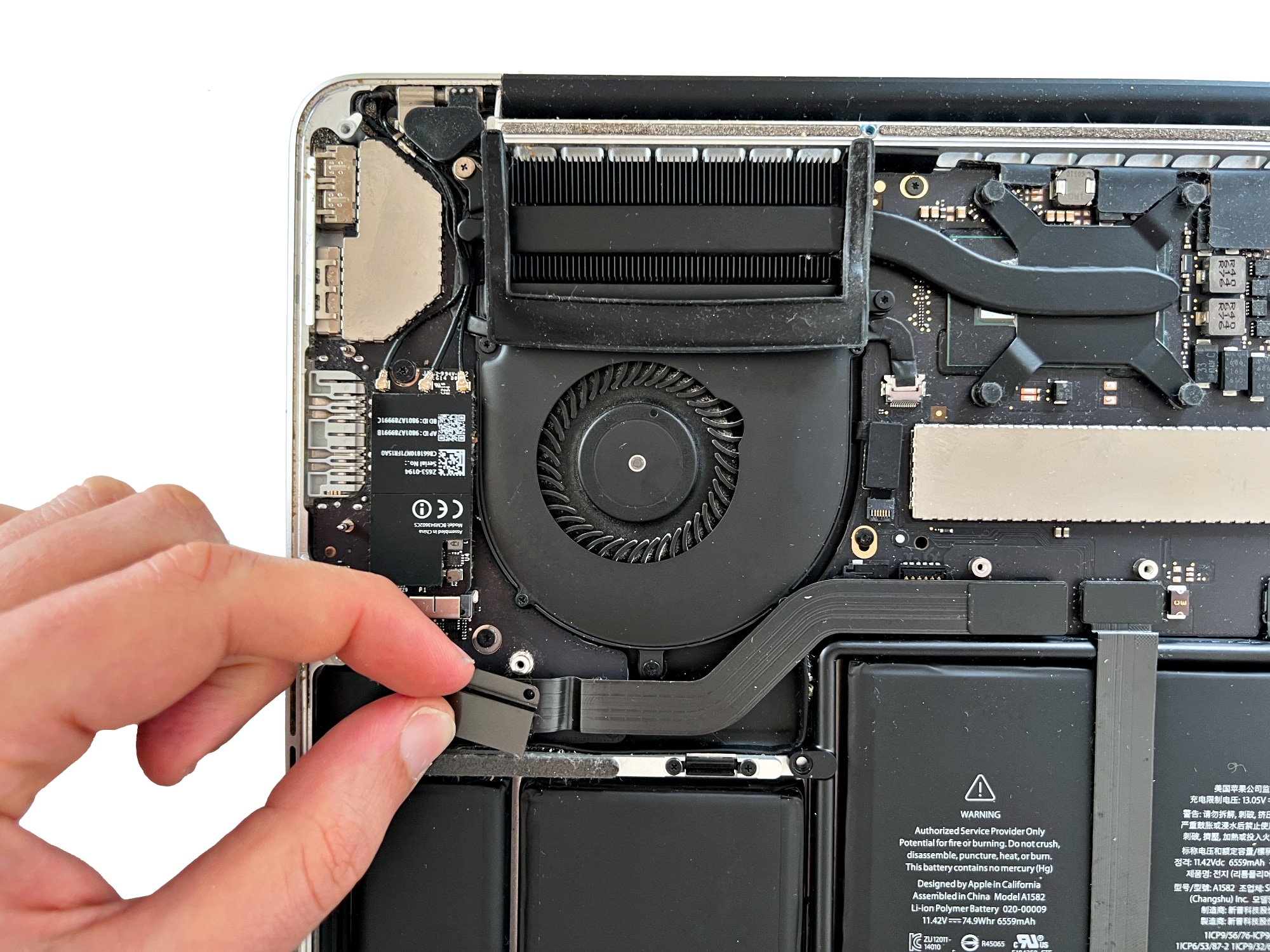
Undo the 4 Torx 5 screws holding the metal plates of the MacBook Pro 13" A1502 I/O board cable, then remove the brackets
-
Step 8 of 14 8. Disconnect the I/O board cable
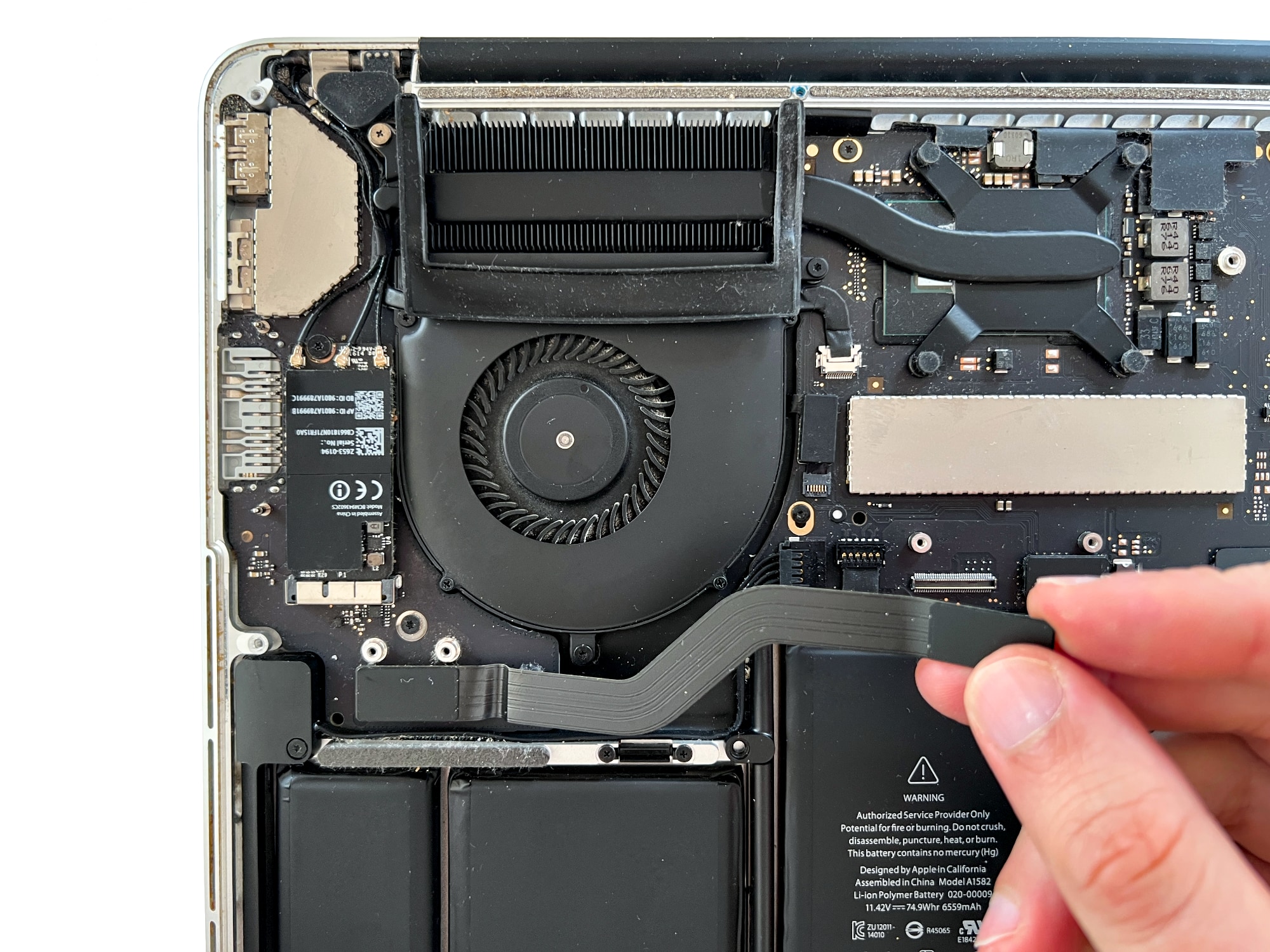
Now carefully remove the cable connecting the logic board to the USB / HDMI I/O board
-
Step 9 of 14 9. Unscrew the left speaker
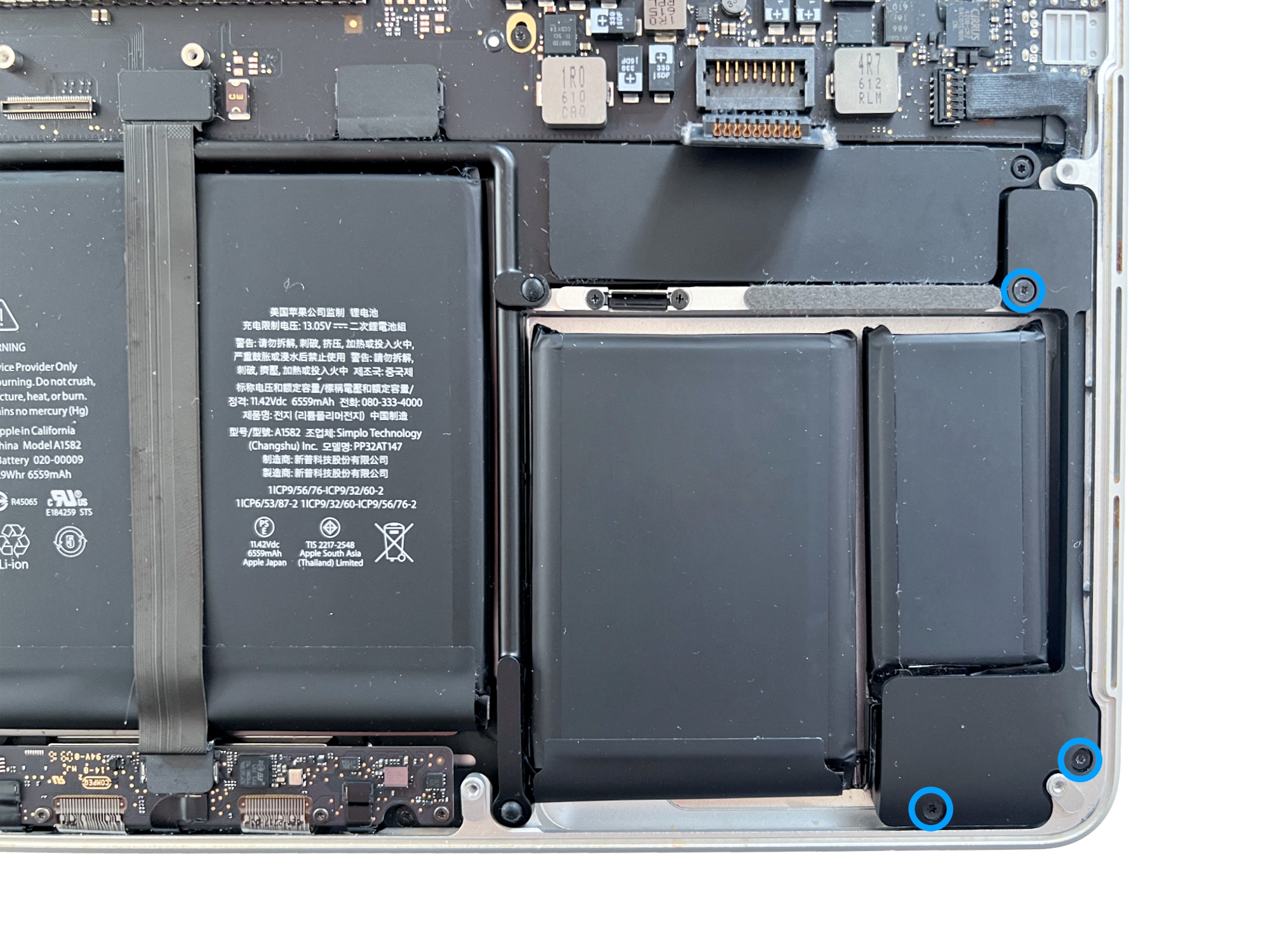
Remove the 3 Torx 5 screws holding the MacBook Pro 13" A1502 left speaker in place
-
Step 10 of 14 10. Disconnect the left speaker
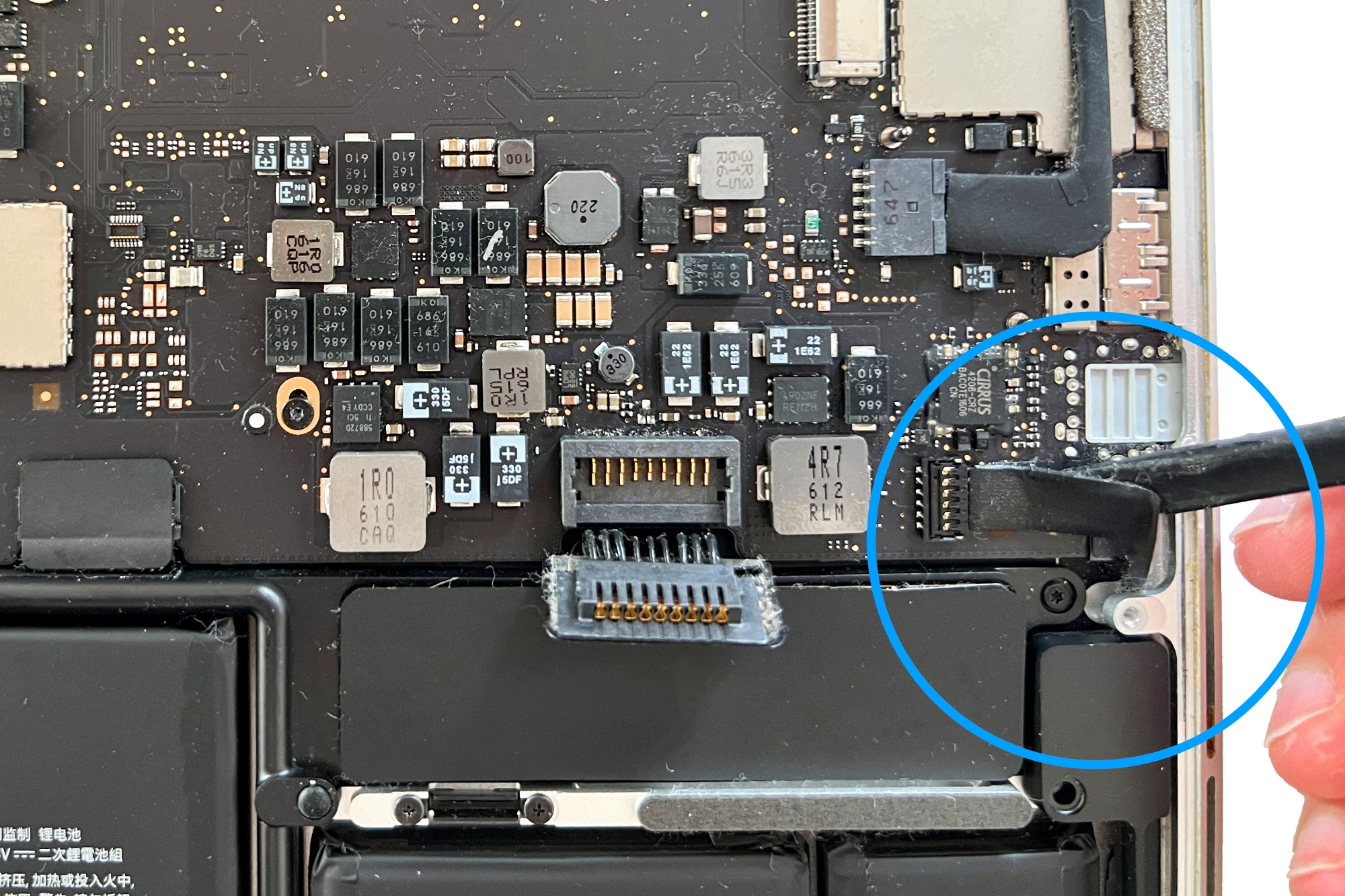
Disconnect the cable connecting the left speaker to the logic board
⚠️ These connectors are very fragile, so take great care
-
Step 11 of 14 11. Remove the left speaker
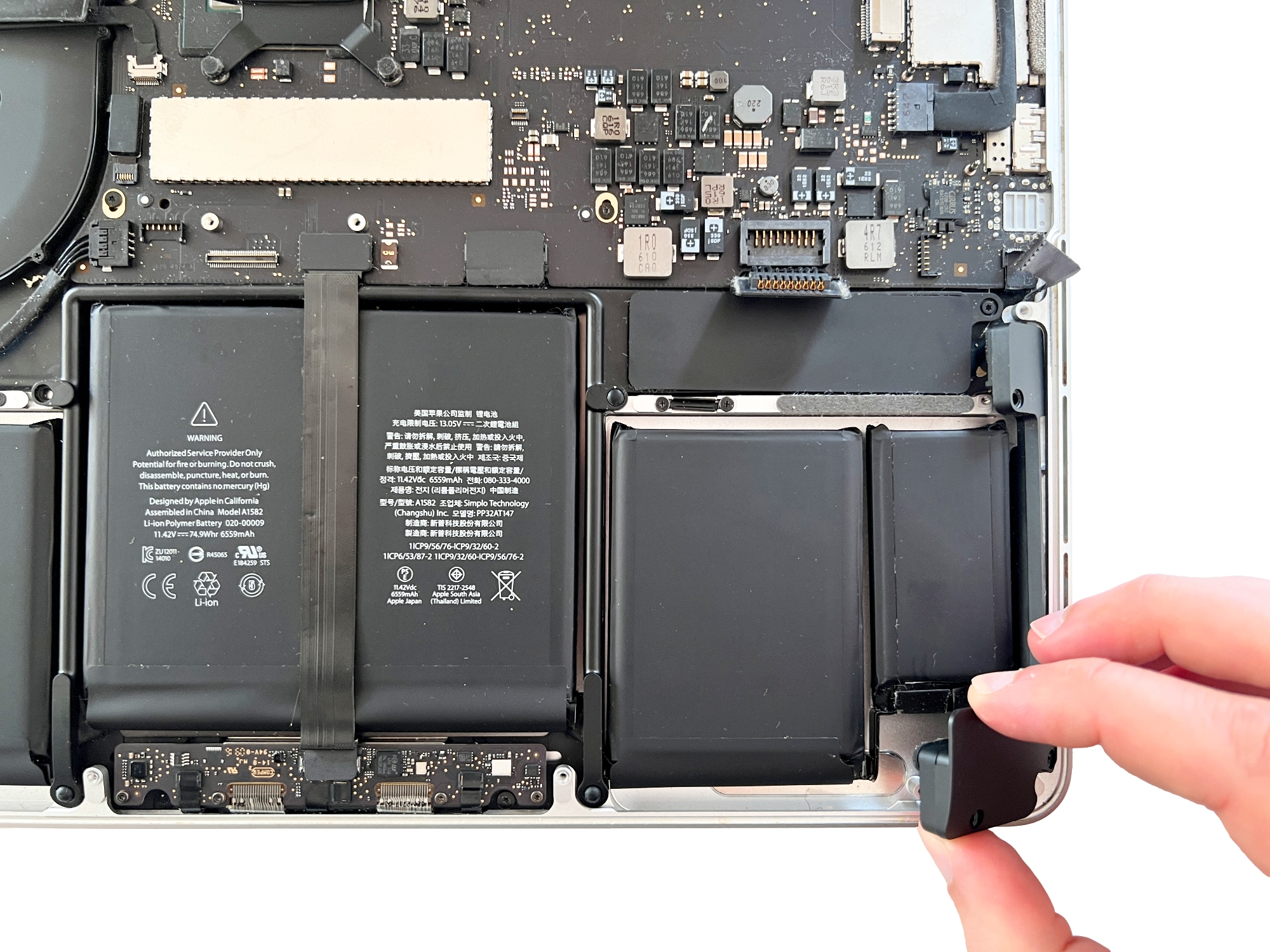
You can now remove the left speaker completely to replace it
-
Step 12 of 14 12. Unscrew the right speaker
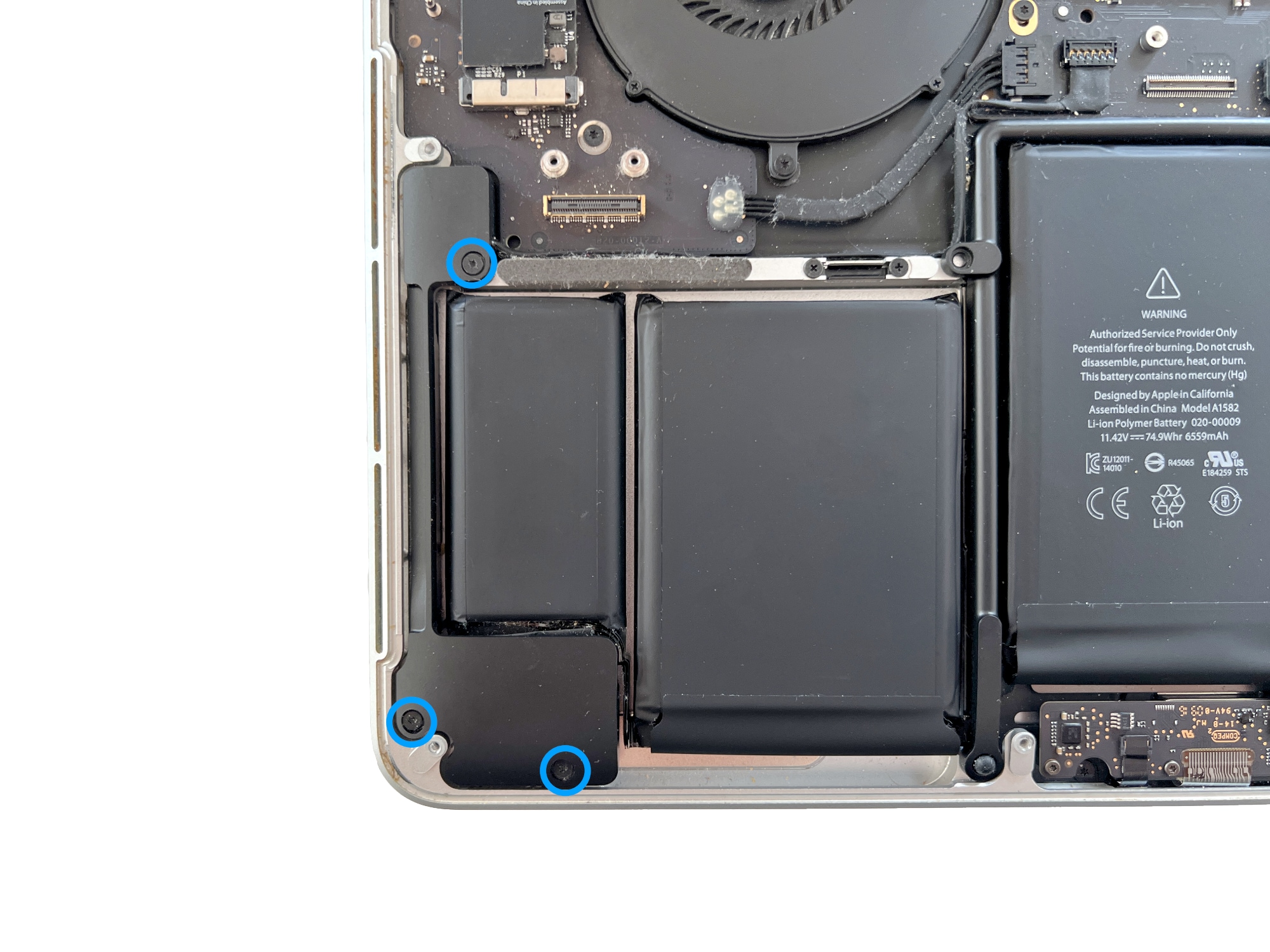
Remove the 3 Torx 5 screws holding the MacBook Pro 13" A1502 right speaker in place
-
Step 13 of 14 13. Disconnect the right speaker
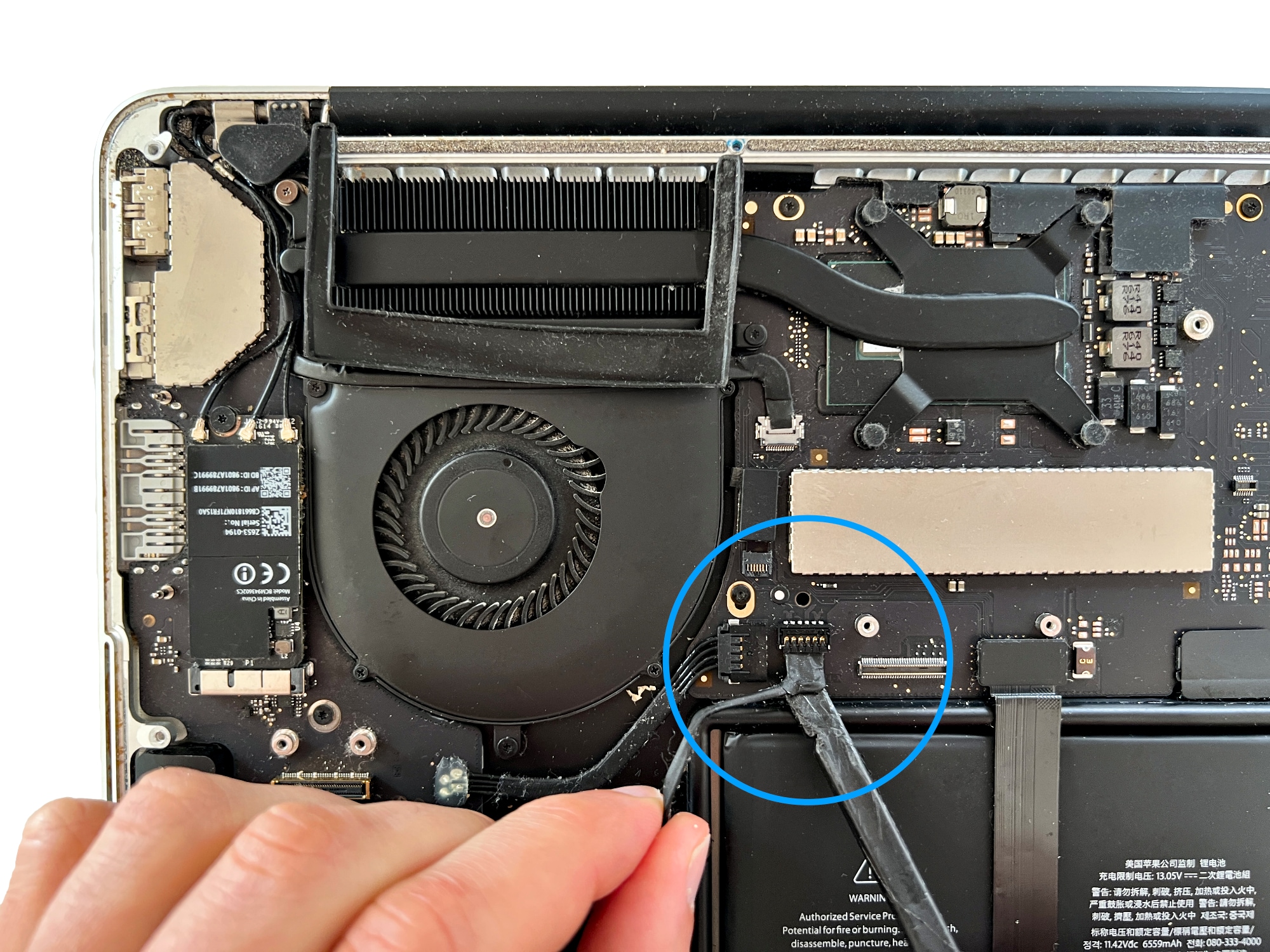
Disconnect the cable connecting the right speaker to the logic board
⚠️ These connectors are very fragile, so take great care
-
Step 14 of 14 14. Remove the right speaker
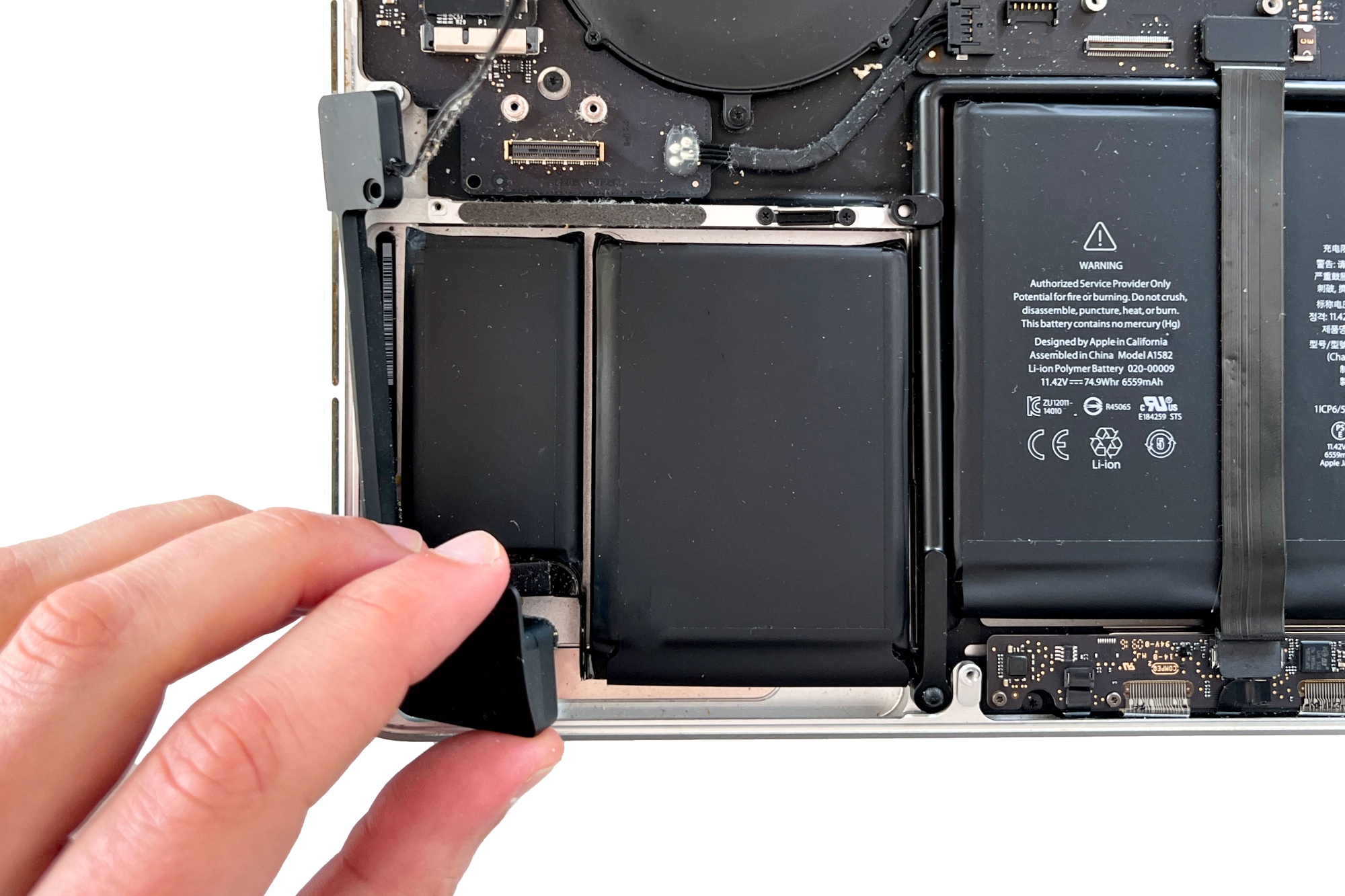
You can now remove the right speaker completely to replace it