


Tutorial: MacBook Air 13″ A1466 2013-2017 Keyboard Top Case Replacement
Keys no longer responding, backlight not working or top case damaged? This step-by-step tutorial guides you through replacing the top case with keyboard on your MacBook Air 13″ A1466, with no technical knowledge required.
Compatible with A1466 models from 2013, 2014, 2015 and 2017, this illustrated guide shows you how to carry out this repair safely and with the right tools.
💻 Give your MacBook Air 13″ a new lease of life — replace the top case yourself and avoid a costly workshop repair.
Compatible models:
MacBook Air 13″ A1466 Mid 2013
MacBook Air 13″ A1466 Early 2014
MacBook Air 13″ A1466 Early 2015
MacBook Air 13″ A1466 2017
Step-by-step guide
-
Step 1 of 30 1. Switch off the MacBook
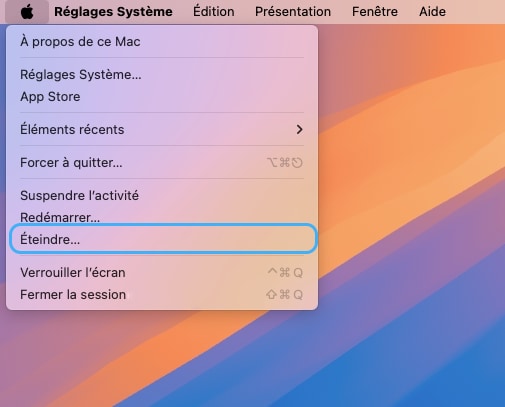
Switch off your MacBook Air and unplug the power supply
🚨 Never carry out any disassembly on a MacBook that is powered on
-
Step 2 of 30 2. Unscrew the bottom case
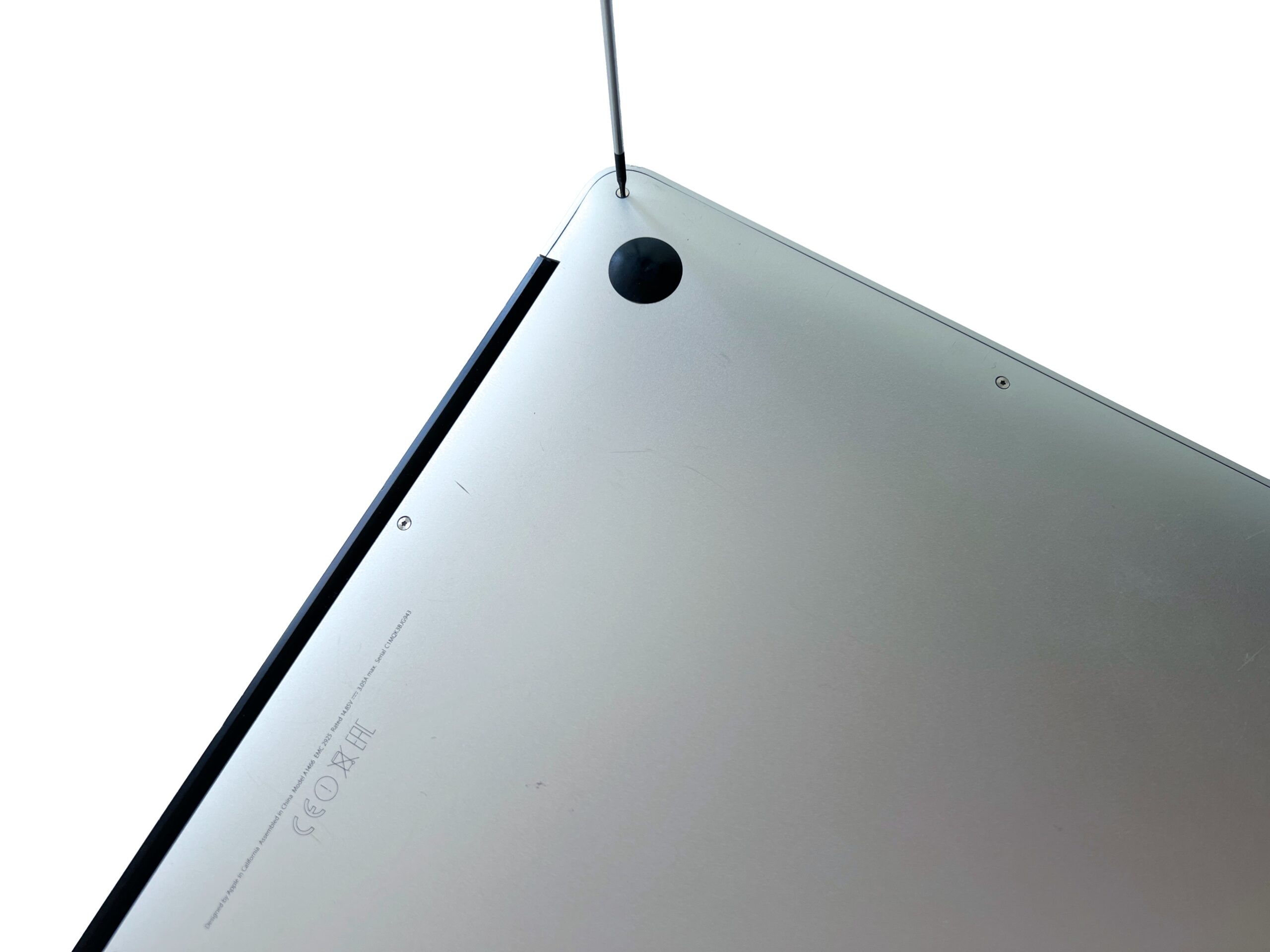
Remove the 10 external MacBook Air screws holding the bottom cover in place using a P5 pentalobe screwdriver
-
Step 3 of 30 3. Remove the bottom case
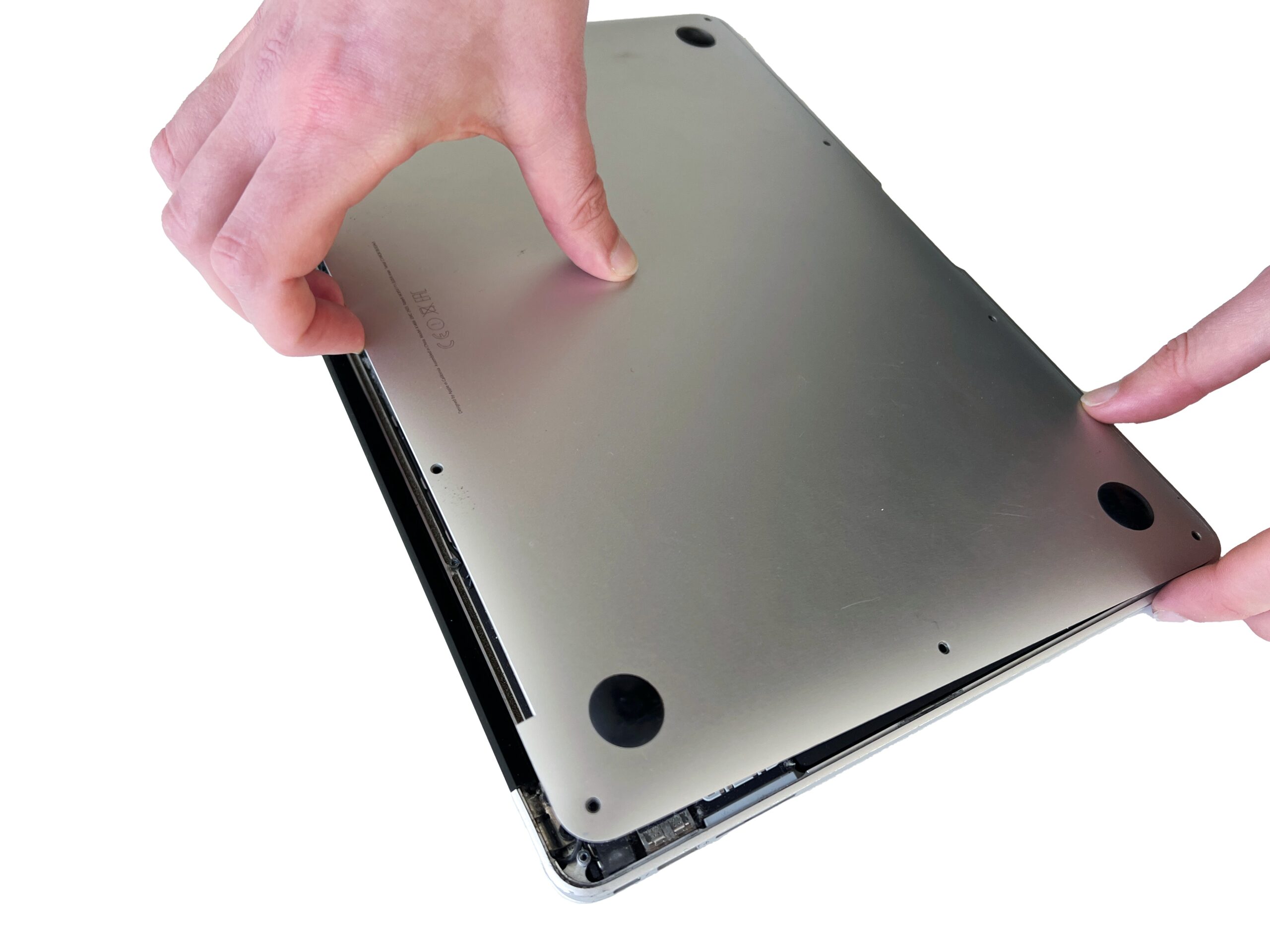
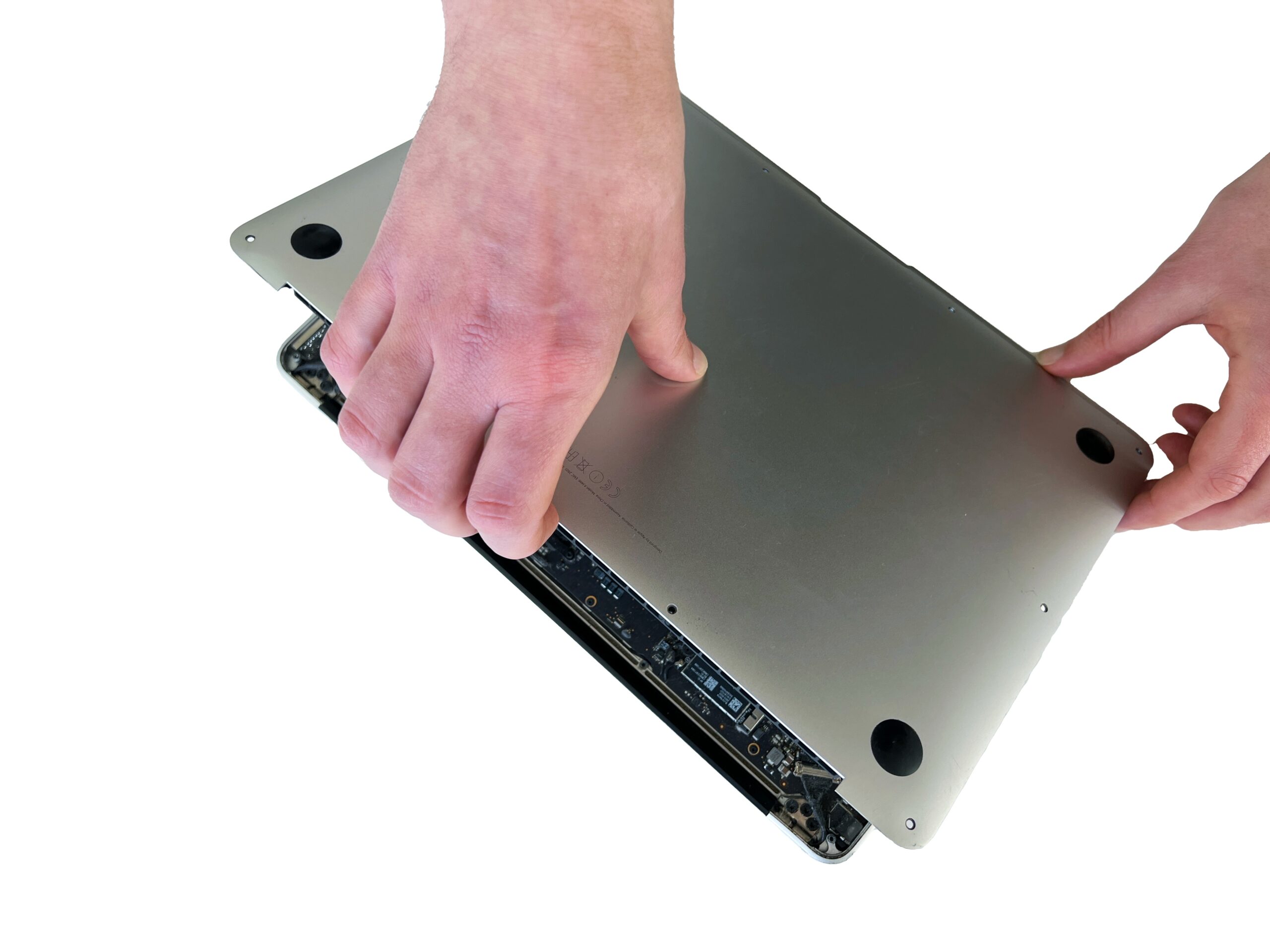
Gently lift the bottom case from the top edge to remove it from the Mac.
💡 If the cover won't lift, you've probably missed a screw!
-
Step 4 of 30 4. Disconnect the battery
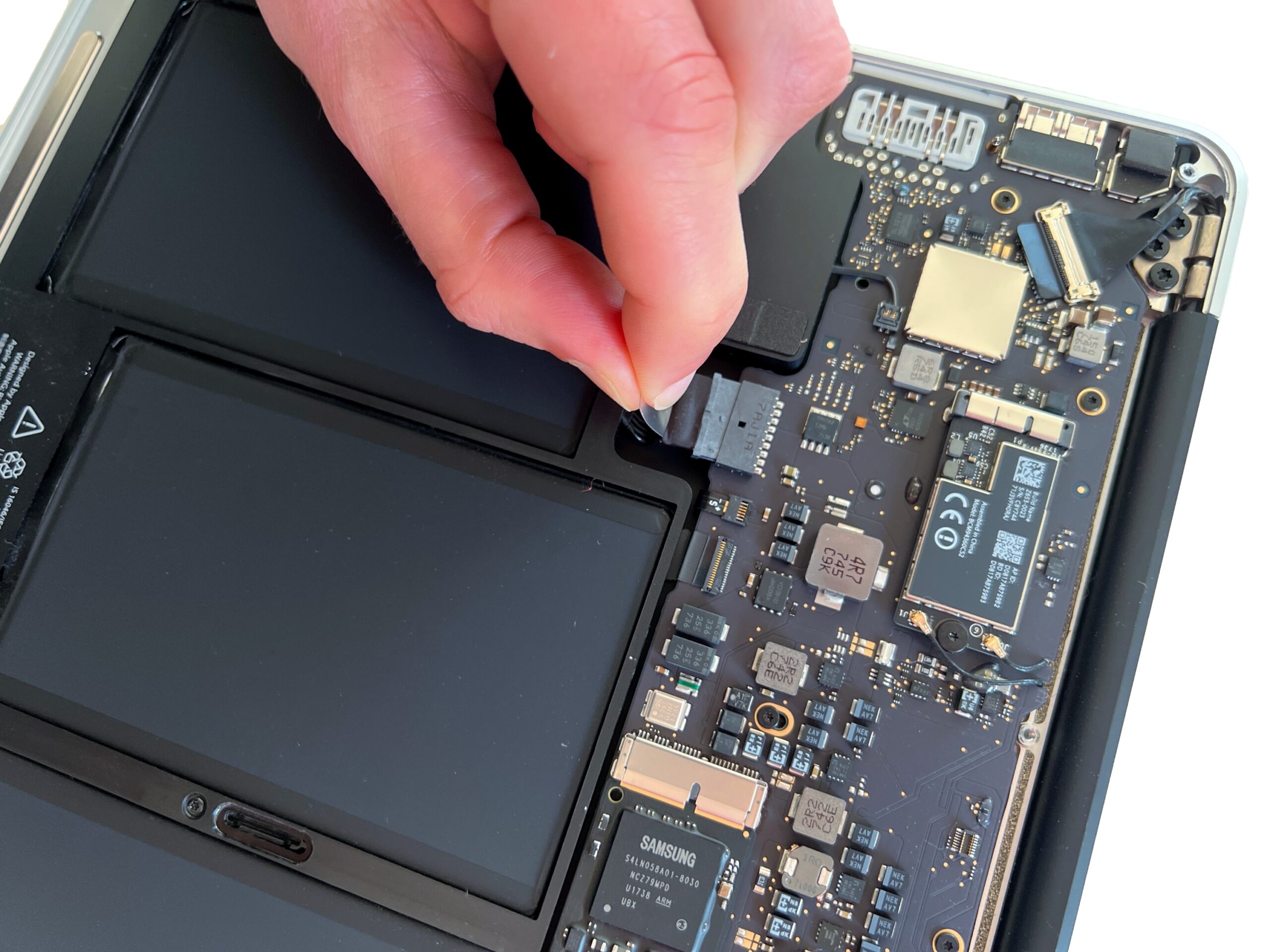
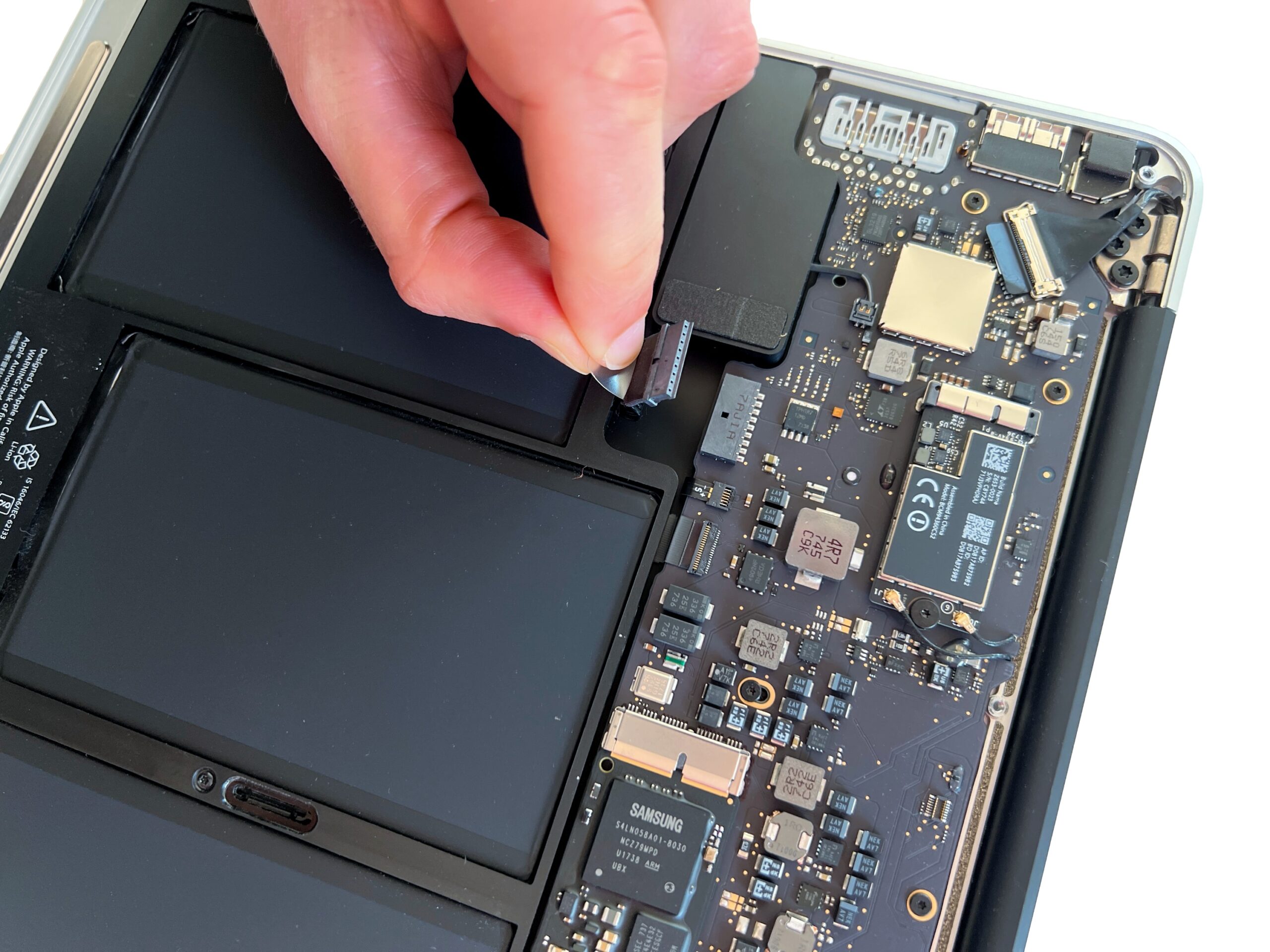
Pull the plastic tab to gently remove the battery connector.
🚨 Always start with this step before touching any other components in the Mac
-
Step 5 of 30 5. Unscrew the battery
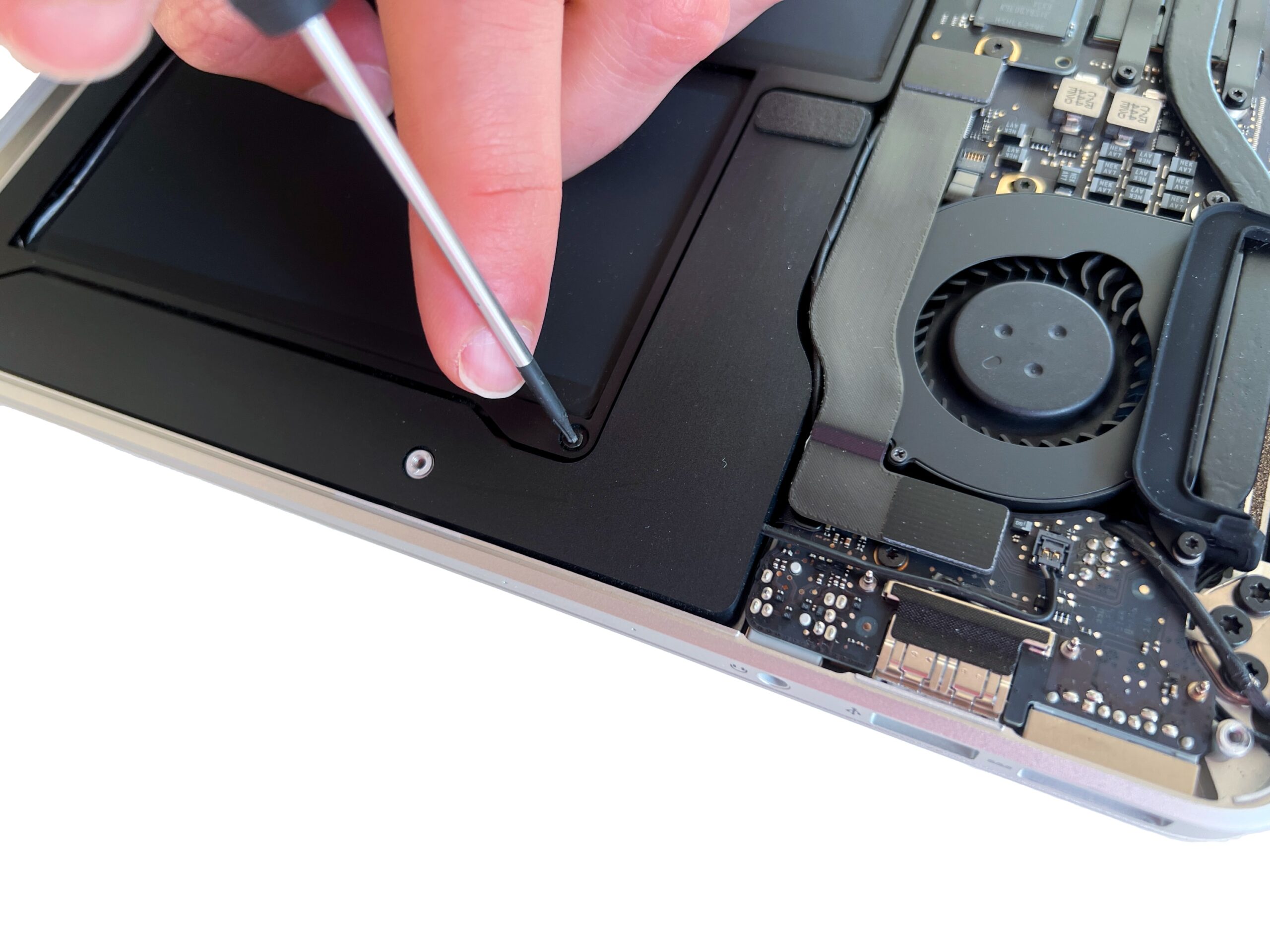
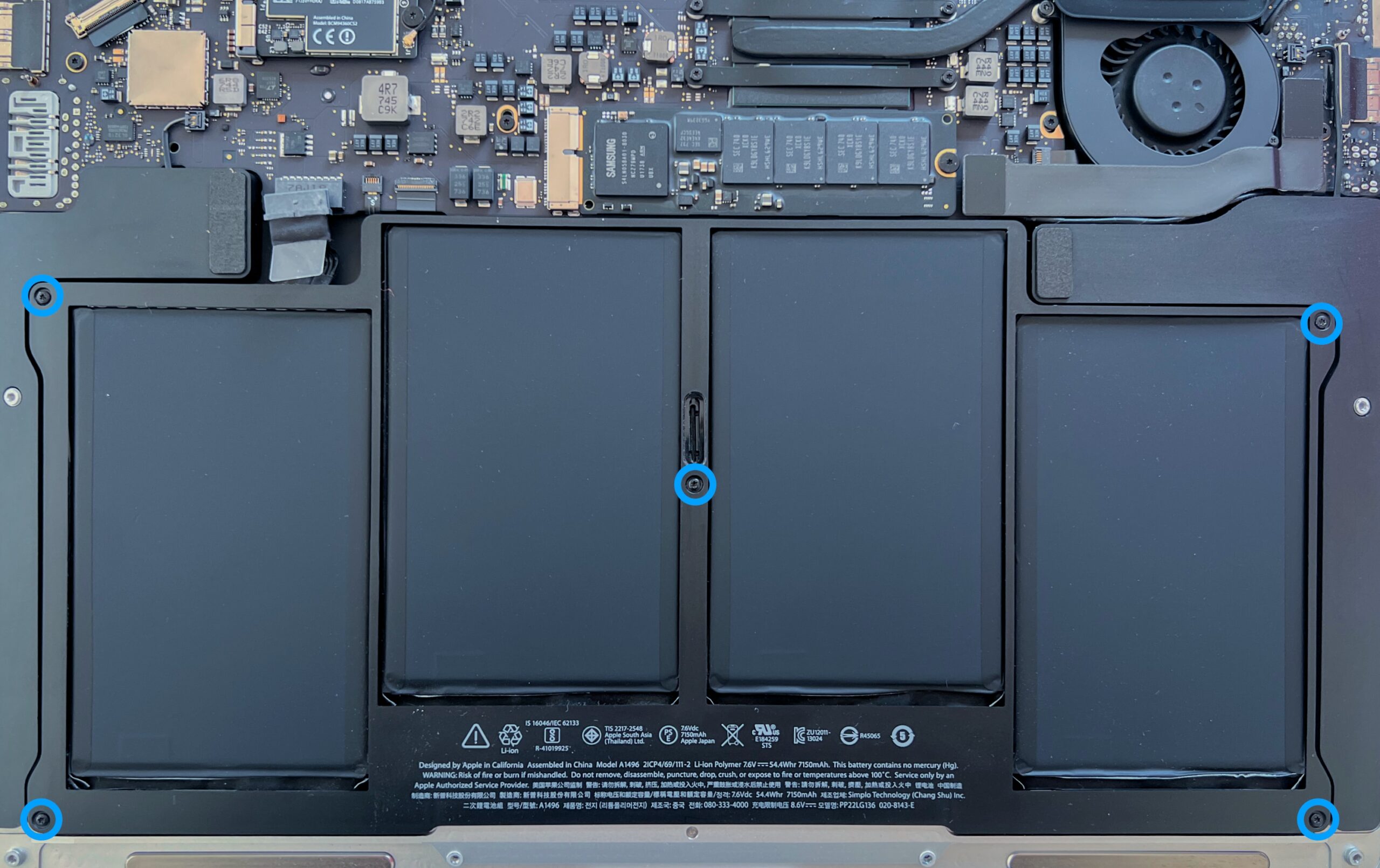
Remove the 5 Torx T5 screws holding the MacBook Air battery in place
If a screw is missing, you can find it in the complete screw kit for this model.
-
Step 6 of 30 6. Remove the battery
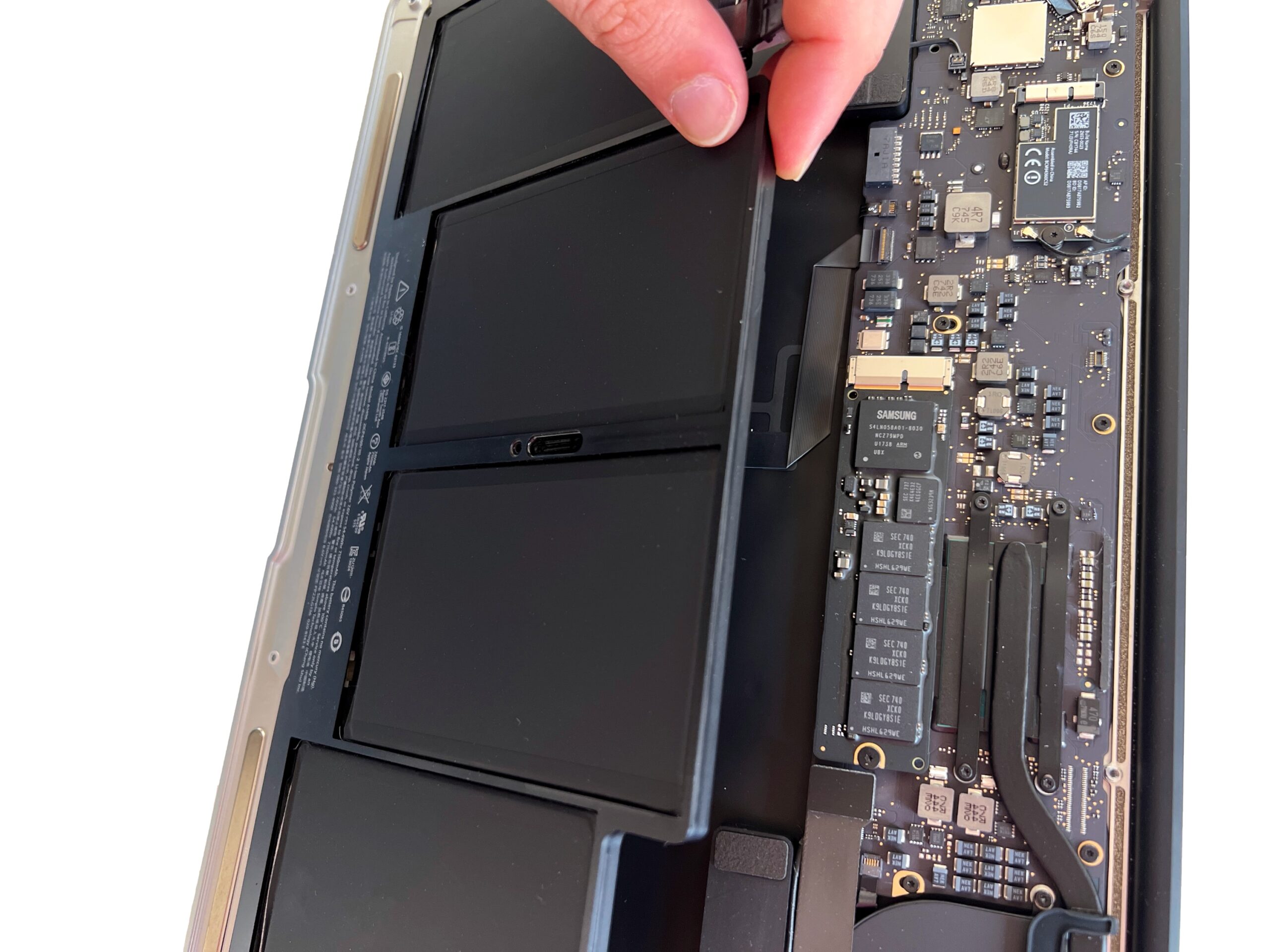
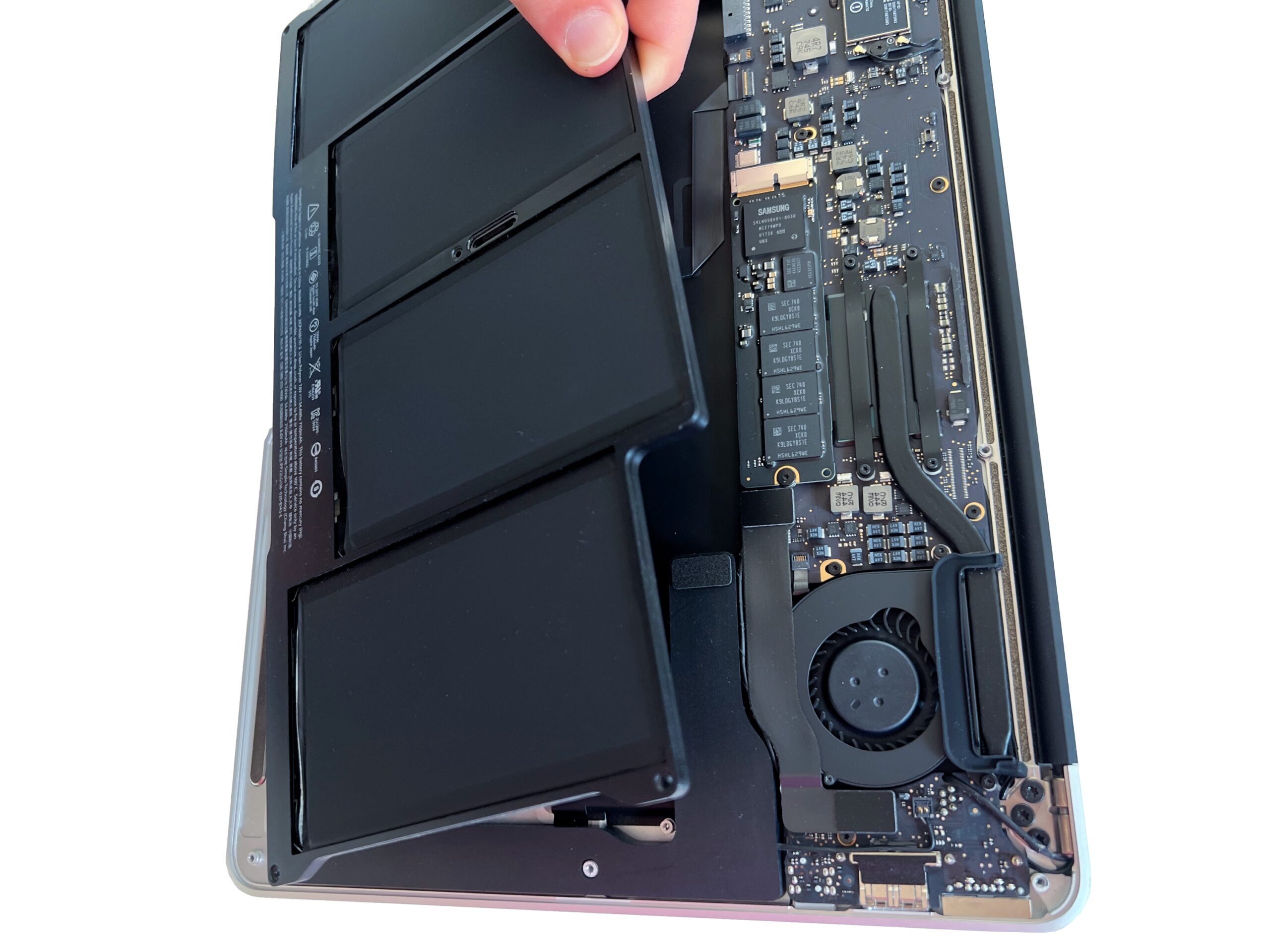
Gently lift the battery to remove it.
The battery should come away easily, without any resistance -
Step 7 of 30 7. Disconnect the speakers
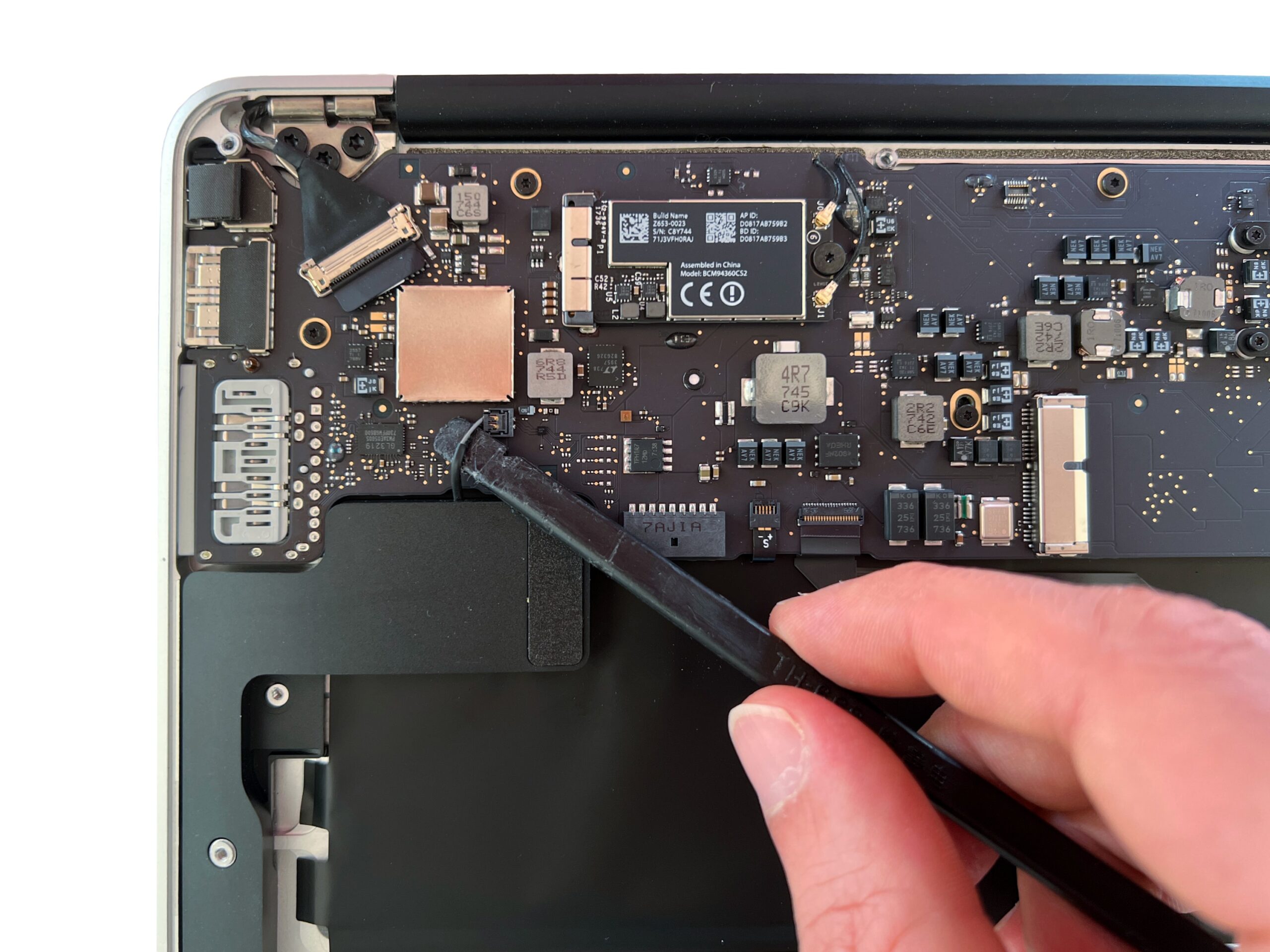
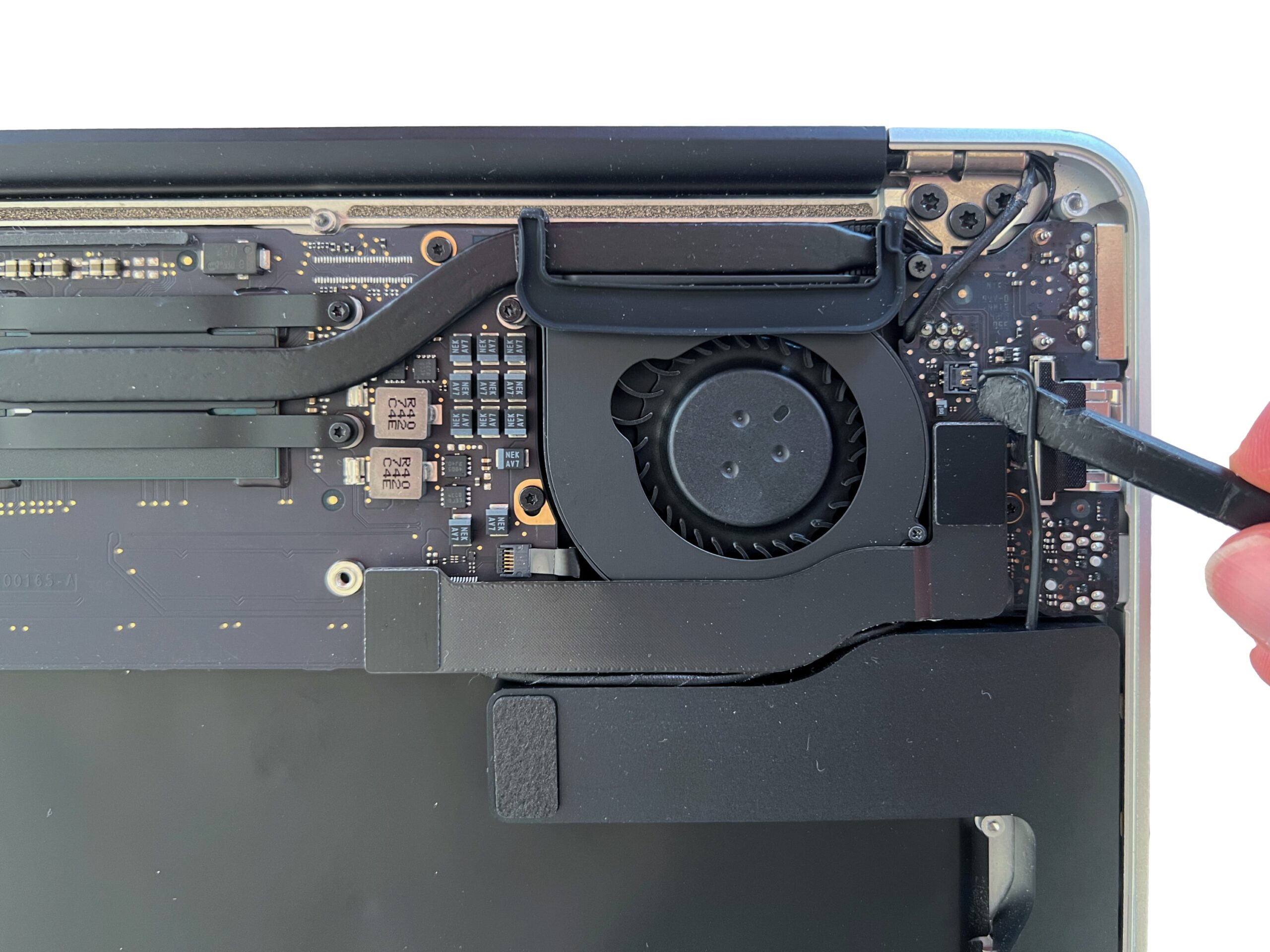
Using a plastic tool, disconnect the right speaker and the left speaker from the logic board.
⚠️ These connectors are very fragile, so proceed with great care
-
Step 8 of 30 8. Remove the right and left speakers
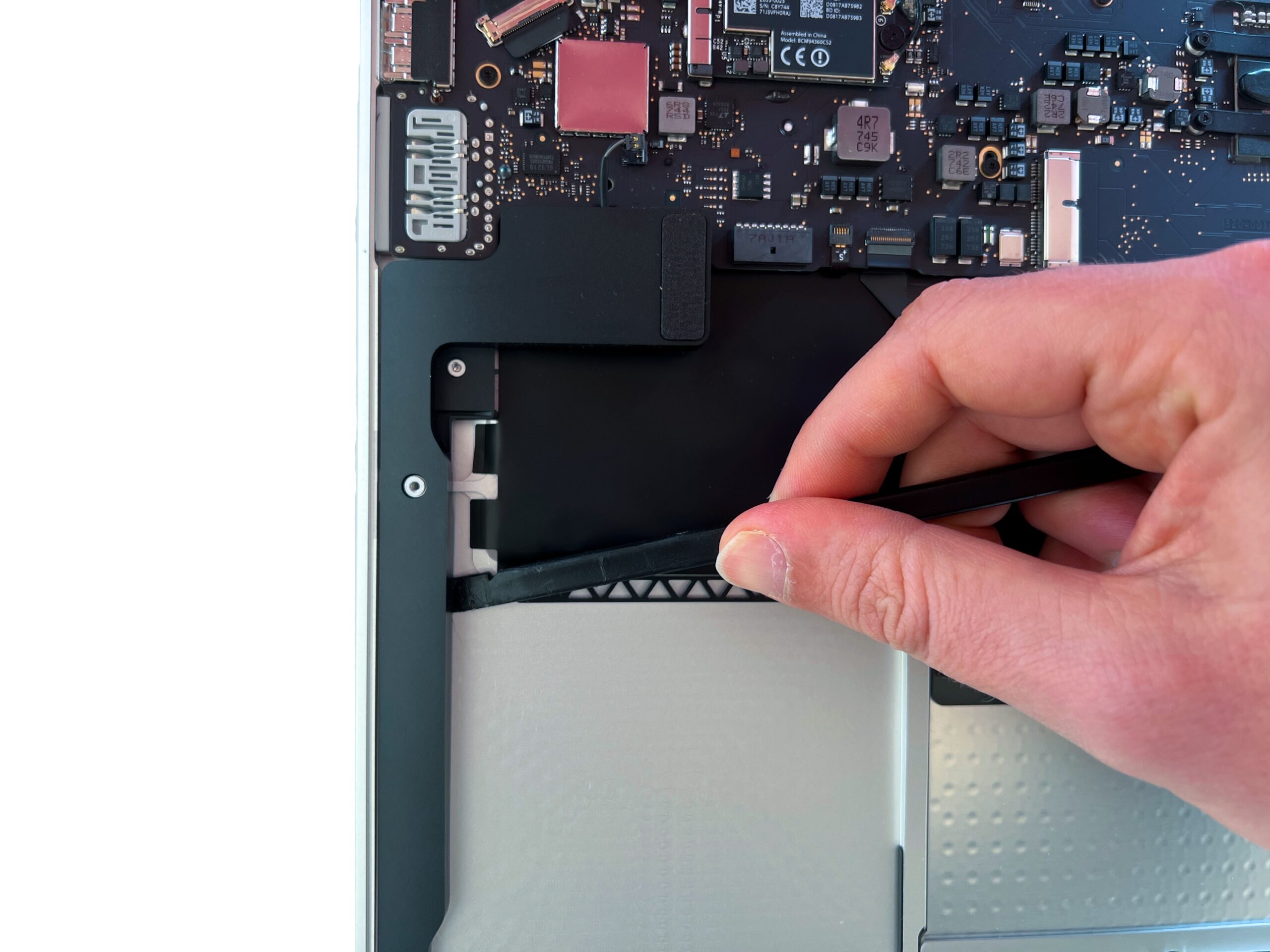
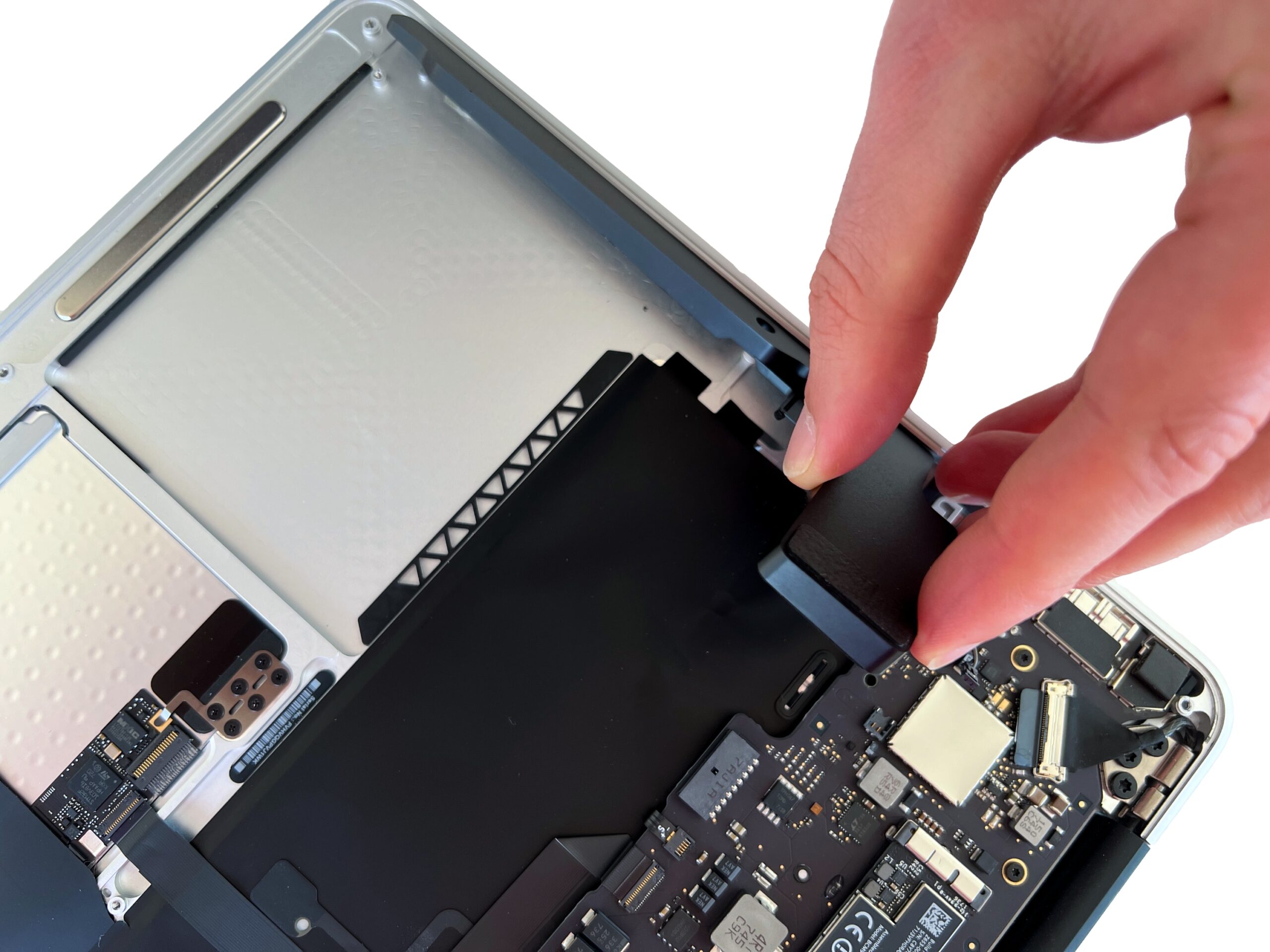
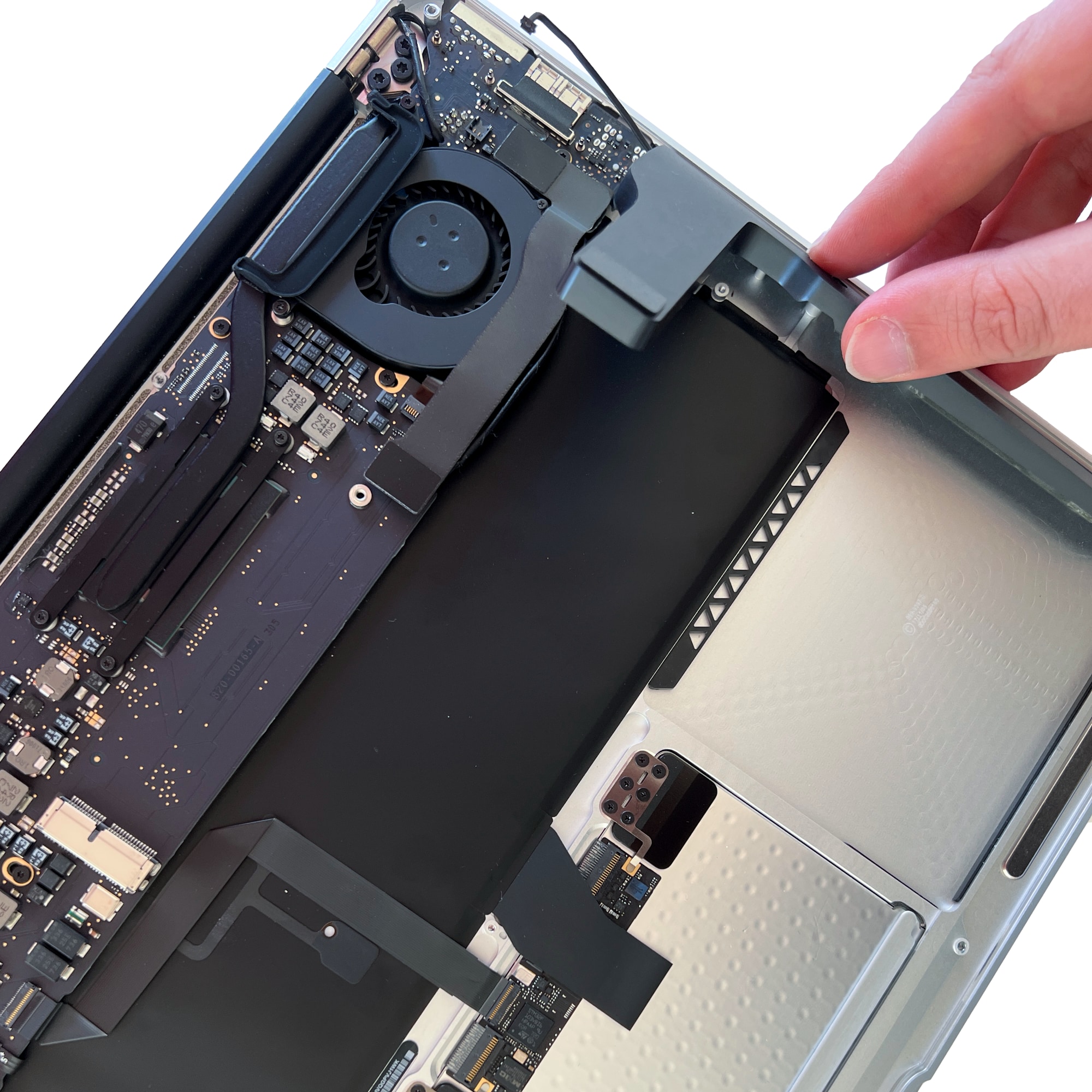
Gently lift the speaker using a plastic tool to release the adhesive.
Then remove the speaker completely
-
Step 9 of 30 9. Disconnect the MagSafe flex cable
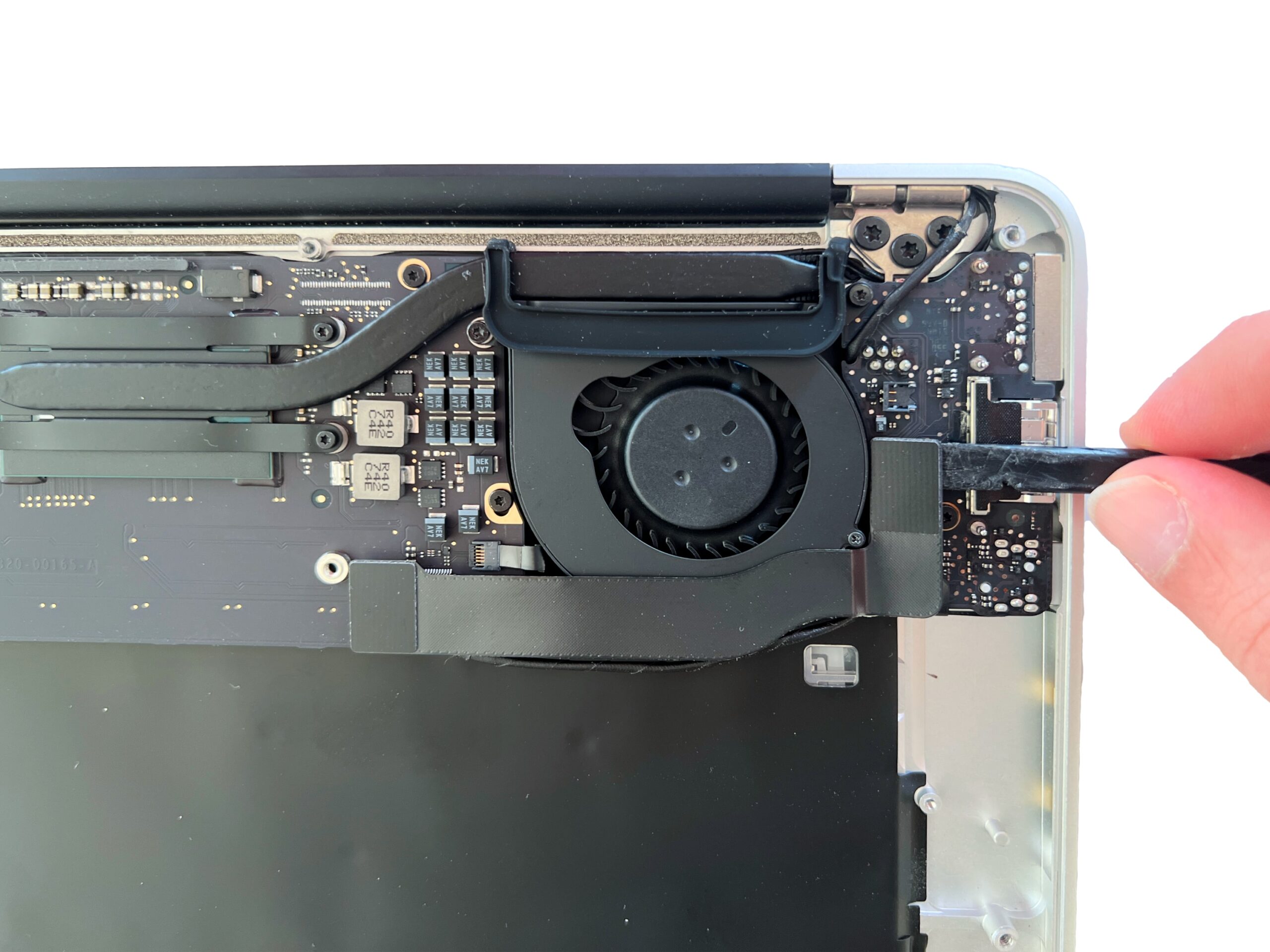
Carefully disconnect the cable linking the logic board to the MagSafe board.
Work carefully so as not to tear off the connector.
-
Step 10 of 30 10. Remove the MagSafe flex cable
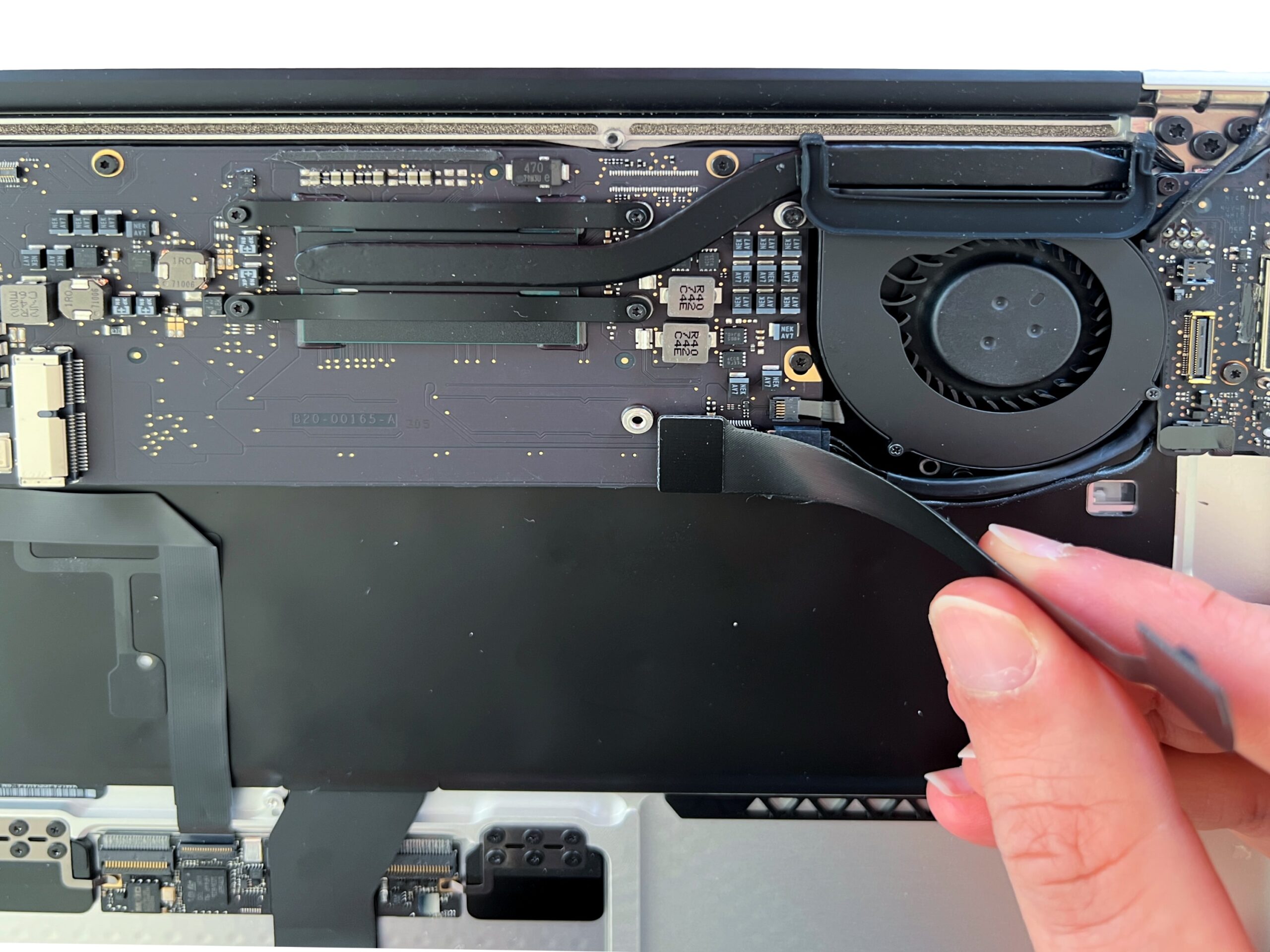
Disconnect the other end of the flex cable to remove it completely.
-
Step 11 of 30 11. Unscrew the fan
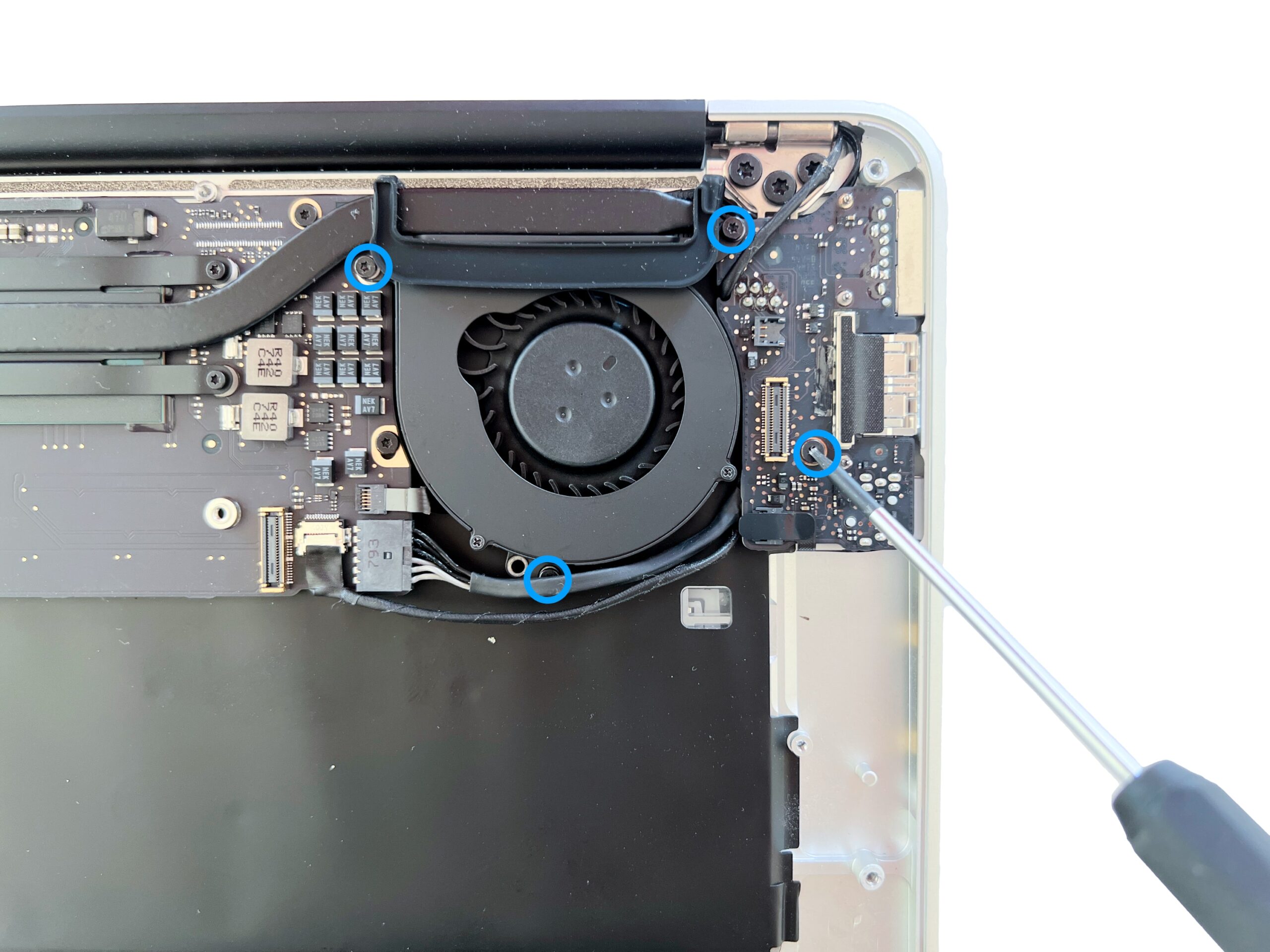
Remove the 4 Torx T5 screws holding the fan and the MagSafe board of the MacBook Air in place.
The lower fan screw is often hidden behind the display cable and MagSafe cable; move these two cables aside without pulling on them to reveal the screw
-
Step 12 of 30 12. Disconnect the display cable
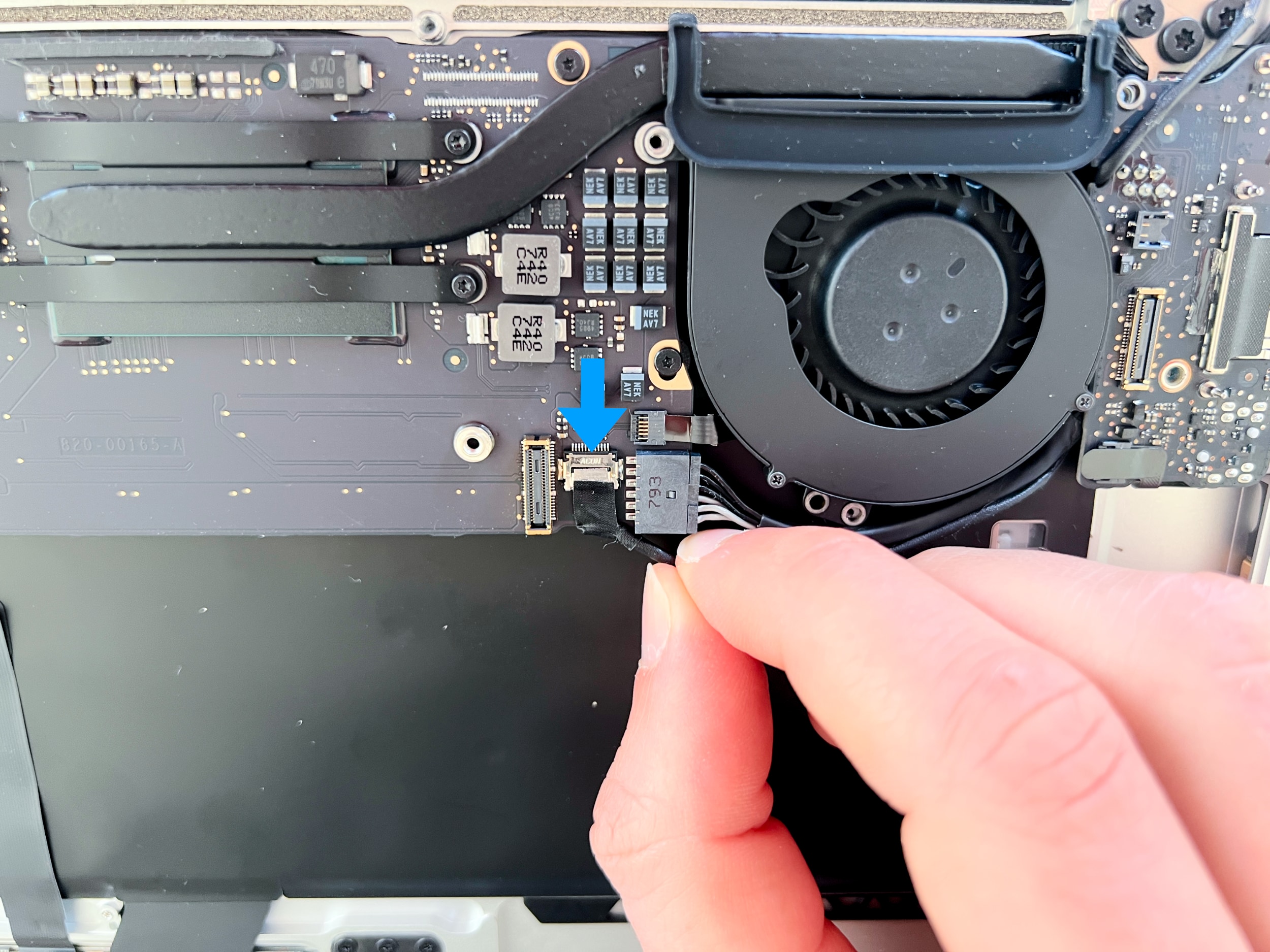
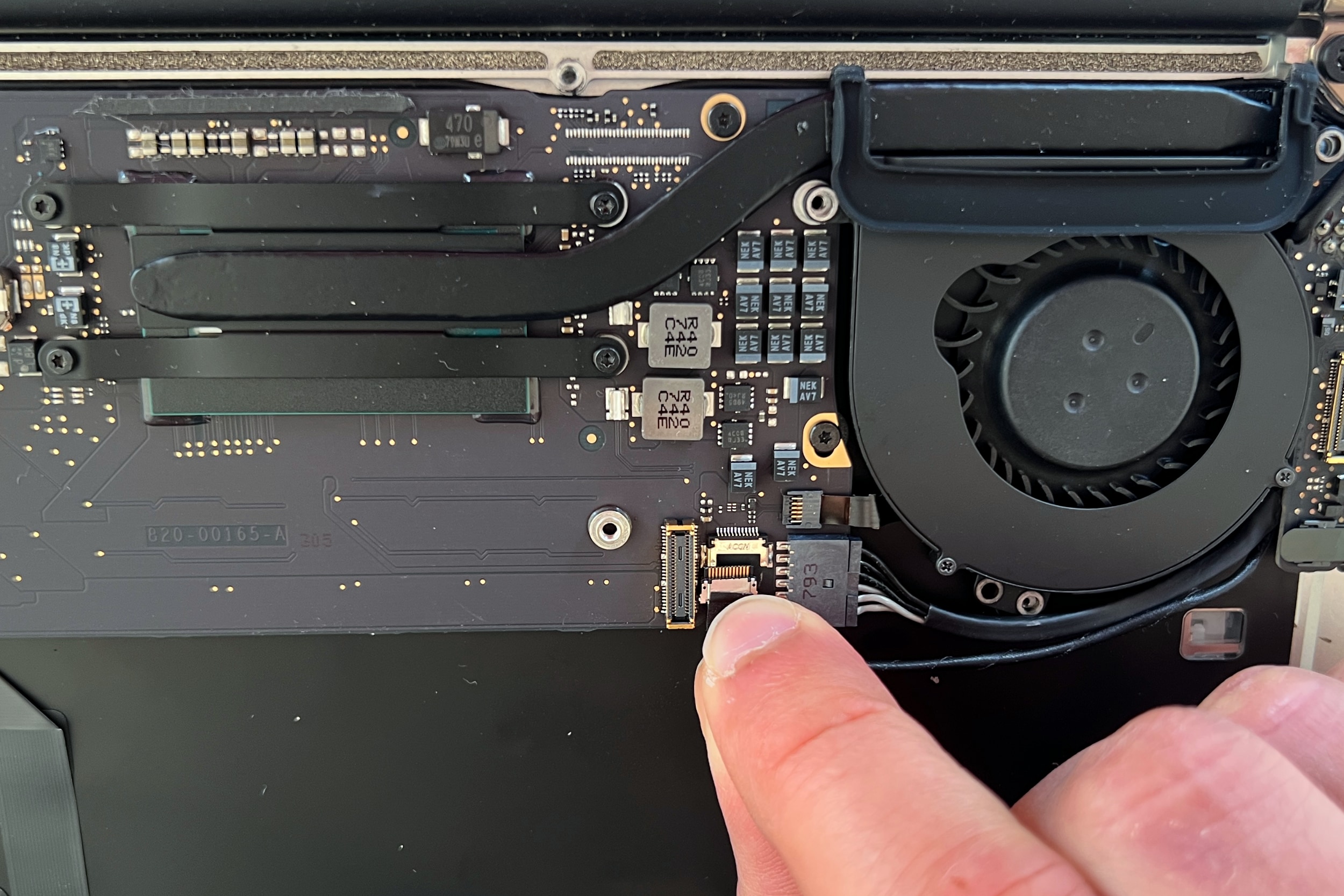
⚠️ The display cable on the MacBook Air A1466 is fragile and cannot be replaced, so proceed with care
Gently pull the cable downwards, using small side-to-side movements.
If the cable won't come out, push on the sides with the plastic tool (one side, then the other) -
Step 13 of 30 13. Disconnect the MagSafe board cable
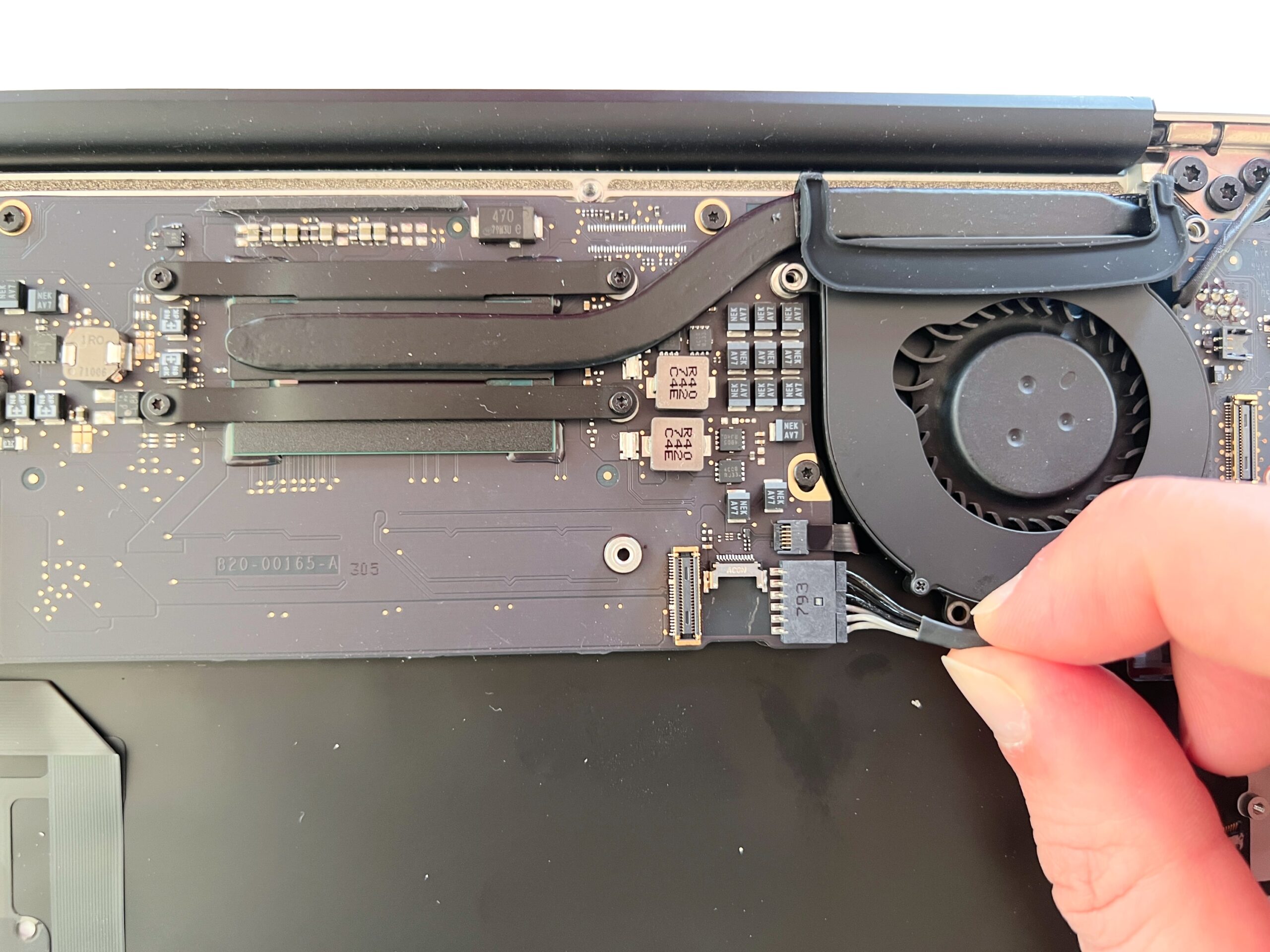
Disconnect the MagSafe connector cable at the logic board end to free the MagSafe board.
The movement must be made from left to right, never pulling upwards, or you risk tearing off the logic board connector
-
Step 14 of 30 14. Free the display cable
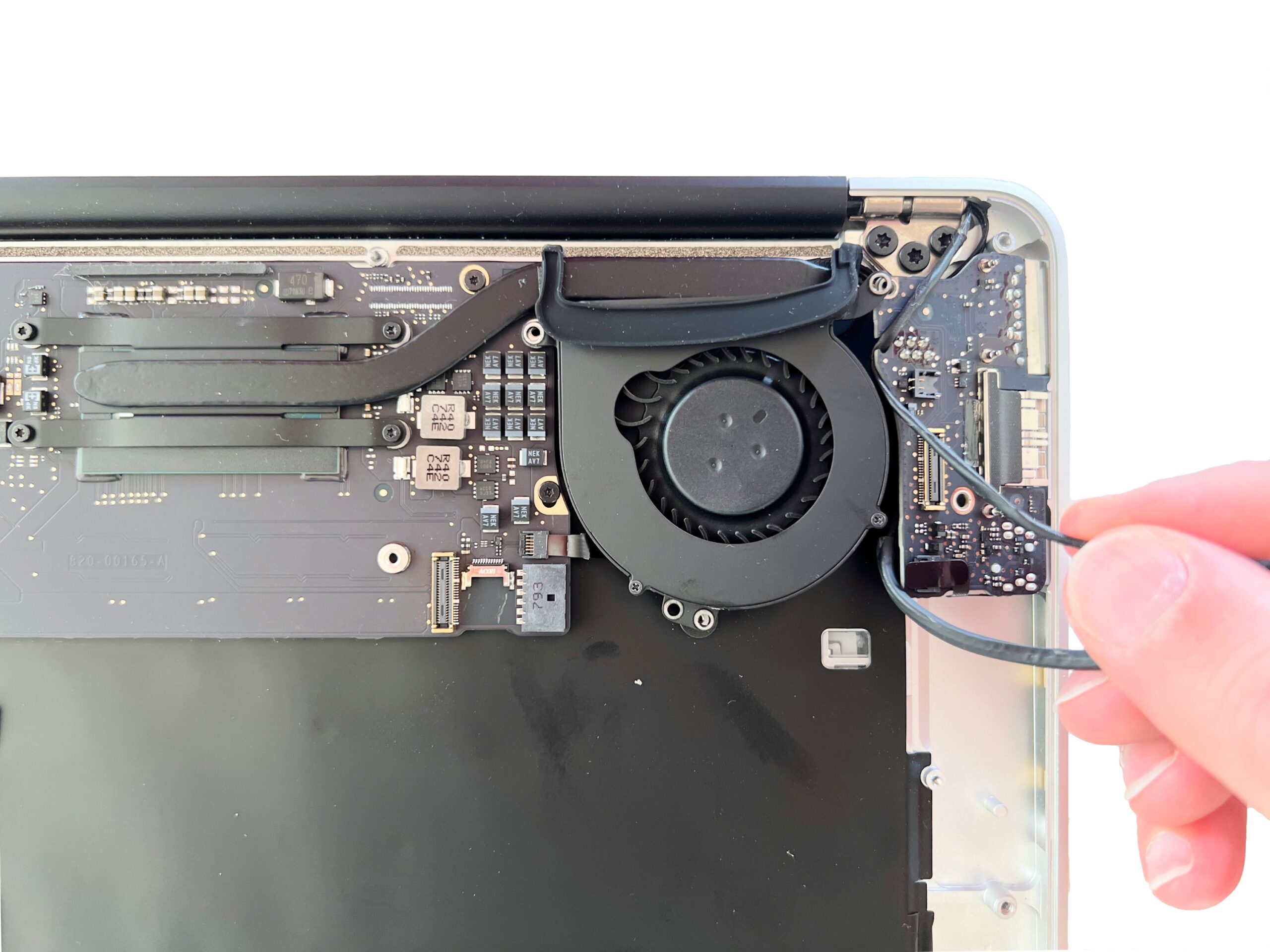
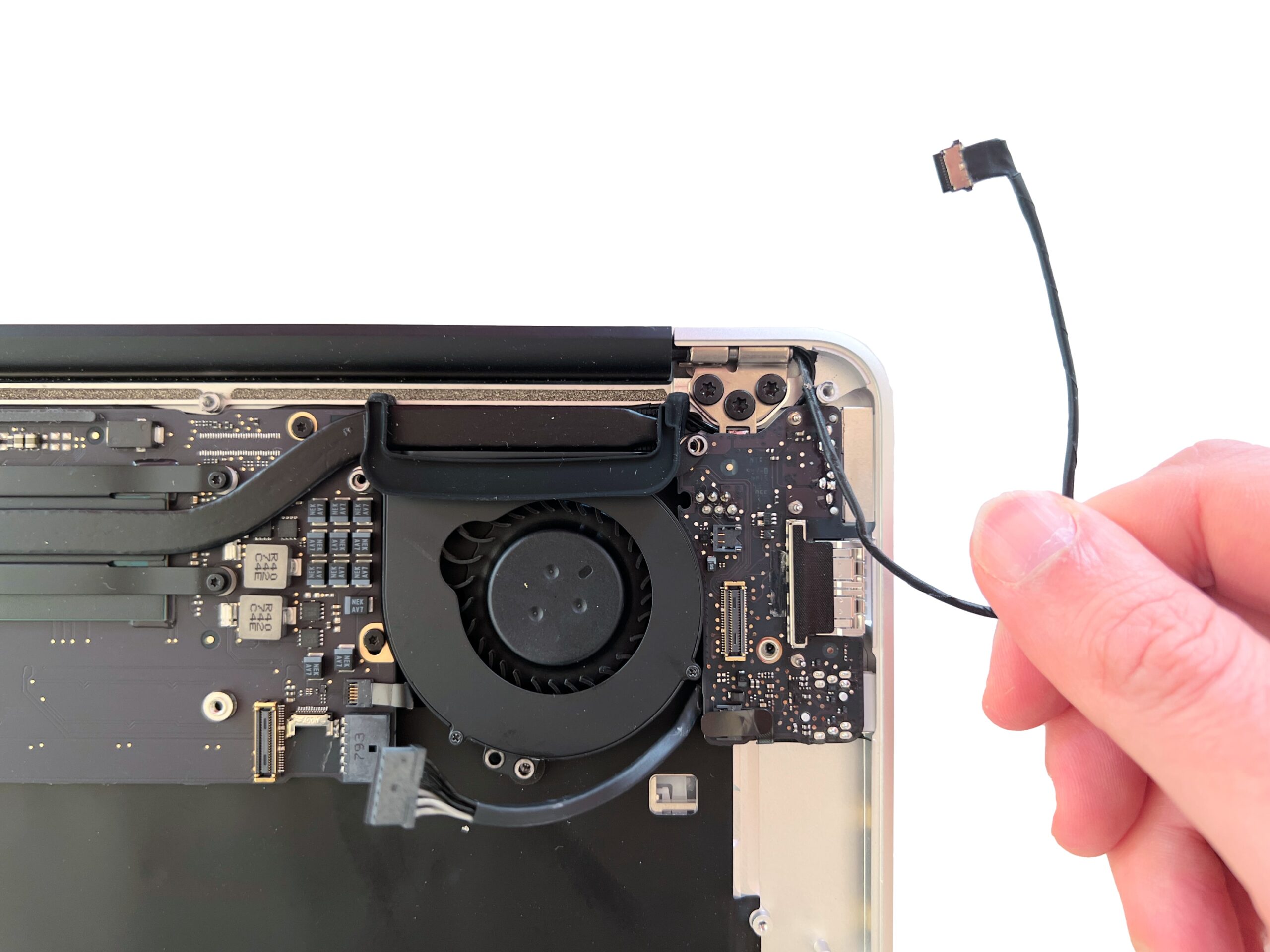
Lift the MacBook Air MagSafe board to fully free the display cable.
The cable should come away easily, without resistance
-
Step 15 of 30 16. Disconnect the microphone
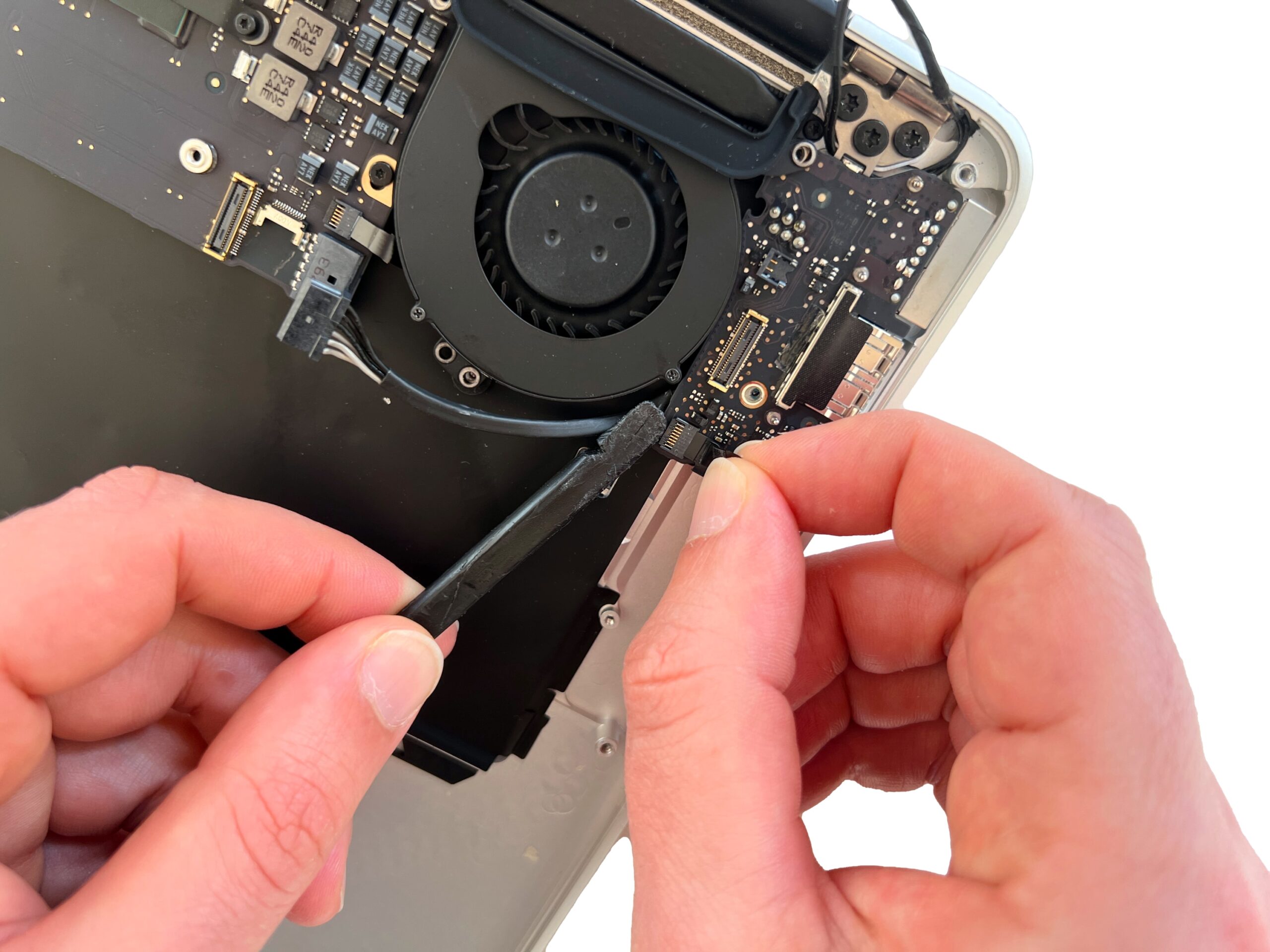
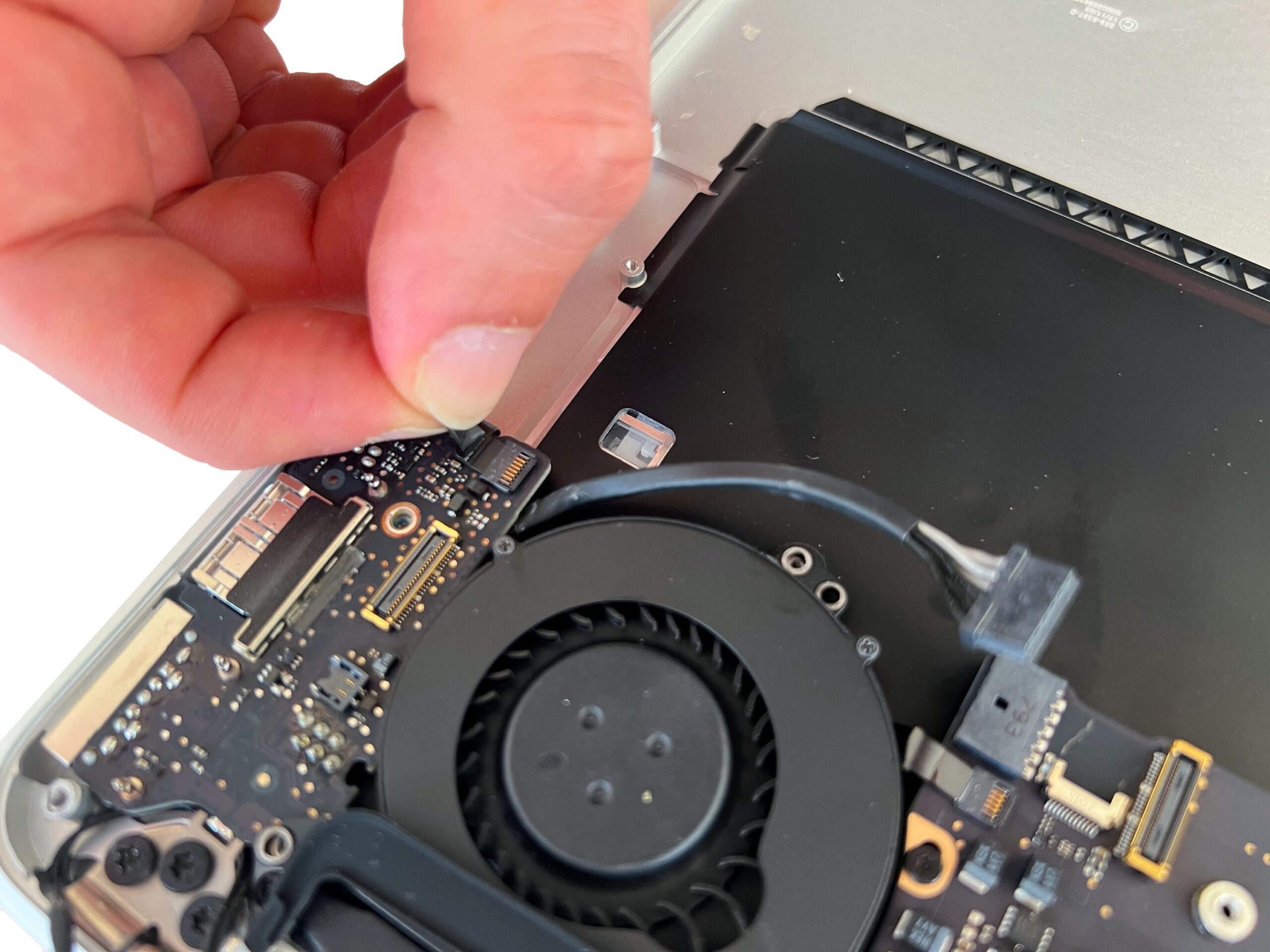
Lift the connector latch of the microphone flex cable to release it, then gently pull the flex cable to remove it.
⚠️ Caution: these latches are extremely fragile, so proceed with the utmost care and close the latch once the flex cable is disconnected
-
Step 16 of 30 16. Remove the MagSafe board
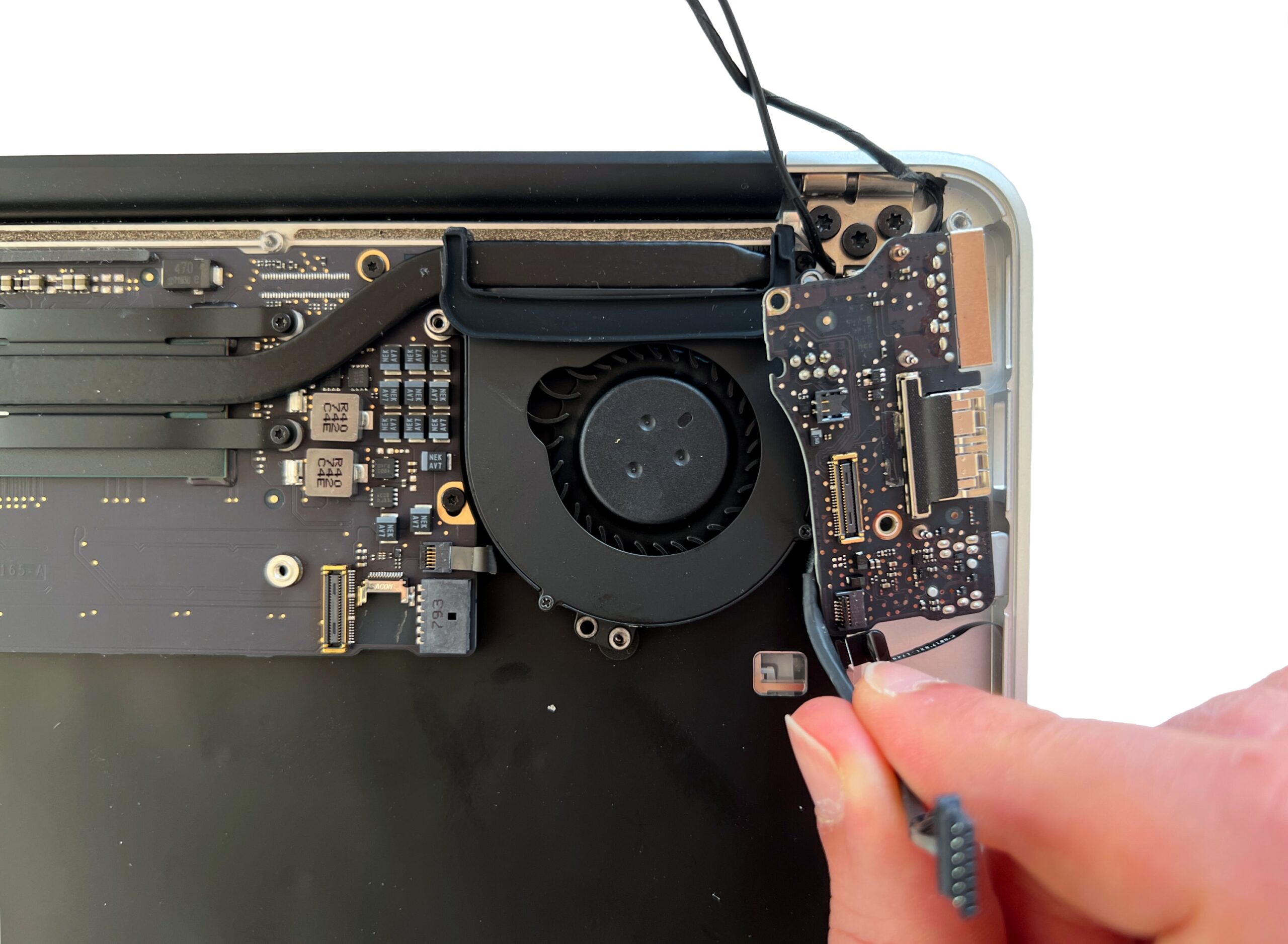
Now that the MagSafe board is fully disconnected from the rest of the MacBook Air, remove it.
The board should come away easily; if not, check that no connector or screw remains
-
Step 17 of 30 17. Disconnect the fan

Lift the connector latch of the fan flex cable to release it, then gently pull the flex cable to remove it.
⚠️ Caution: these latches are extremely fragile, so proceed with the utmost care and close the latch once the flex cable is disconnected
-
Step 18 of 30 18. Remove the fan
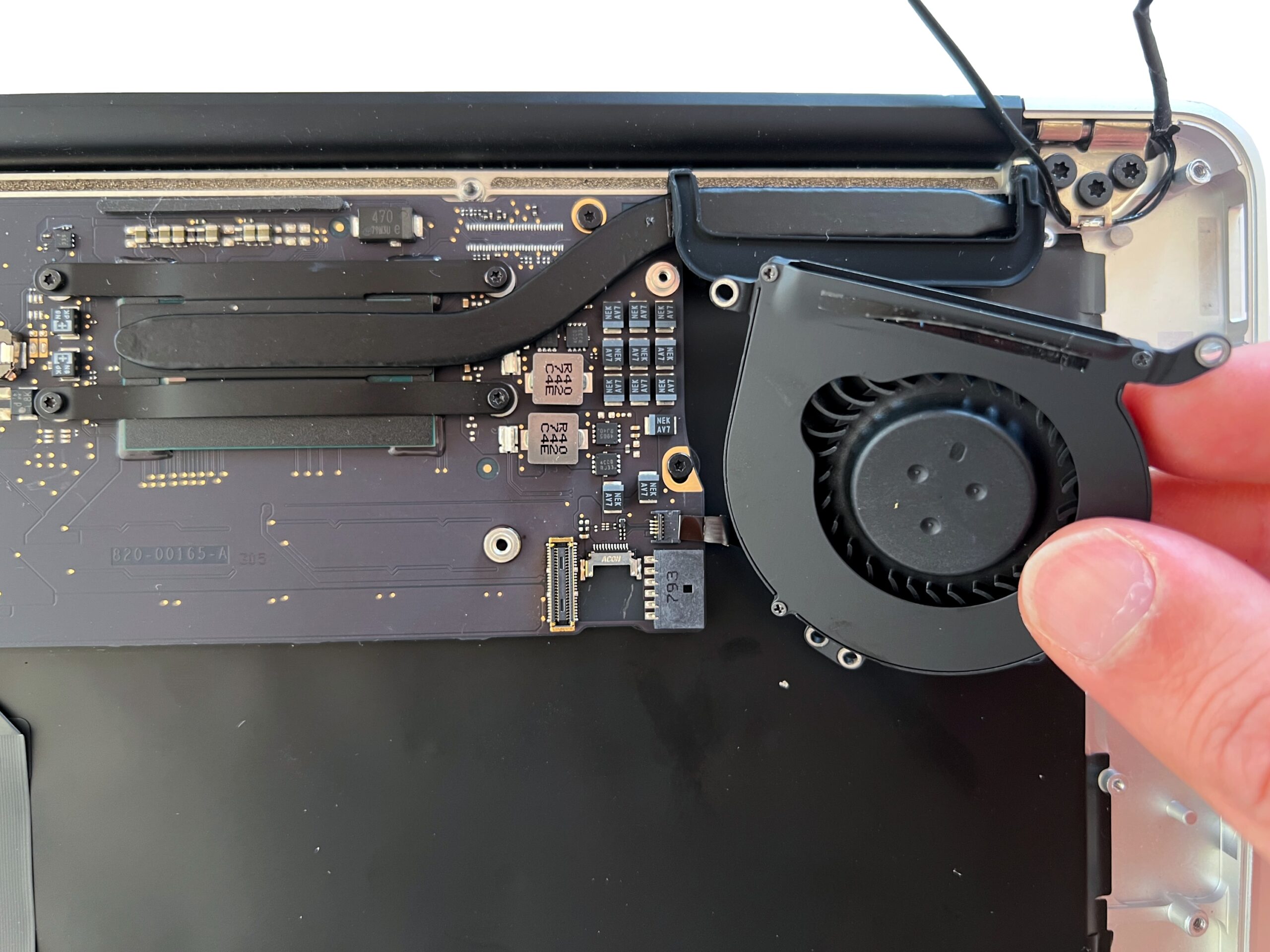
The MacBook Air fan should now be free of all screws and connectors.
Remove the fan; it should come away very easily
-
Step 19 of 30 19. Disconnect the AirPort cables
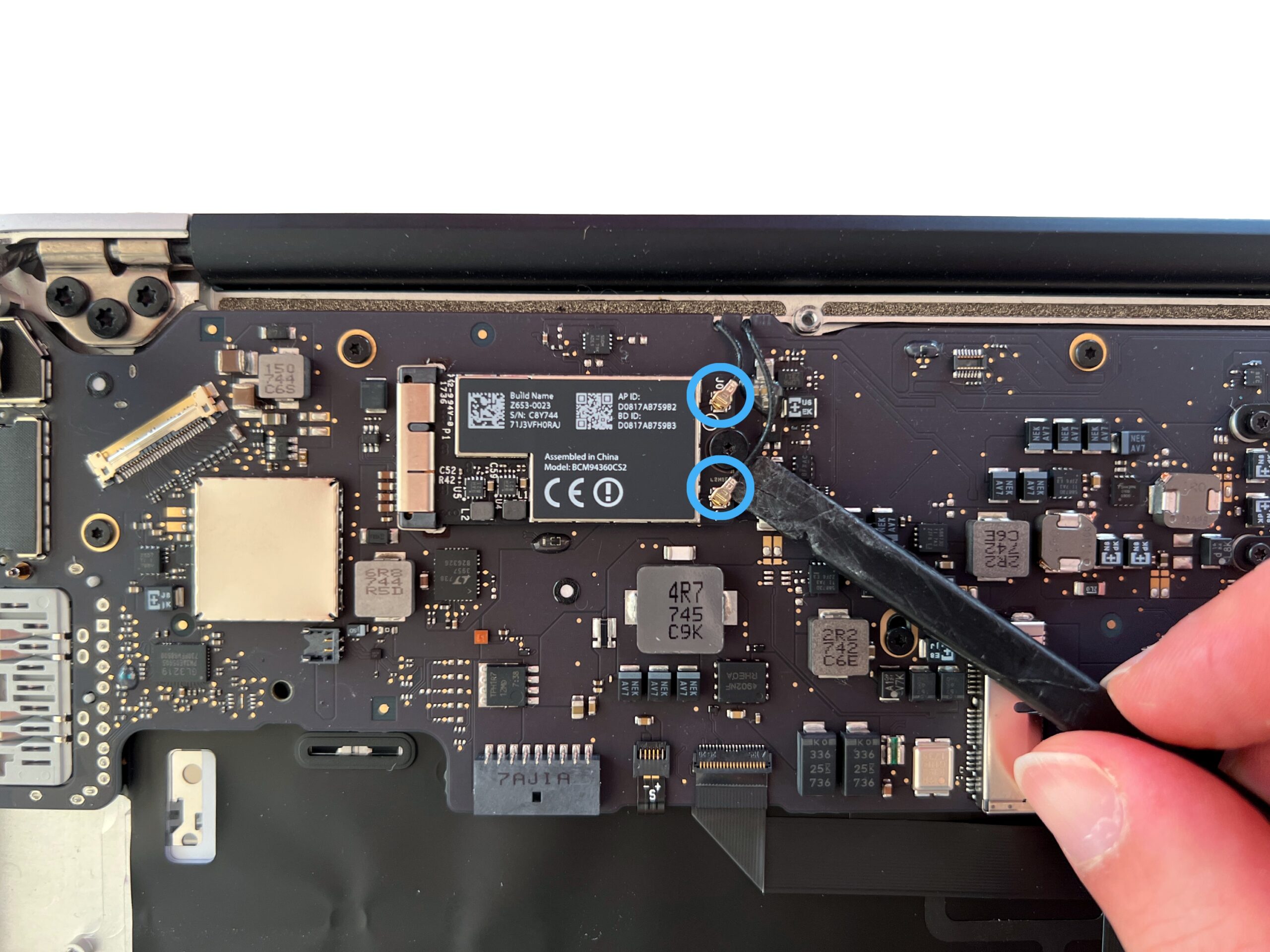
Use a plastic tool to disconnect the two AirPort antenna cables on the board
-
Step 20 of 30 20. Disconnect the trackpad flex cable
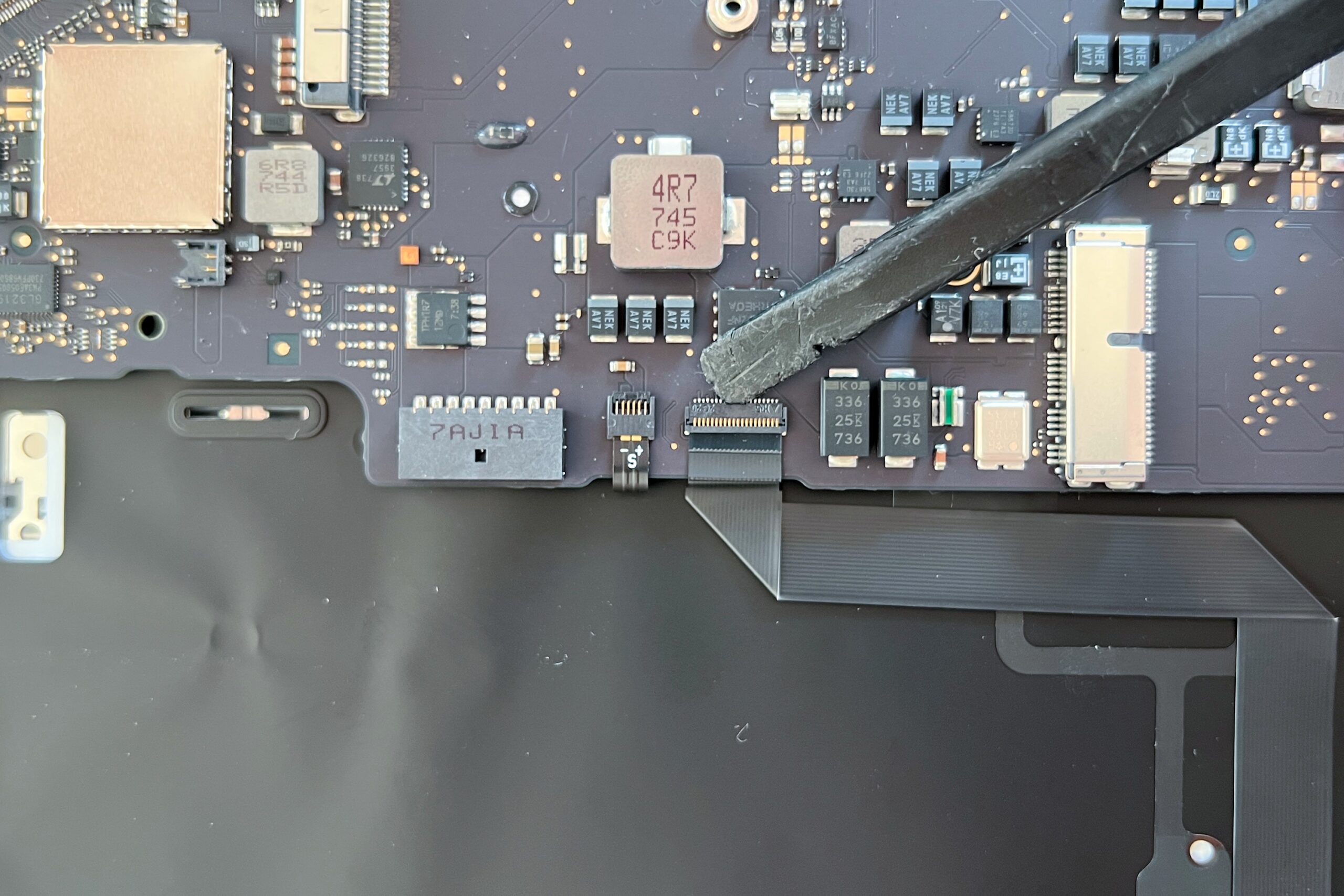
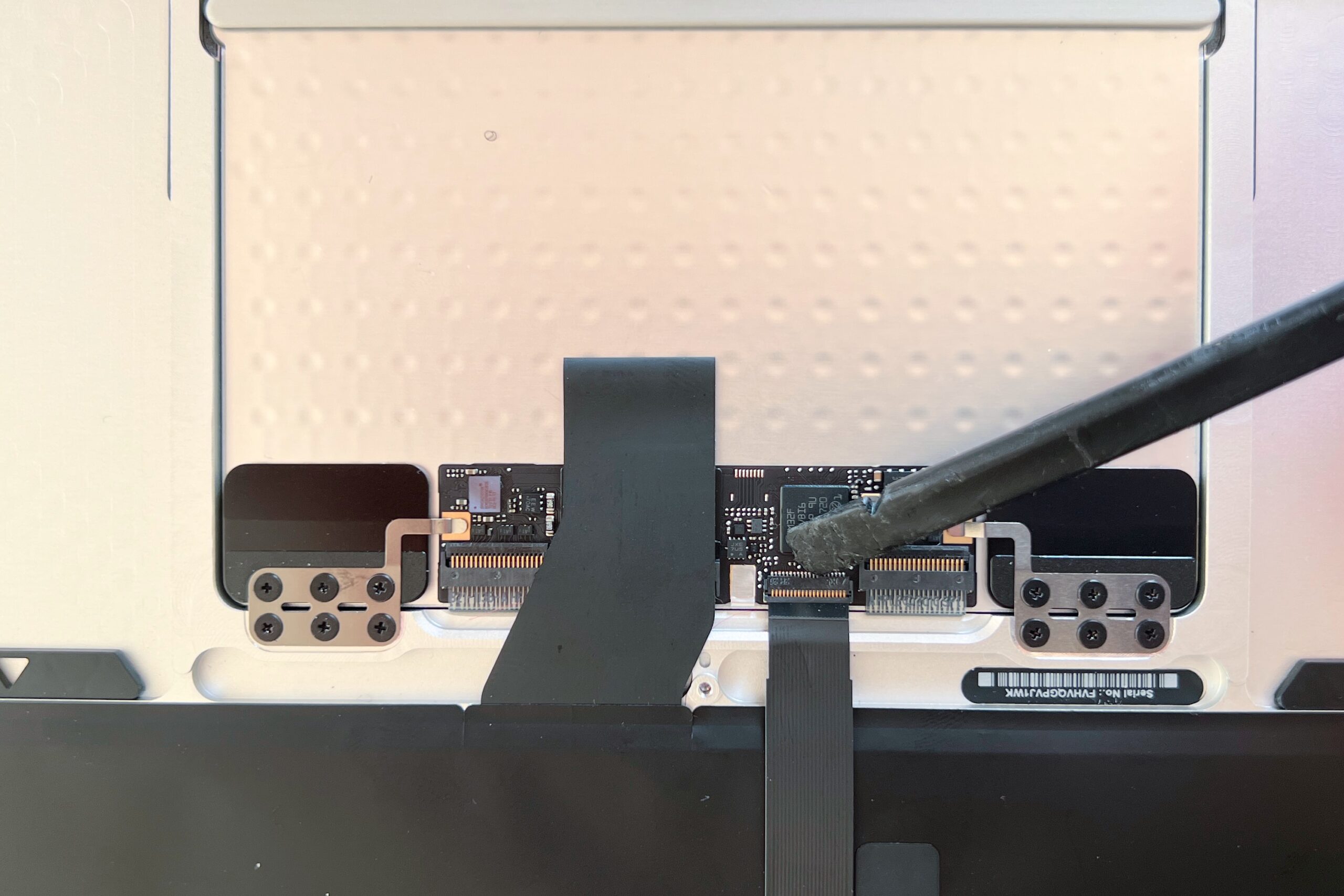
To remove the MacBook Air A1466 trackpad and its flex cable, start by disconnecting both ends of the flex cable
⚠️ Caution: these latches are extremely fragile, so proceed with the utmost care and close the latch once the flex cable is disconnected
-
Step 21 of 30 21. Remove the trackpad flex cable
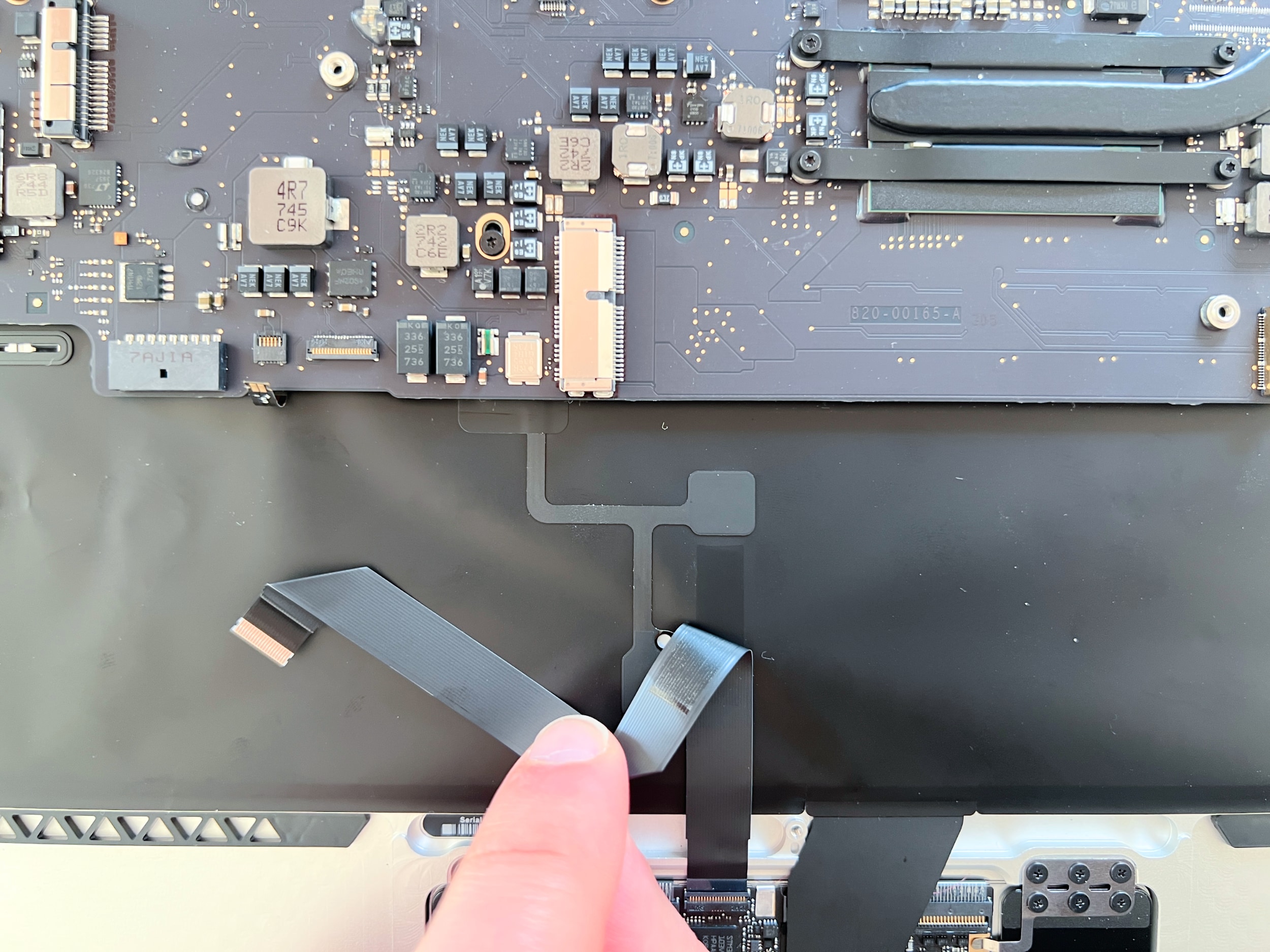
Once the flex cable is disconnected, carefully remove it.
Be careful, however: the flex cable is stuck to the backlight, so you need to peel it off millimetre by millimetre to avoid tearing the MacBook Air backlight
-
Step 22 of 30 22. Disconnect the backlight flex cable
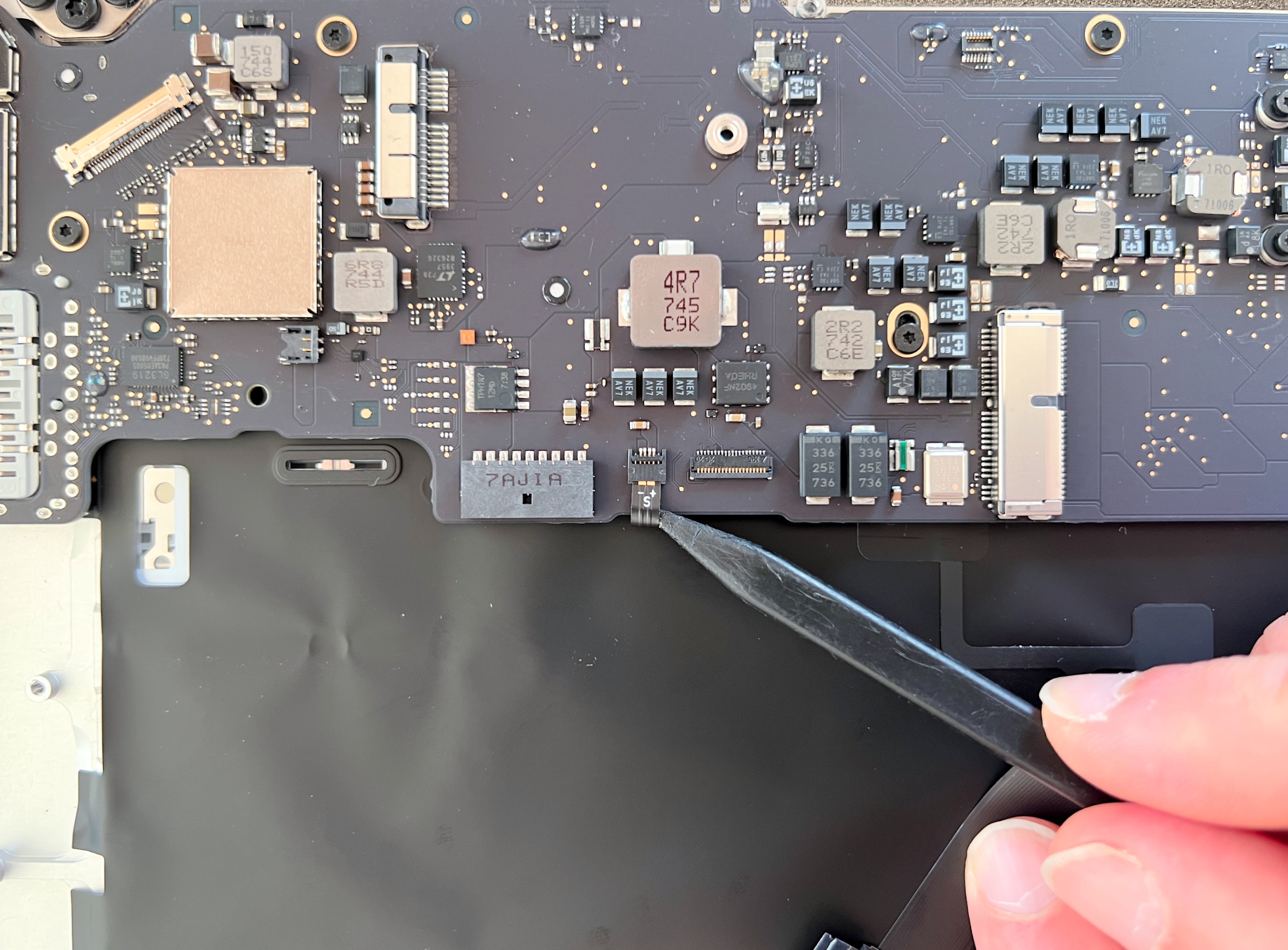
Use a plastic tool to disconnect the MacBook Air backlight flex cable
⚠️ Caution: these latches are extremely fragile, so proceed with the utmost care and close the latch once the flex cable is disconnected
-
Step 23 of 30 23. Disconnect the left display flex cable
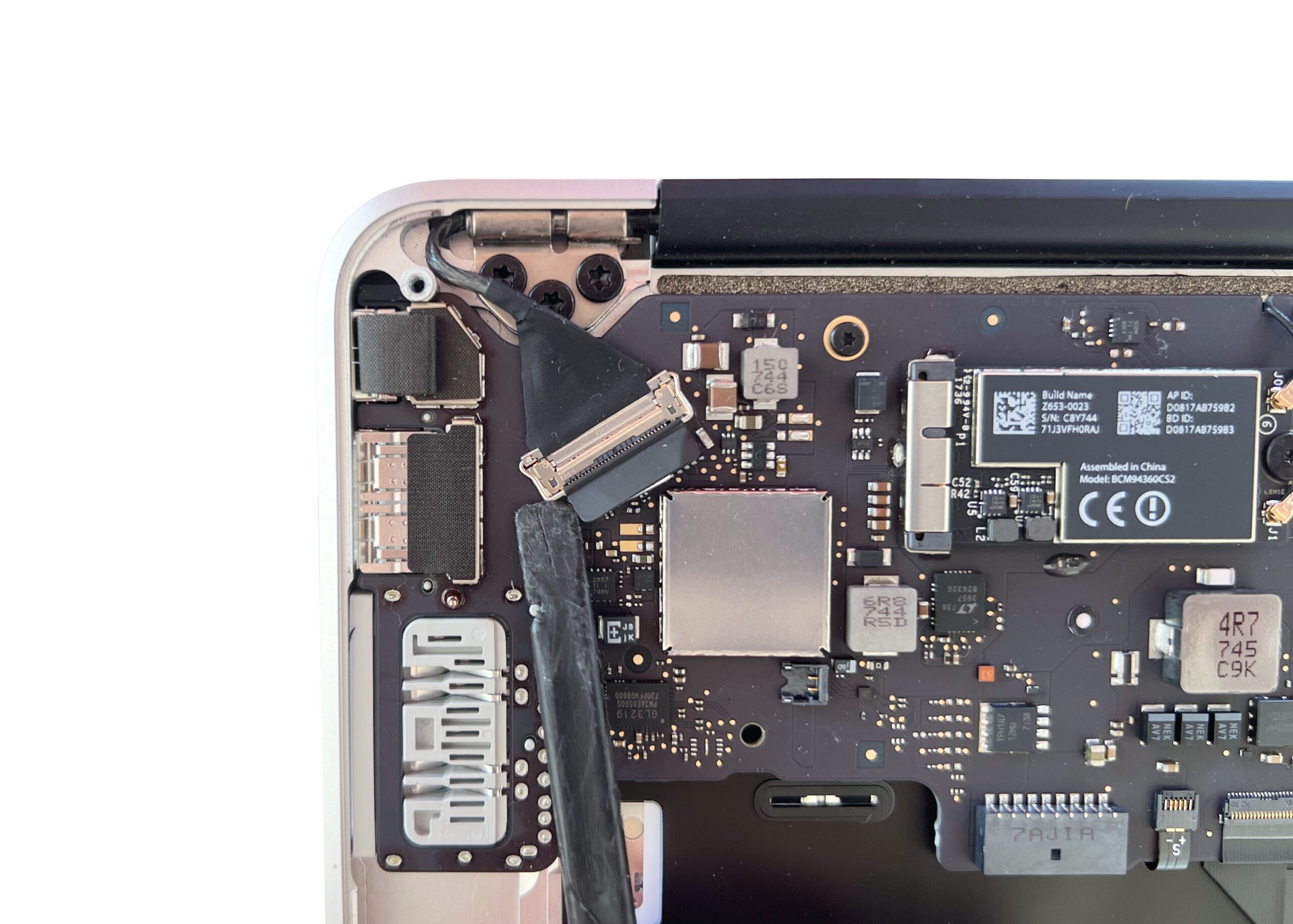
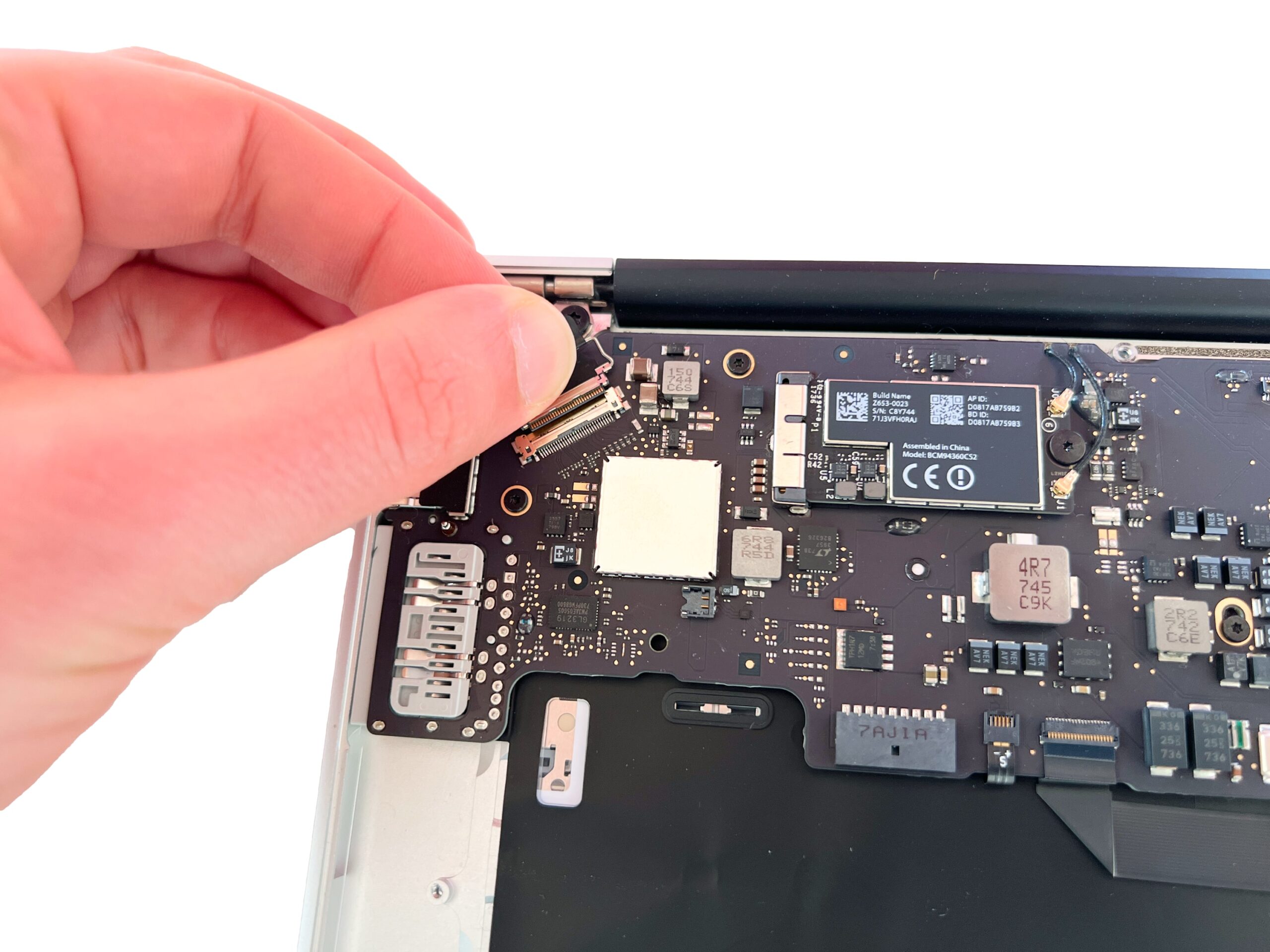
Lift the metal latch holding the flex cable in place and gently pull the flex cable to remove it
-
Step 24 of 30 24. Unscrew the display hinges
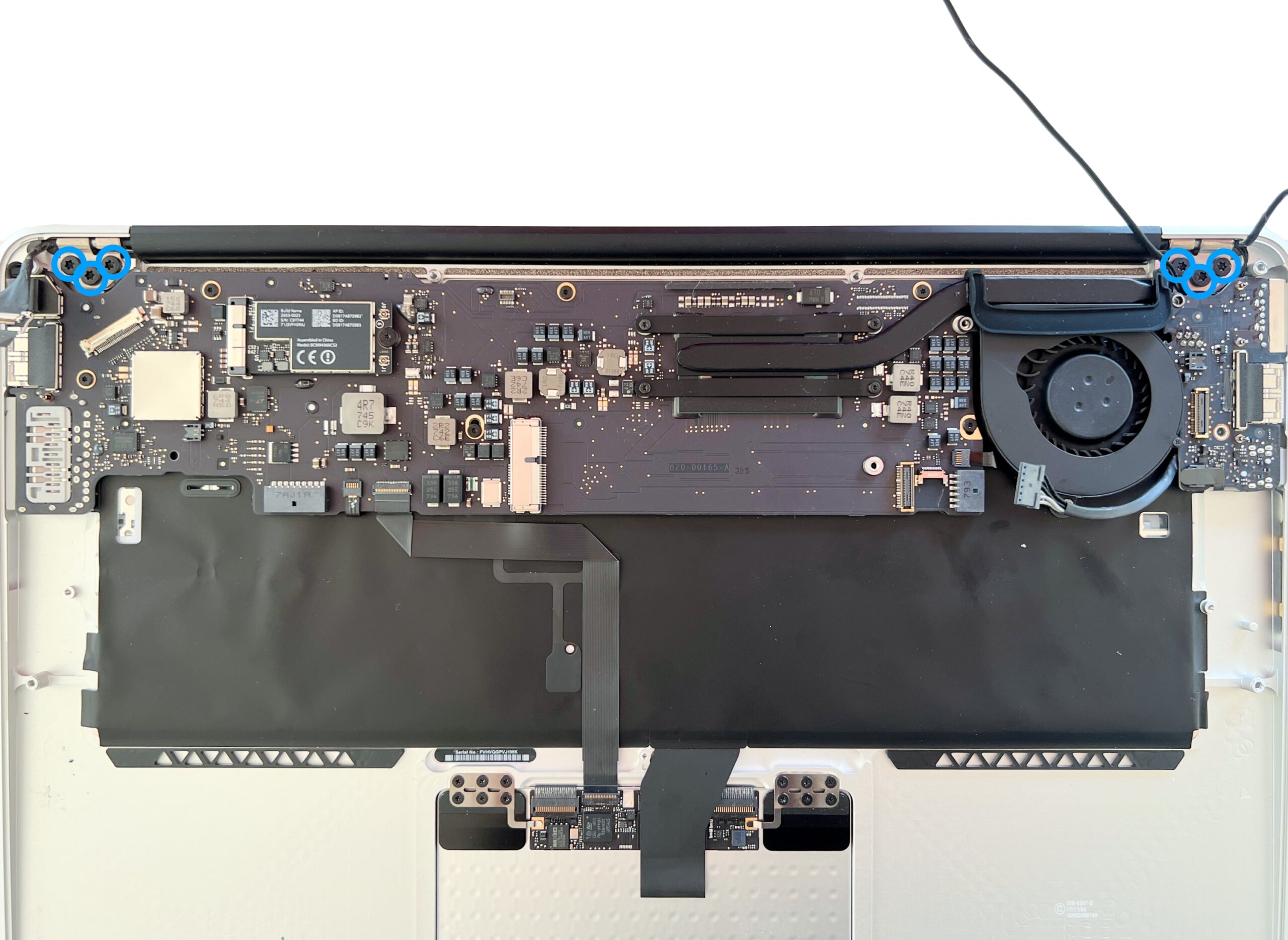
To separate the MacBook Air display from the top case, remove the 6 Torx T7 screws holding the hinge in place.
These screws can be difficult to remove, so it's best to support the MacBook Air firmly before unscrewing
-
Step 25 of 30 25. Remove the display
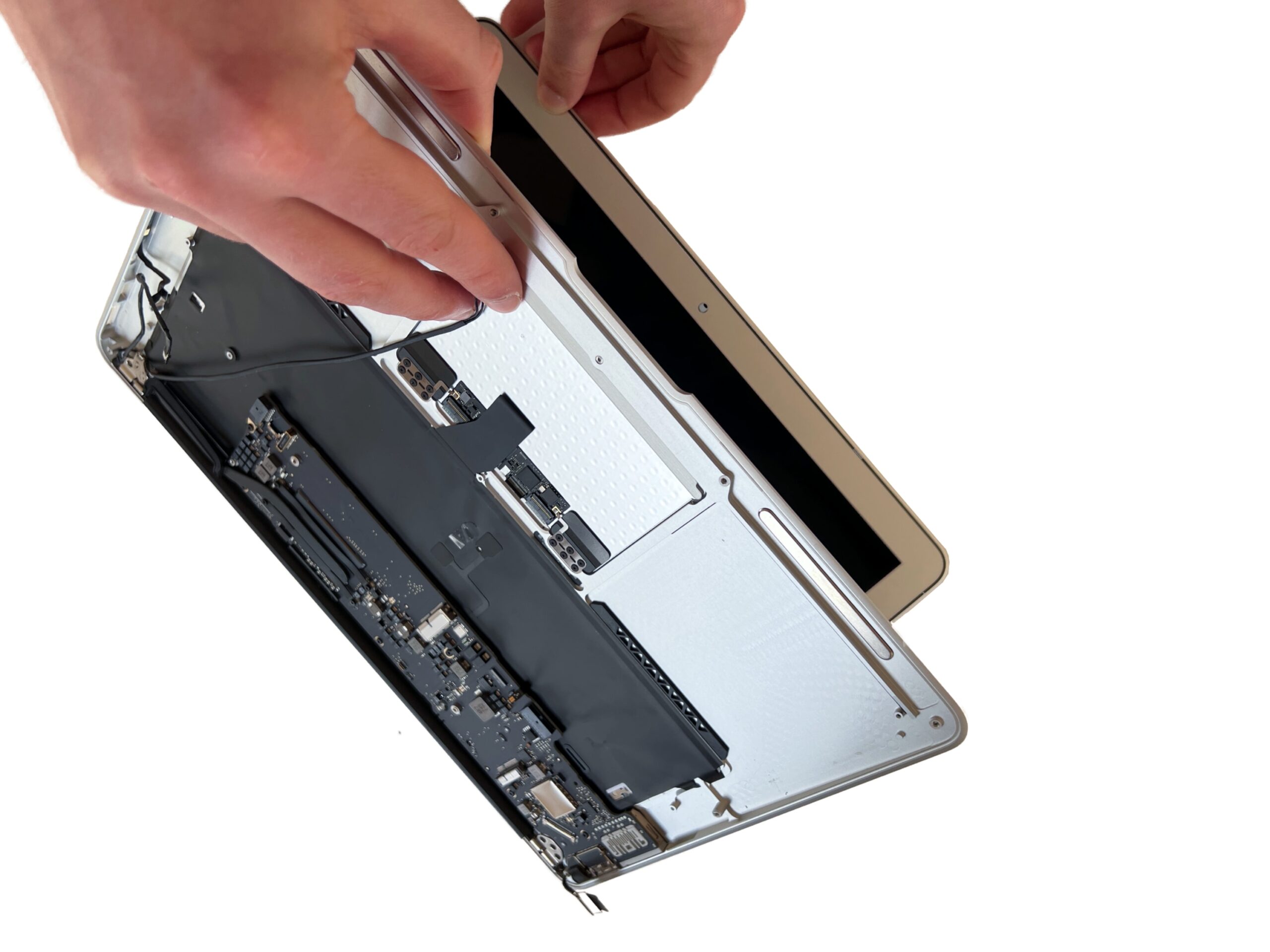
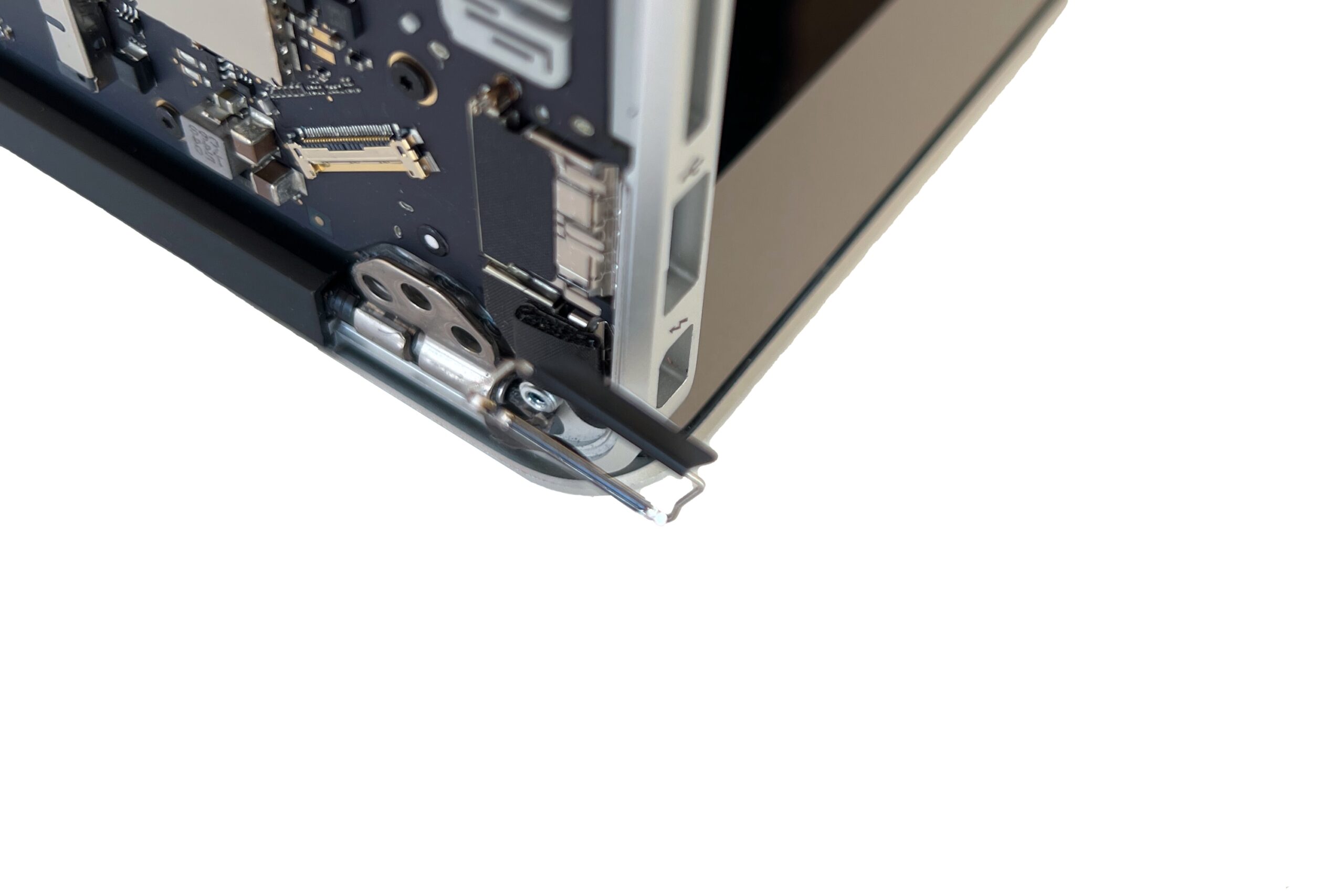

Check that all connectors and screws have been removed, then lift the keyboard fully to raise the hinges.
You should then be able to remove the MacBook Air display easily.
If the display won't separate from the rest of the Mac, check that the hinges are fully raised. The ideal hinge position is at 90° to the keyboard case -
Step 26 of 30 26. Unscrew the logic board
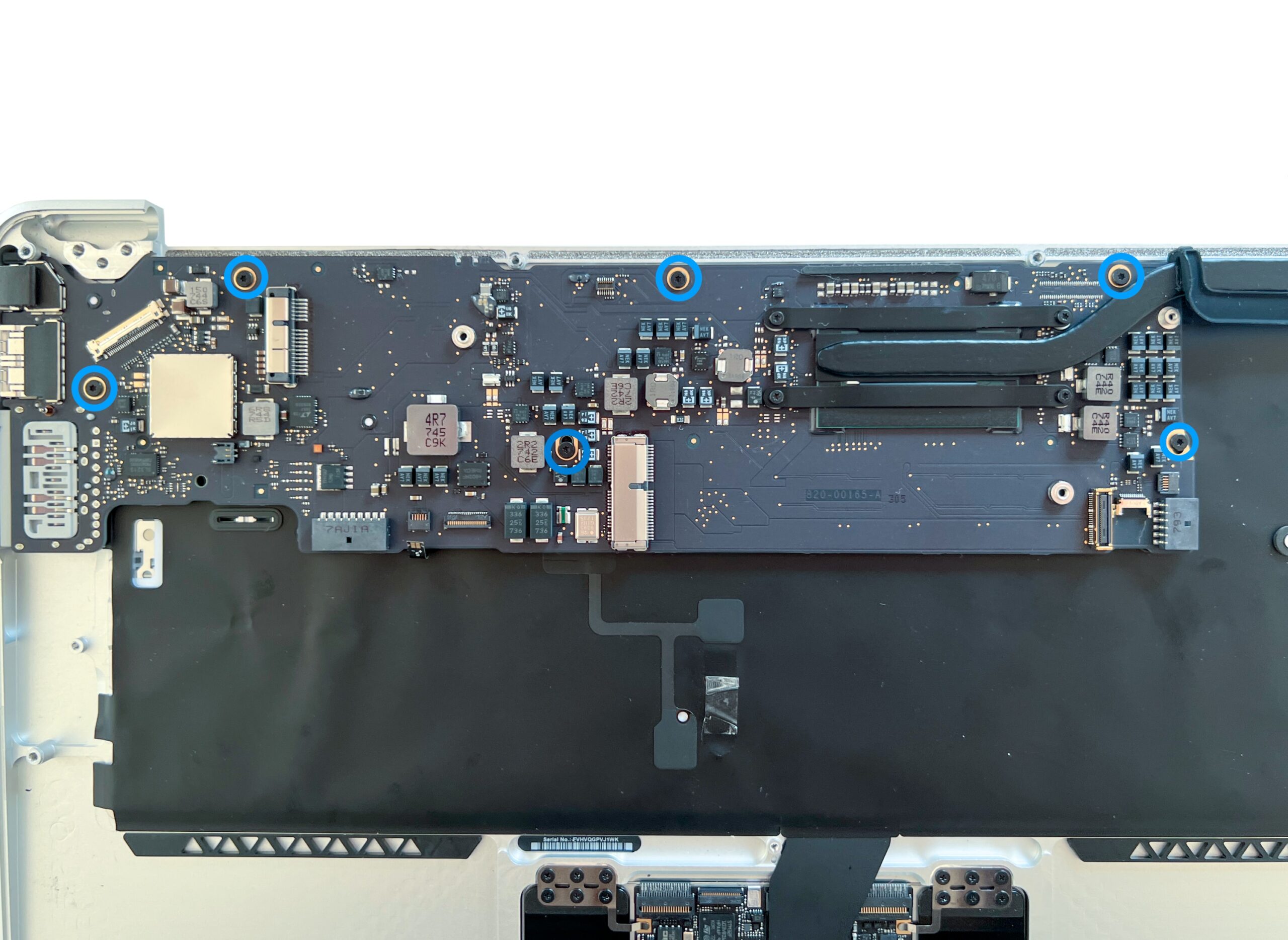
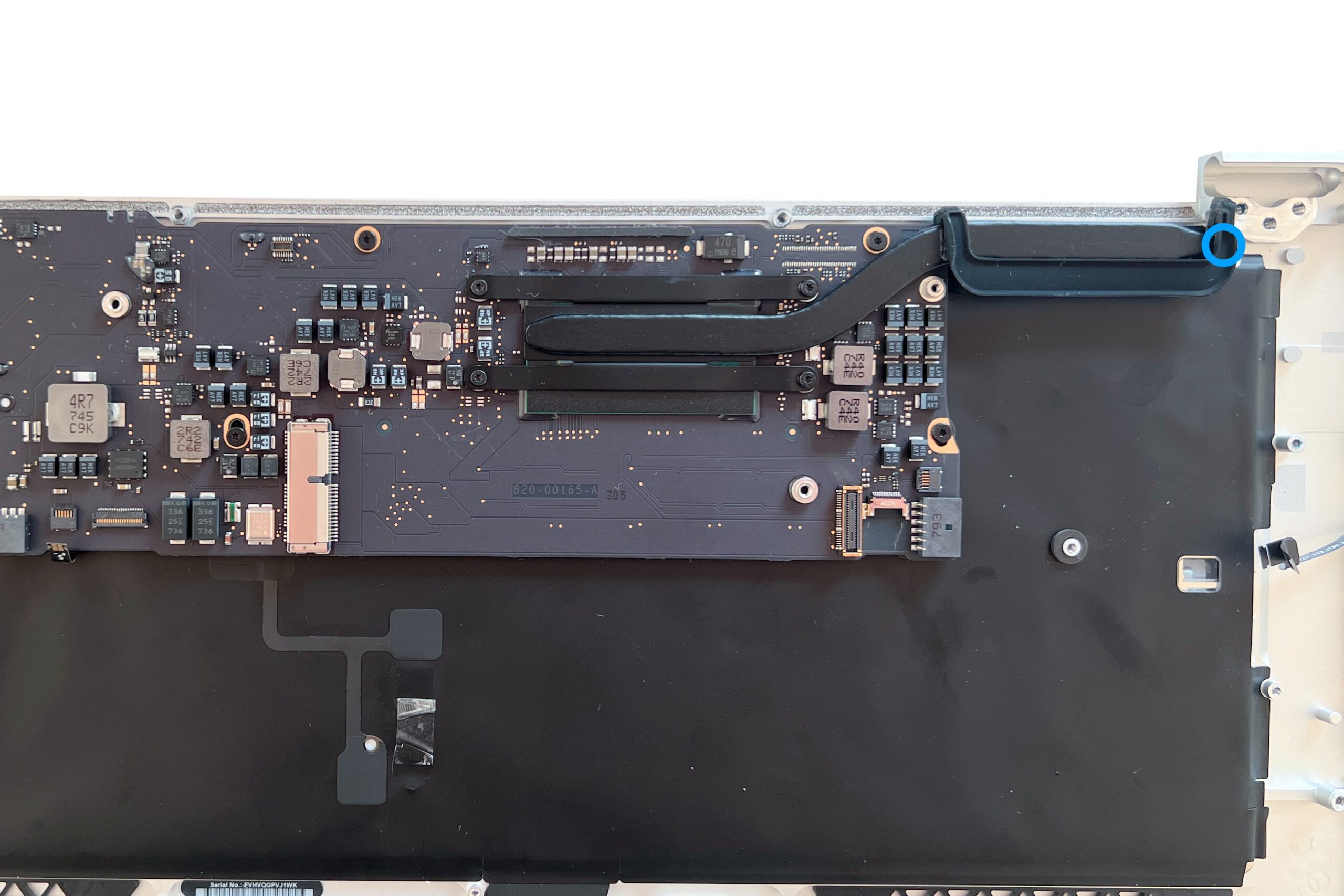
Remove the 6 Torx T5 screws holding the MacBook Air logic board in place.
Then remove the rubber fan cover and the Torx T5 screw located at the end of the heatsink
-
Step 27 of 30 28. Remove the logic board
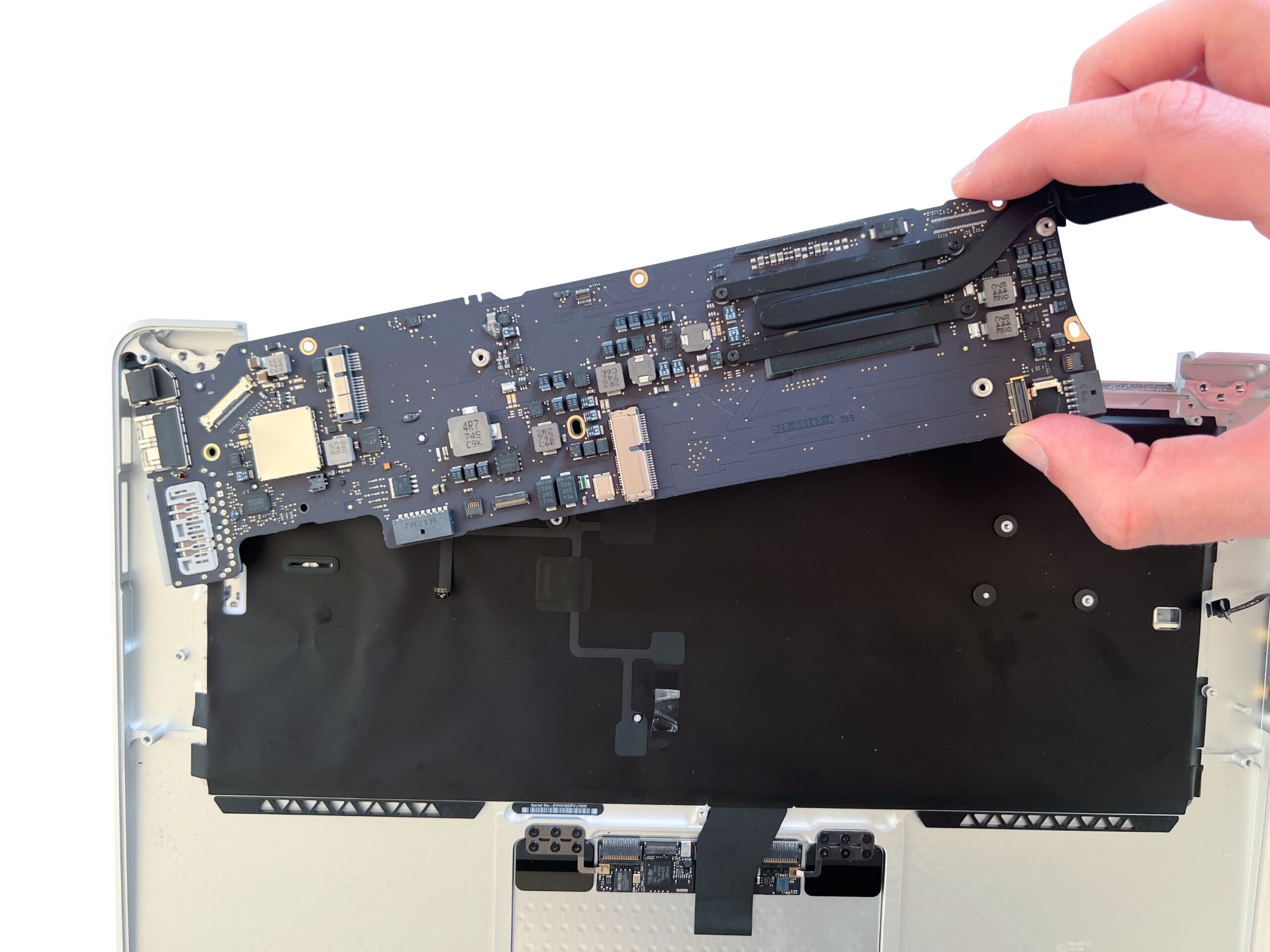
You can now remove the logic board from the rest of the MacBook Air.
The board should come away very easily, but it's best to proceed with care.Place the logic board in an anti-static bag for the duration of your repair
-
Step 28 of 30 29. Unscrew the trackpad
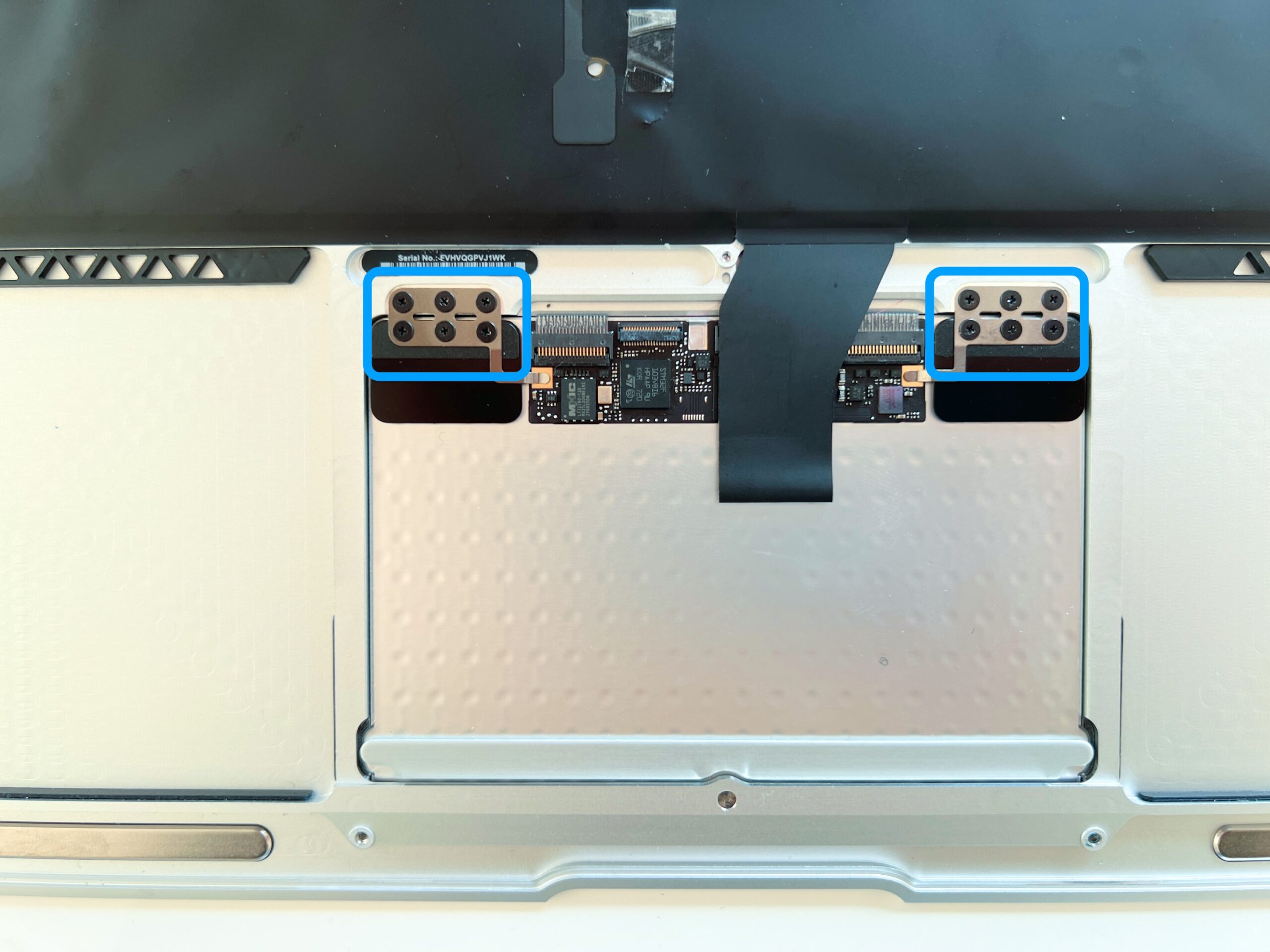
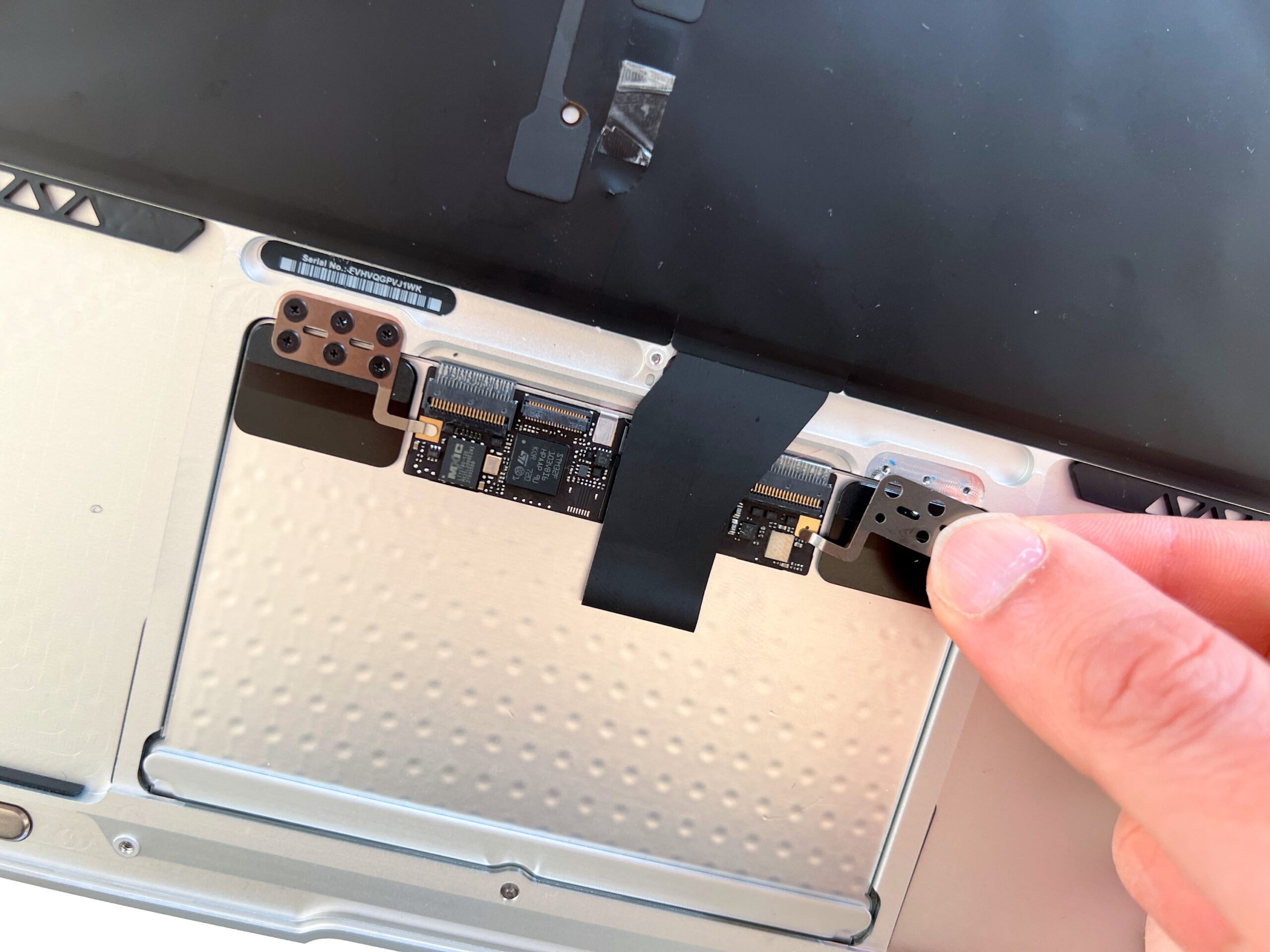
Remove the 12 Phillips screws securing the trackpad to the MacBook Air keyboard.
Then remove the metal bracket
-
Step 29 of 30 30. Remove the trackpad from the keyboard
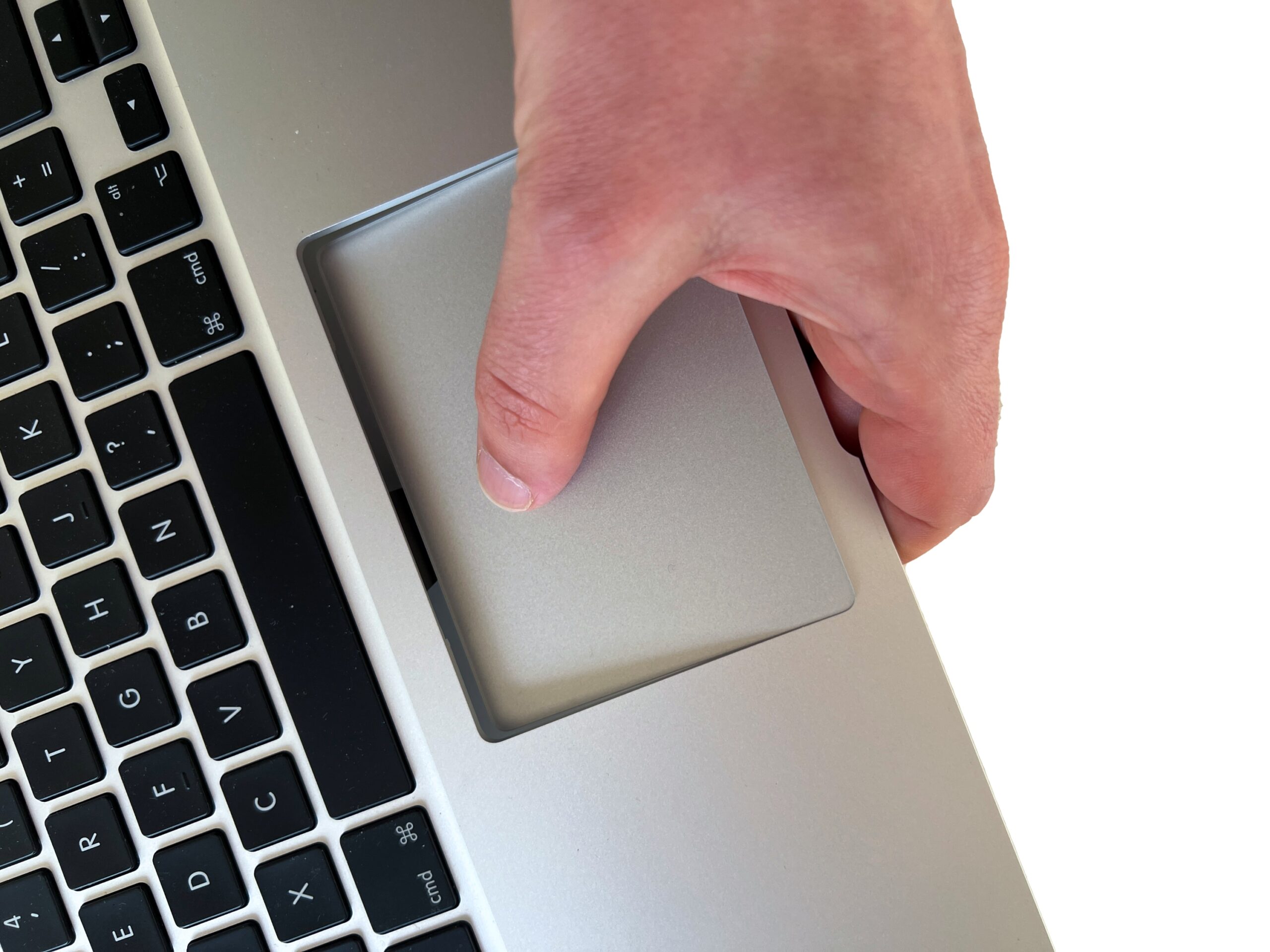
Push the trackpad from above to detach it from the keyboard.
⚠️ Caution: the trackpad flex cable is still attached, so proceed with care
-
Step 30 of 30 31. Disconnect the trackpad flex cable
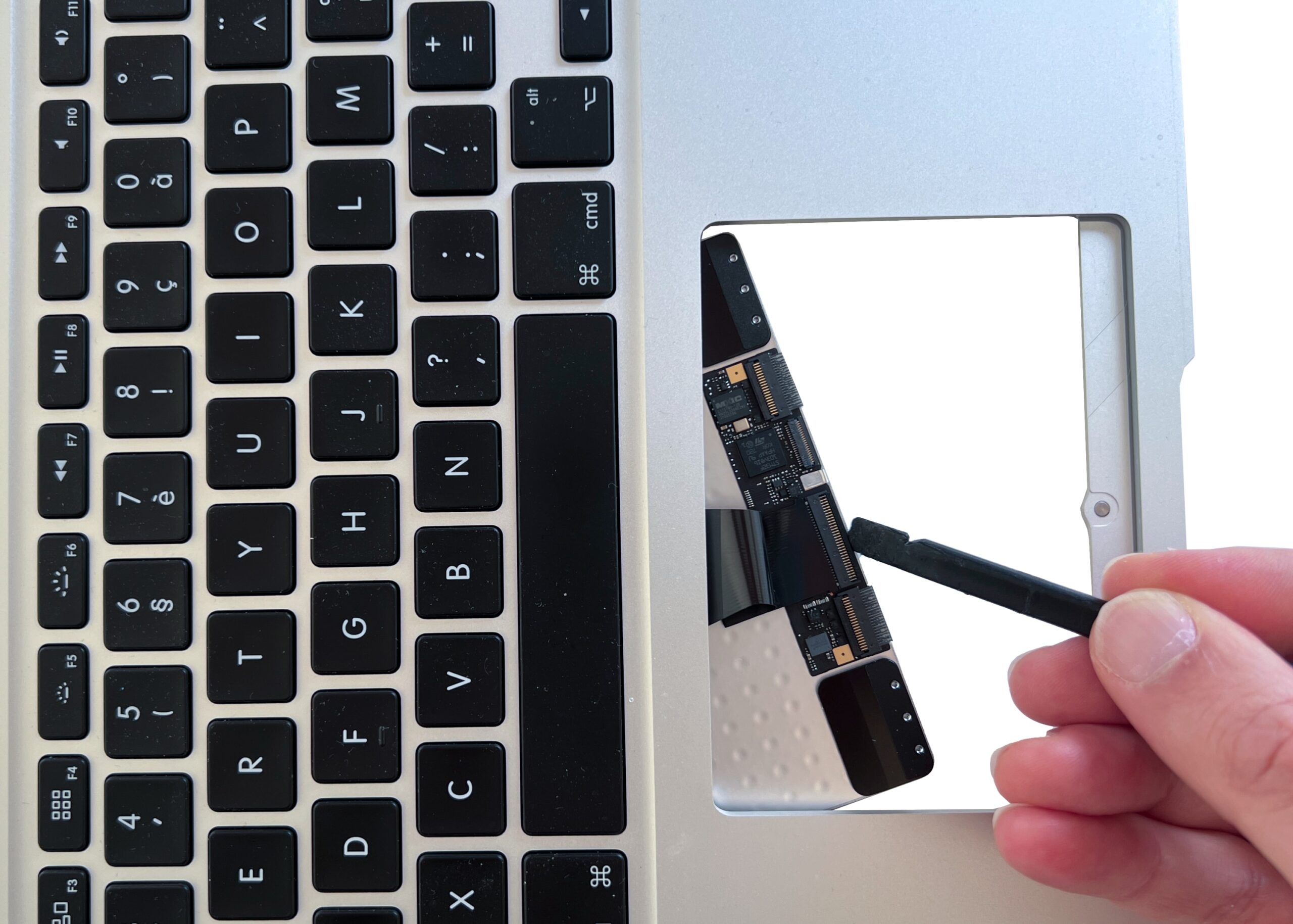
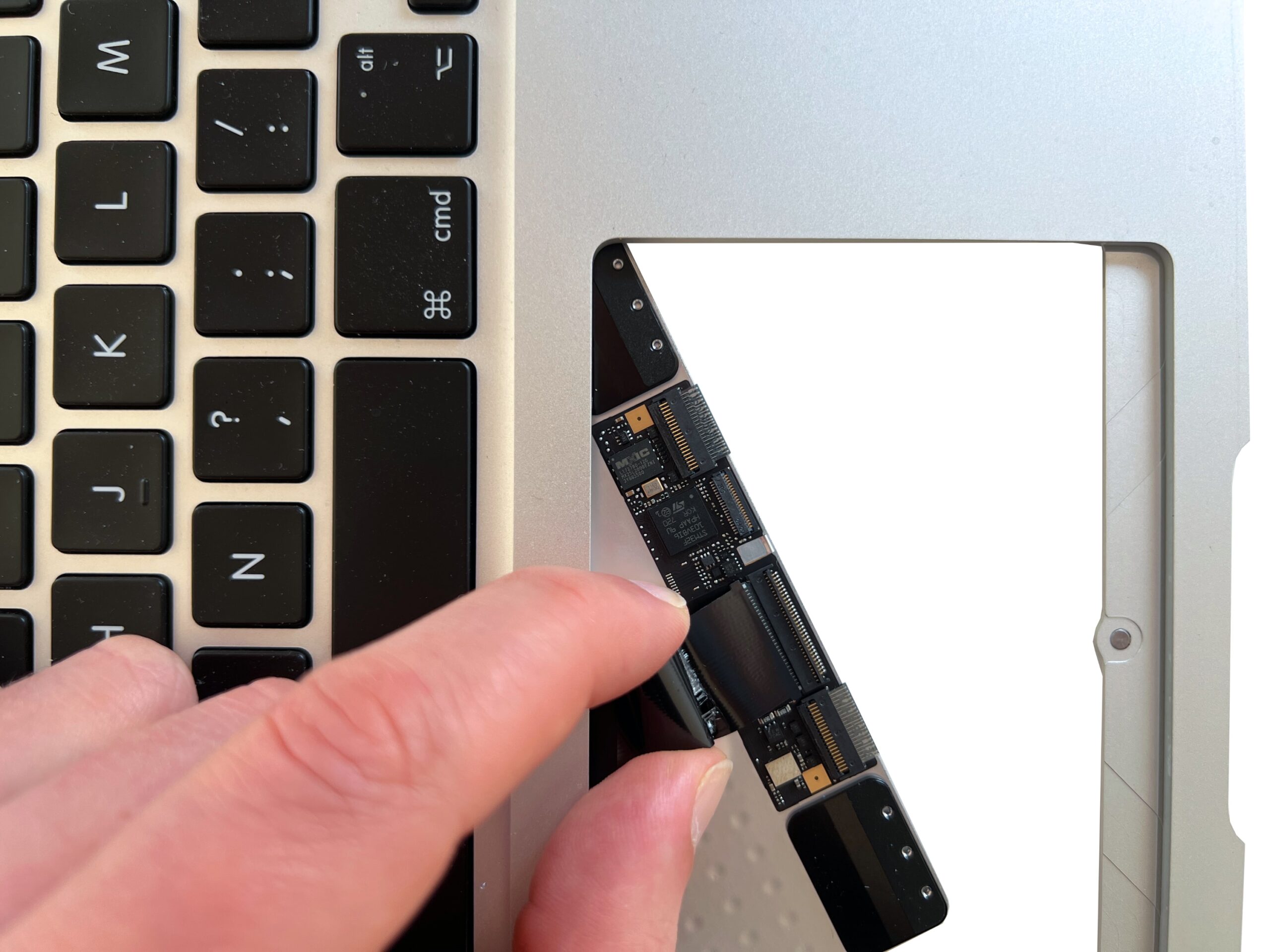
Carefully turn the trackpad over to give you easy access to the back.
Then lift the latch holding the trackpad flex cable and disconnect it
⚠️ Caution: these latches are extremely fragile, so proceed with the utmost care and close the latch once the flex cable is disconnected