


Tutorial: MacBook Air 13″ A1466 2013-2017 AirPort Wi-Fi Card Replacement
📶 Is your MacBook Air 13″ A1466 no longer picking up Wi-Fi or having connection problems? This comprehensive tutorial guides you step by step through replacing the faulty AirPort Wi-Fi card, with no technical expertise required.
Compatible with the 2013, 2014, 2015 and 2017 A1466 models, this illustrated guide helps you restore your connectivity easily, with the right tools and a clear method.
🌐 Get a fast, stable Wi-Fi connection back on your MacBook Air 13″ — avoid workshop repair costs and do the job yourself, safely.
Compatible models:
MacBook Air 13″ A1466 Mid 2013
MacBook Air 13″ A1466 Early 2014
MacBook Air 13″ A1466 Early 2015
MacBook Air 13″ A1466 2017
Step-by-step guide
-
Step 1 of 9 1. Shut down the MacBook
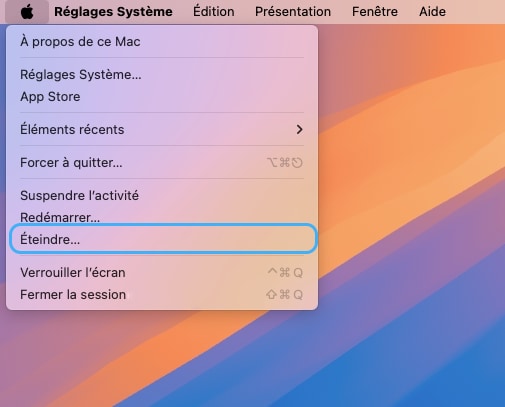
Shut down your MacBook Air and unplug the power supply
🚨 Never carry out any disassembly on a MacBook that is switched on
-
Step 2 of 9 2. Unscrew the bottom case
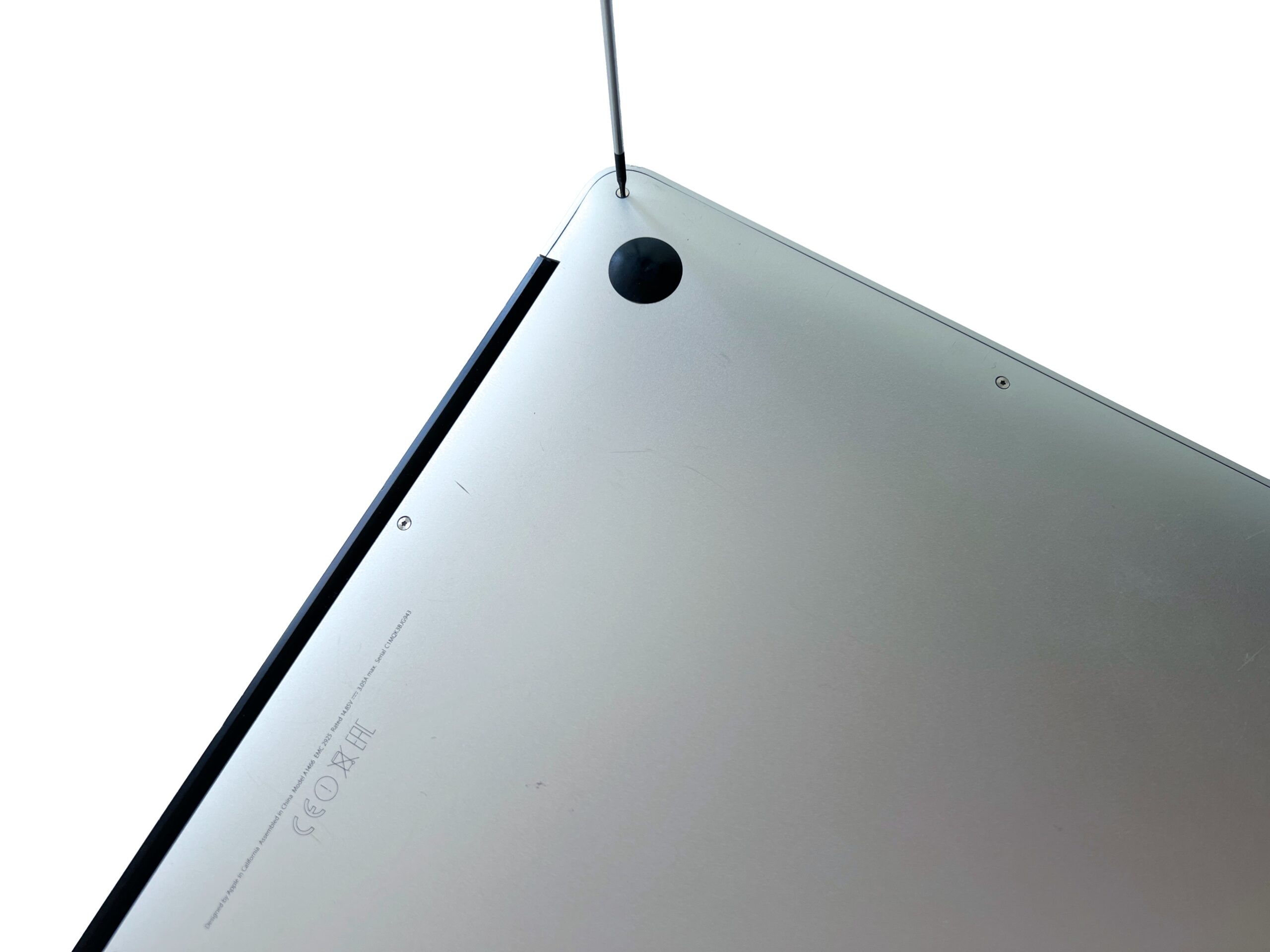
Remove the 10 external screws of the MacBook Air securing the bottom case using a P5 pentalobe screwdriver
-
Step 3 of 9 3. Remove the bottom case
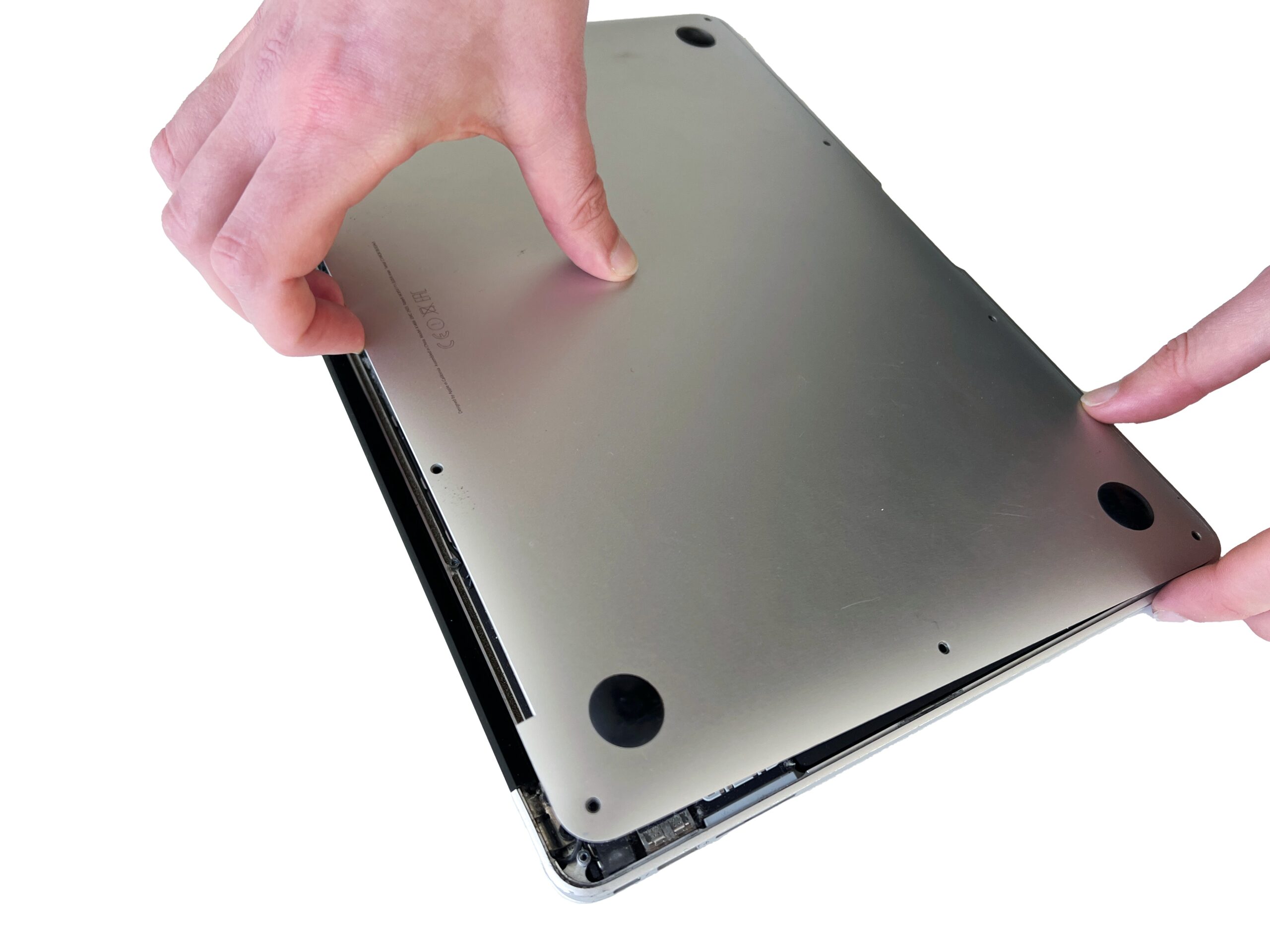
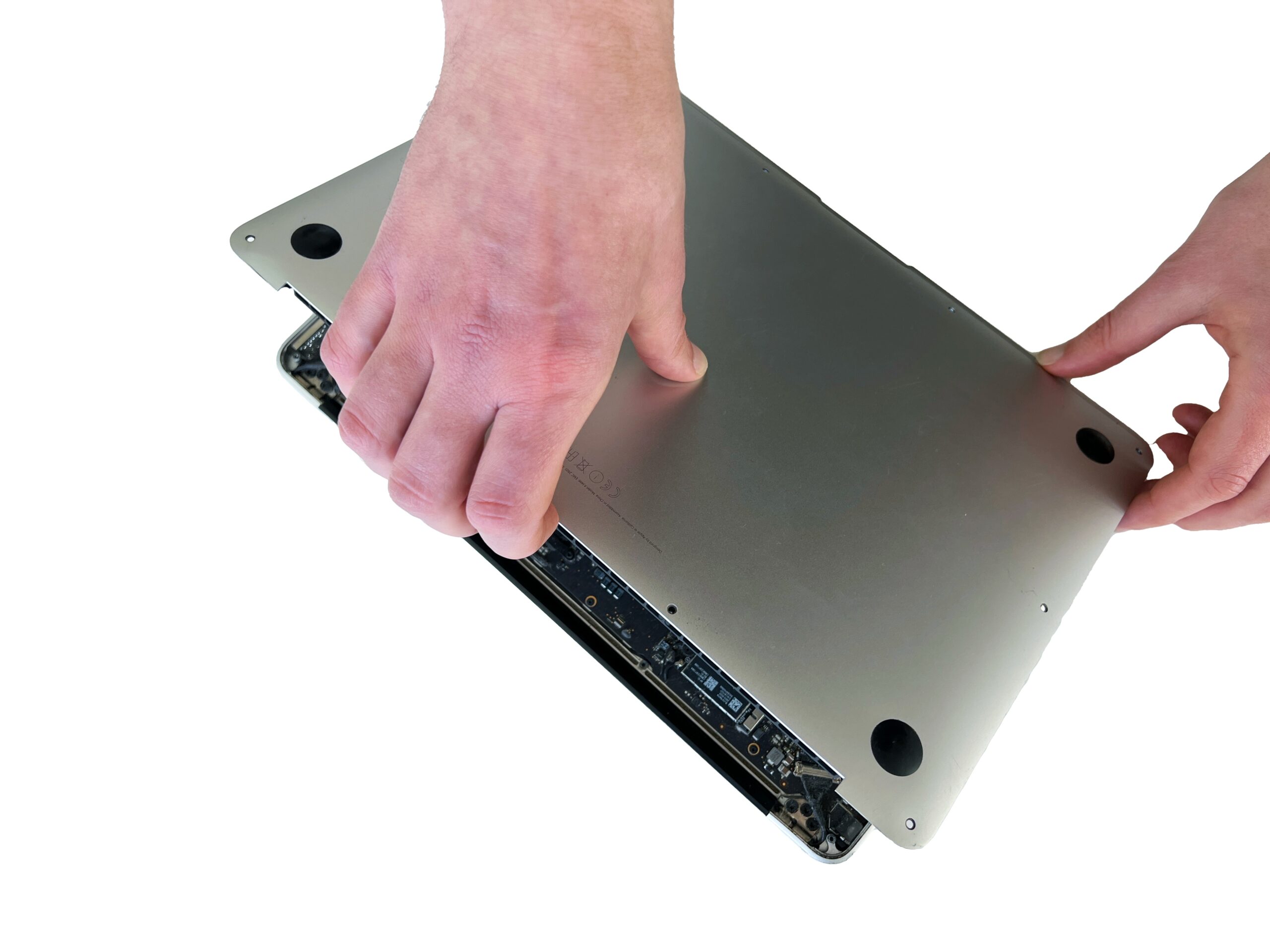
Gently lift the bottom case from the top edge to remove it from the Mac.
💡 If the cover won't lift, you've probably missed a screw!
-
Step 4 of 9 4. Disconnect the battery
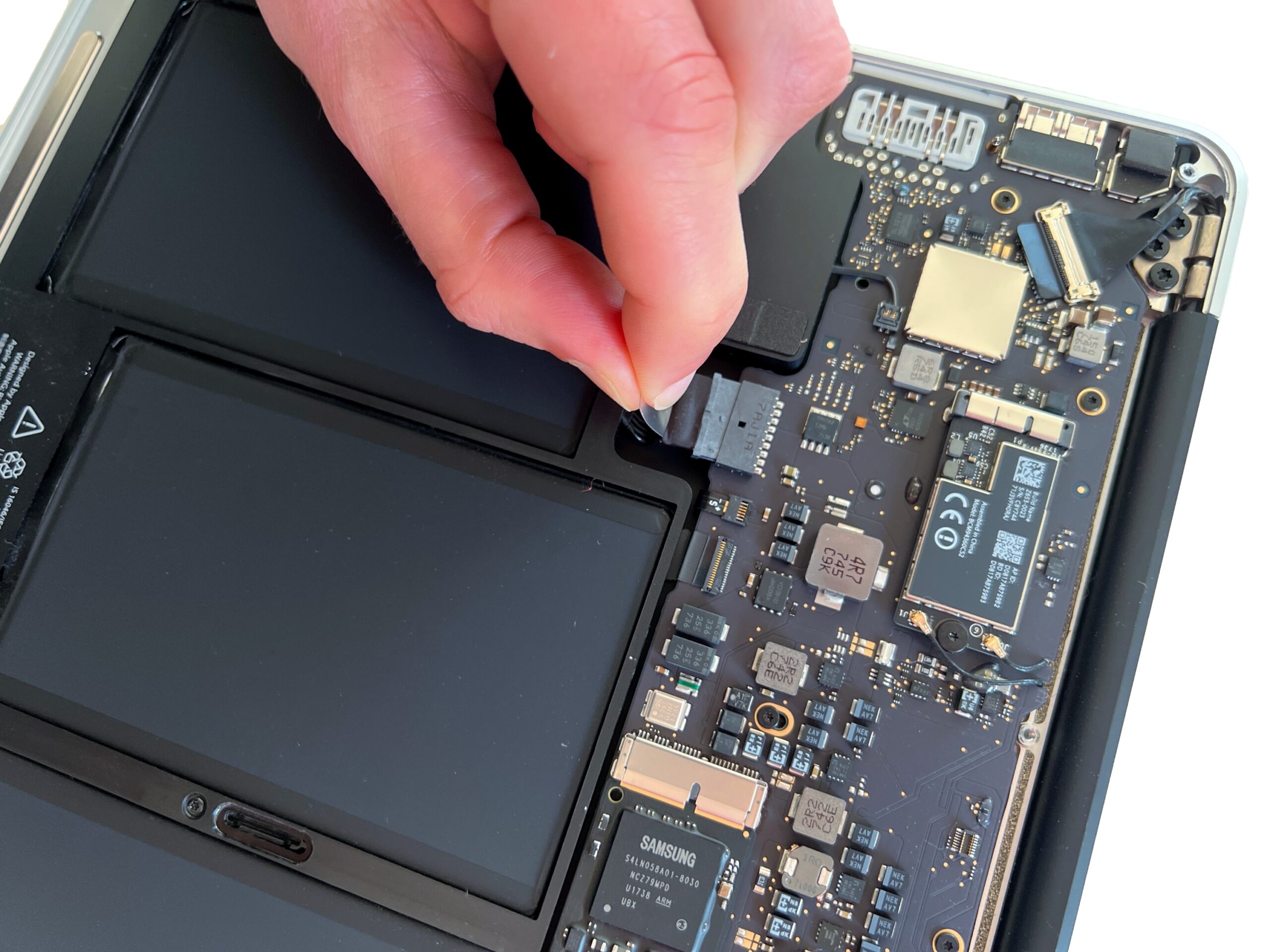
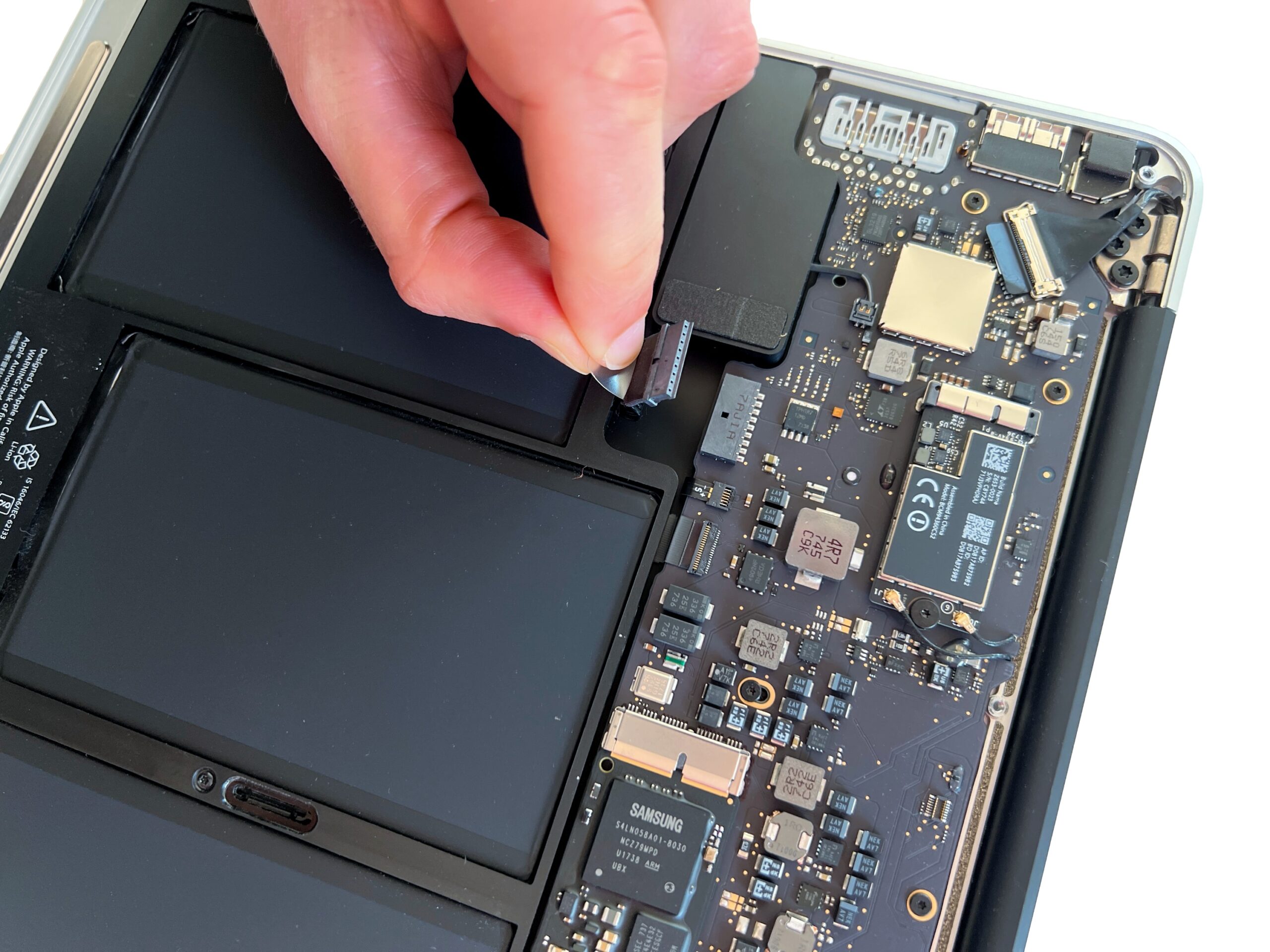
Pull the plastic tab to gently remove the battery connector.
🚨 Always start with this step before touching any other components of the Mac
-
Step 5 of 9 5. Unscrew the battery
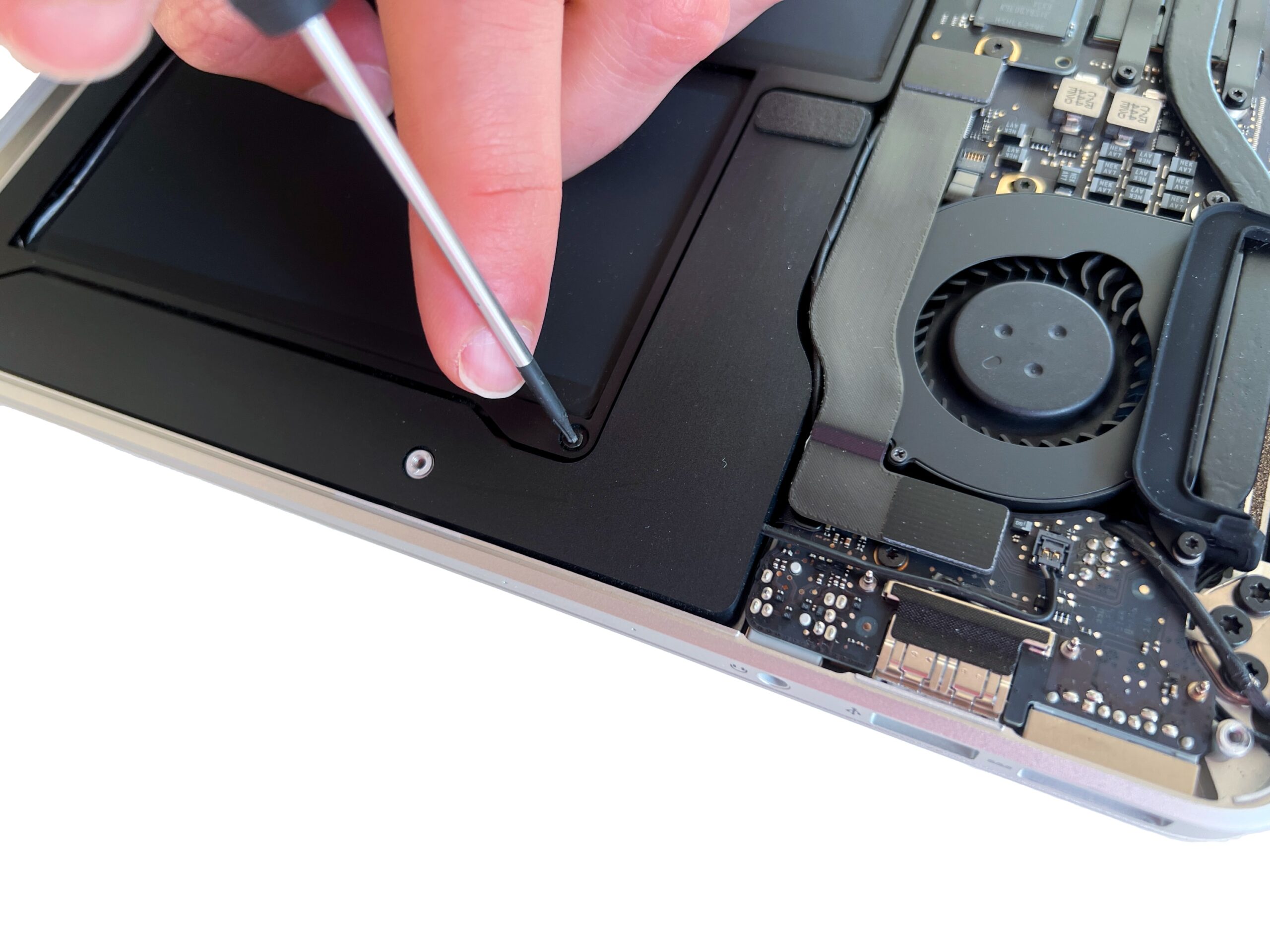
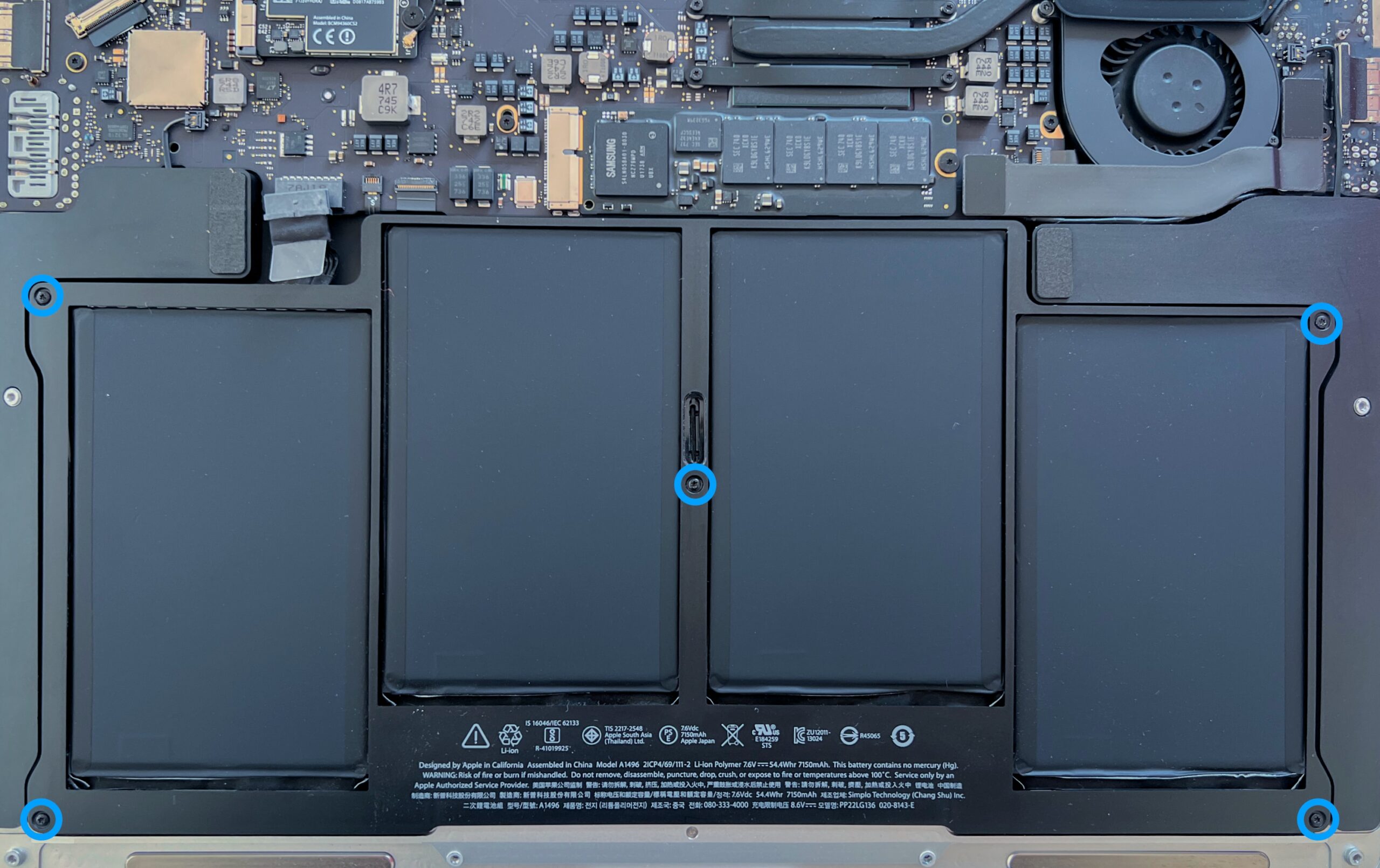
Remove the 5 Torx T5 screws holding the MacBook Air battery in place
If a screw is missing, you can find it in the complete screw kit for this model.
-
Step 6 of 9 6. Remove the battery
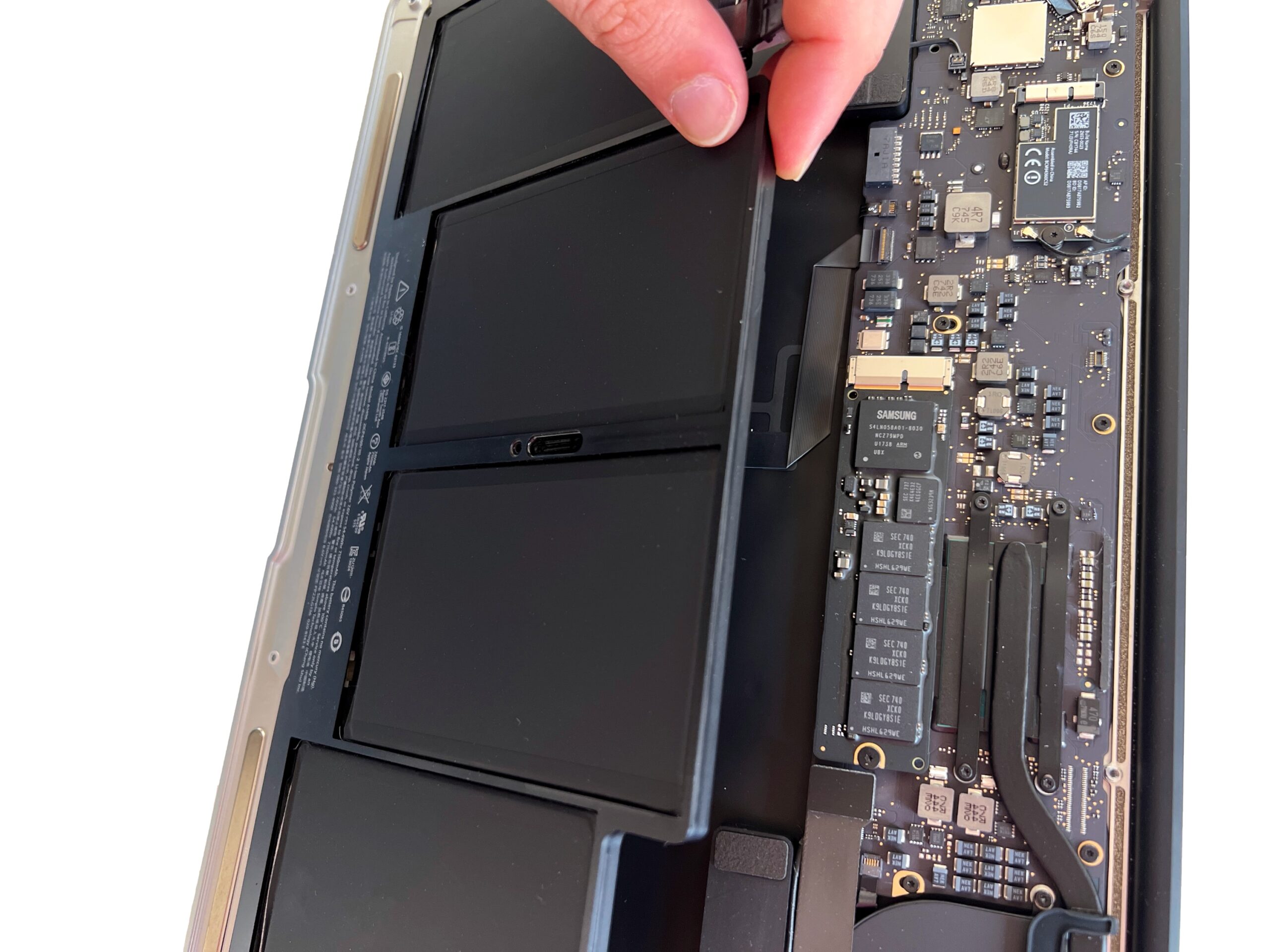
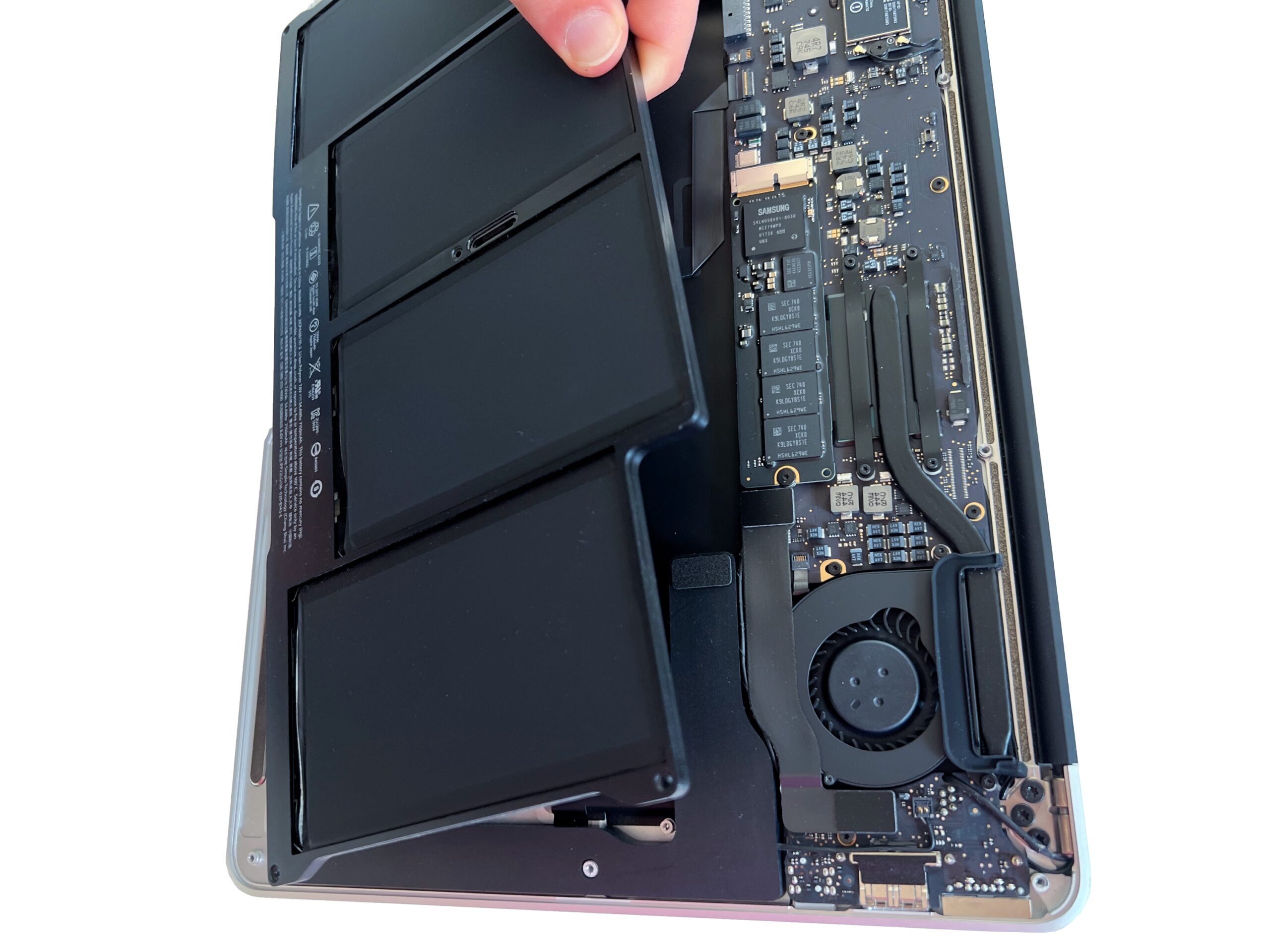
Gently lift the battery to remove it.
The battery should come away easily, without any resistance -
Step 7 of 9 21. Disconnect the AirPort cables
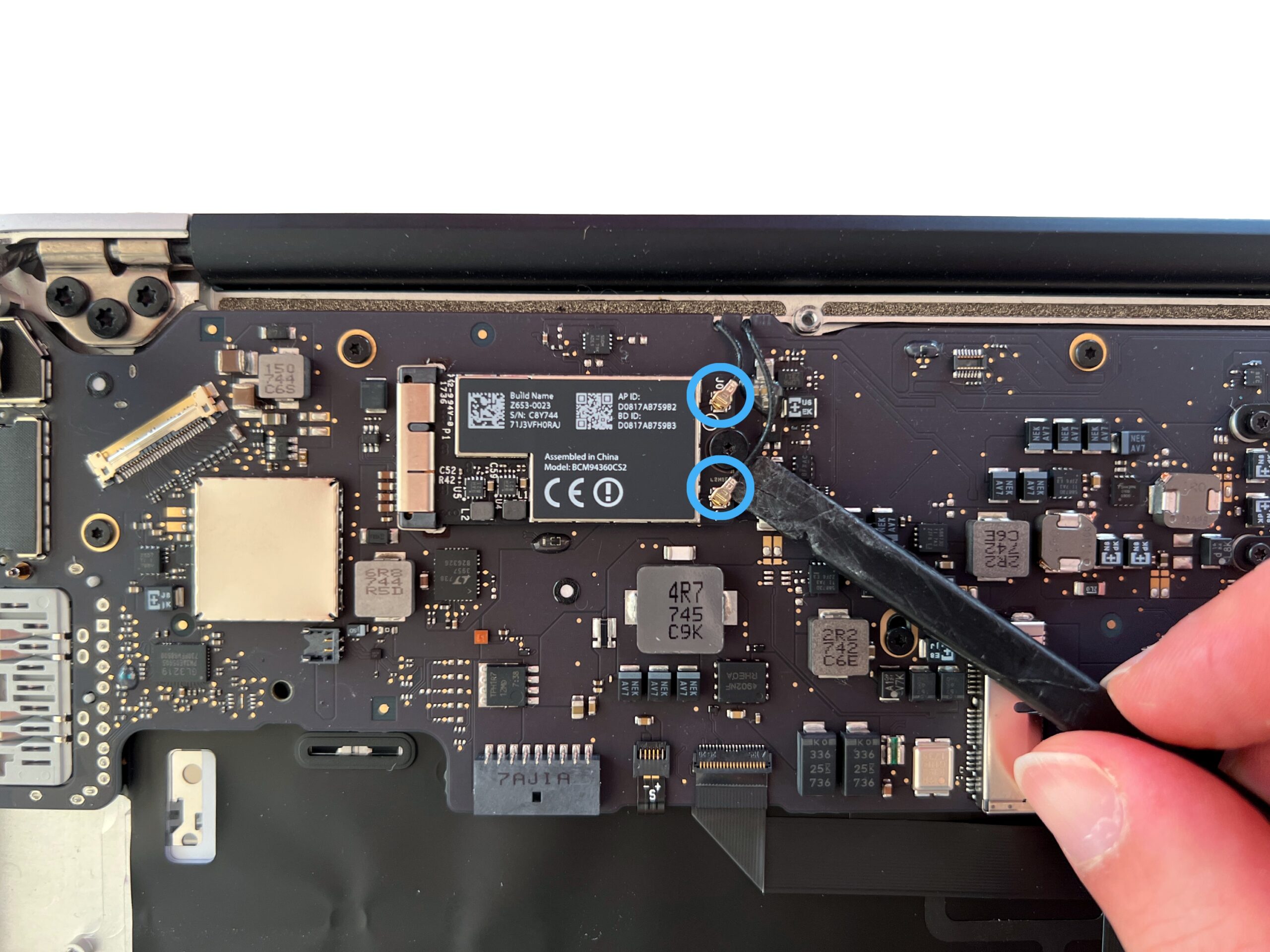
Use a plastic tool to disconnect the two AirPort antenna cables from the card
-
Step 8 of 9 22. Unscrew the AirPort card
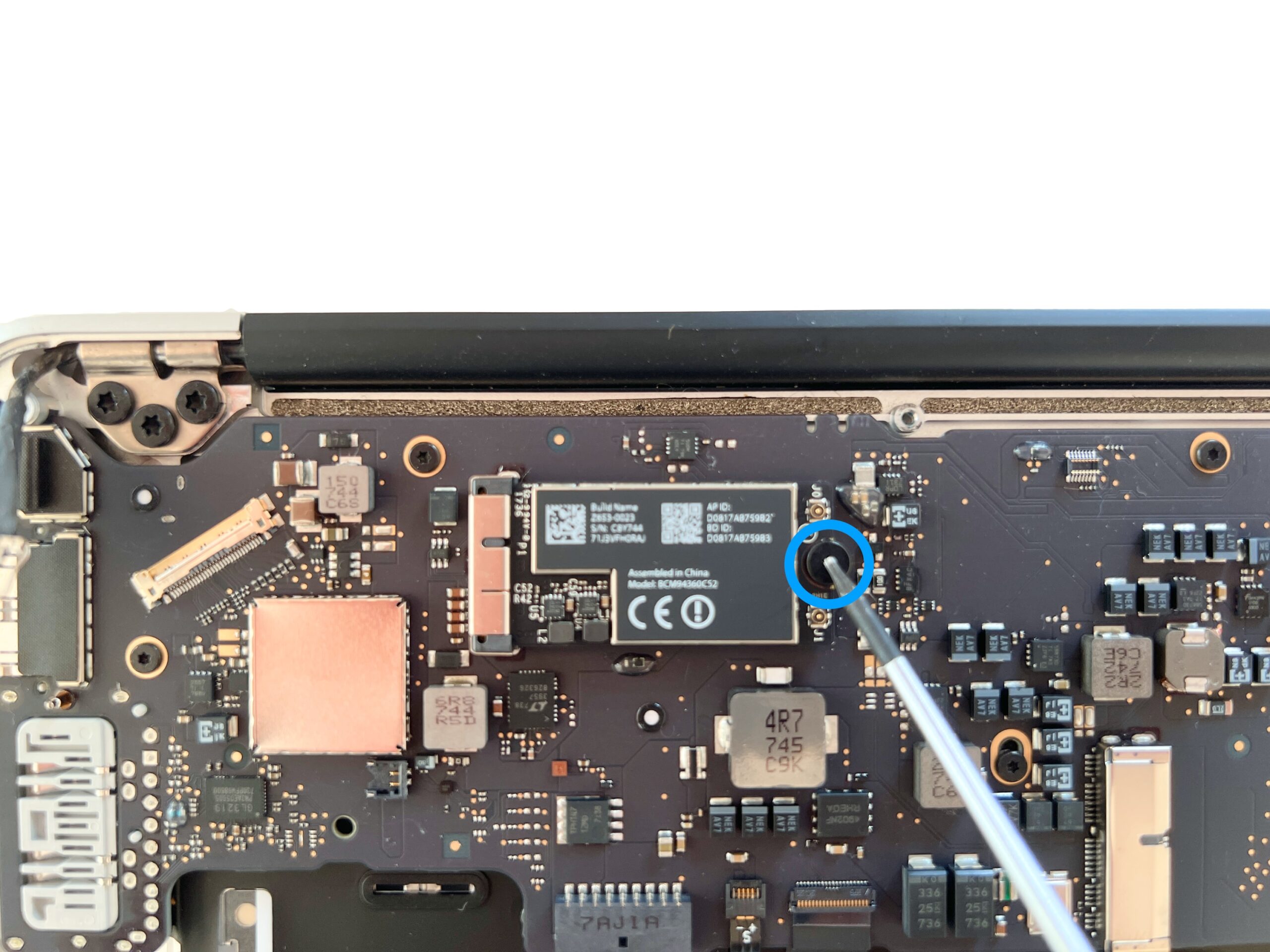
Remove the Torx T5 screw securing the MacBook Air's AirPort card (Wi-Fi and Bluetooth)
-
Step 9 of 9 23. Remove the AirPort card
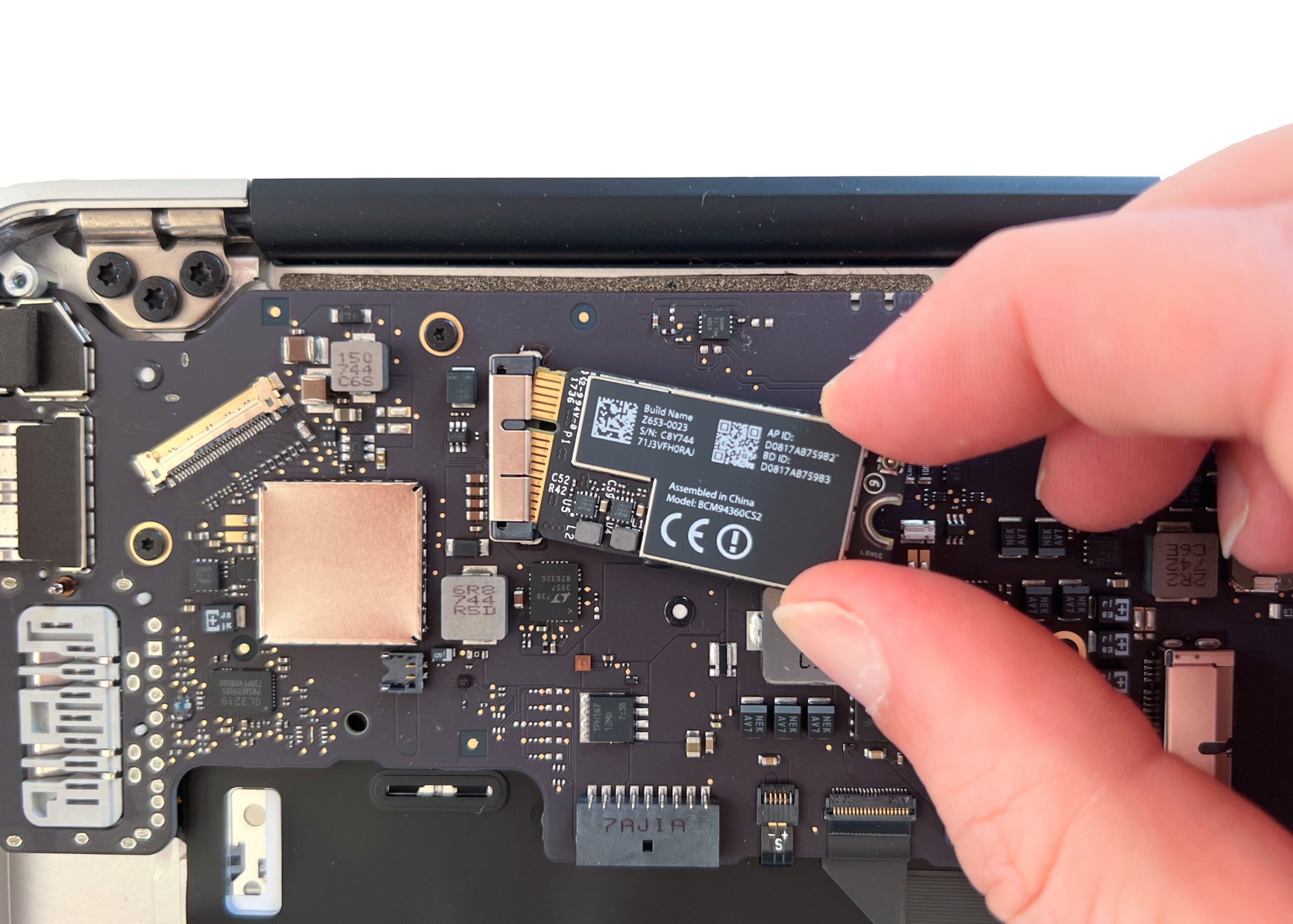
Now that the MacBook Air Wi-Fi card is unscrewed, remove it by pulling gently.
The card is often firmly seated: pull while wiggling it from side to side, never pulling upwards